Cleaning
If
white lines or period-like dots are printed on
the pictures, use the cleaning cartridge and
cleaning sheet supplied to clean inside the
printer.
Before you start cleaning the printer, please
remove any memory cards, USB memories, or
USB cables from the printer.
1 Open the ink ribbon compartment
door and if there is an ink ribbon
inserted, remove it.
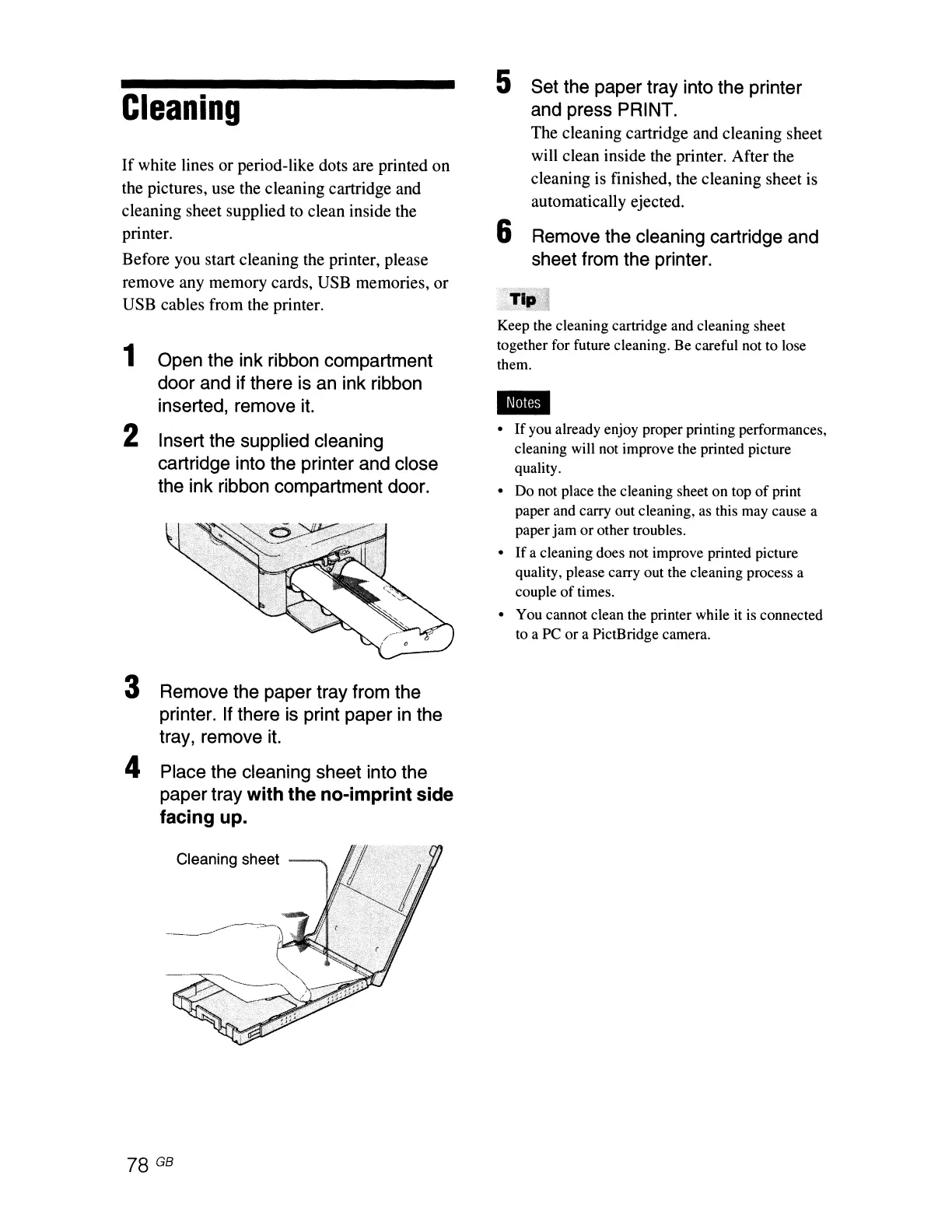
2 Insert the supplied cleaning
cartridge into the printer and close
the ink ribbon compartment door.
3 Remove the paper tray from the
printer. If there is print paper in the
tray, remove it.
4 Place the cleaning sheet into the
paper tray
with the no-imprint side
facing up.
Cleaning sheet
78
GB
5 Set the paper tray into the printer
and press PRINT.
The cleaning cartridge and cleaning sheet
will clean inside the printer. After the
cleaning
is
finished, the cleaning sheet is
automatically ejected.
6 Remove the cleaning cartridge and
sheet from the printer.
Keep the cleaning cartridge and cleaning sheet
together for future cleaning. Be careful not to lose
them.
-
• If you already enjoy proper printing performances,
cleaning will not improve the printed picture
quality.
• Do not place the cleaning sheet on top
of
print
paper and carry out cleaning, as this may cause a
paper
jam
or
other troubles.
•
If
a cleaning does not improve printed picture
quality, please carry out the cleaning process a
couple
of
times.
• You cannot clean the printer while it is connected
to a PC or a PictBridge camera.



 To Next Page