Using markers
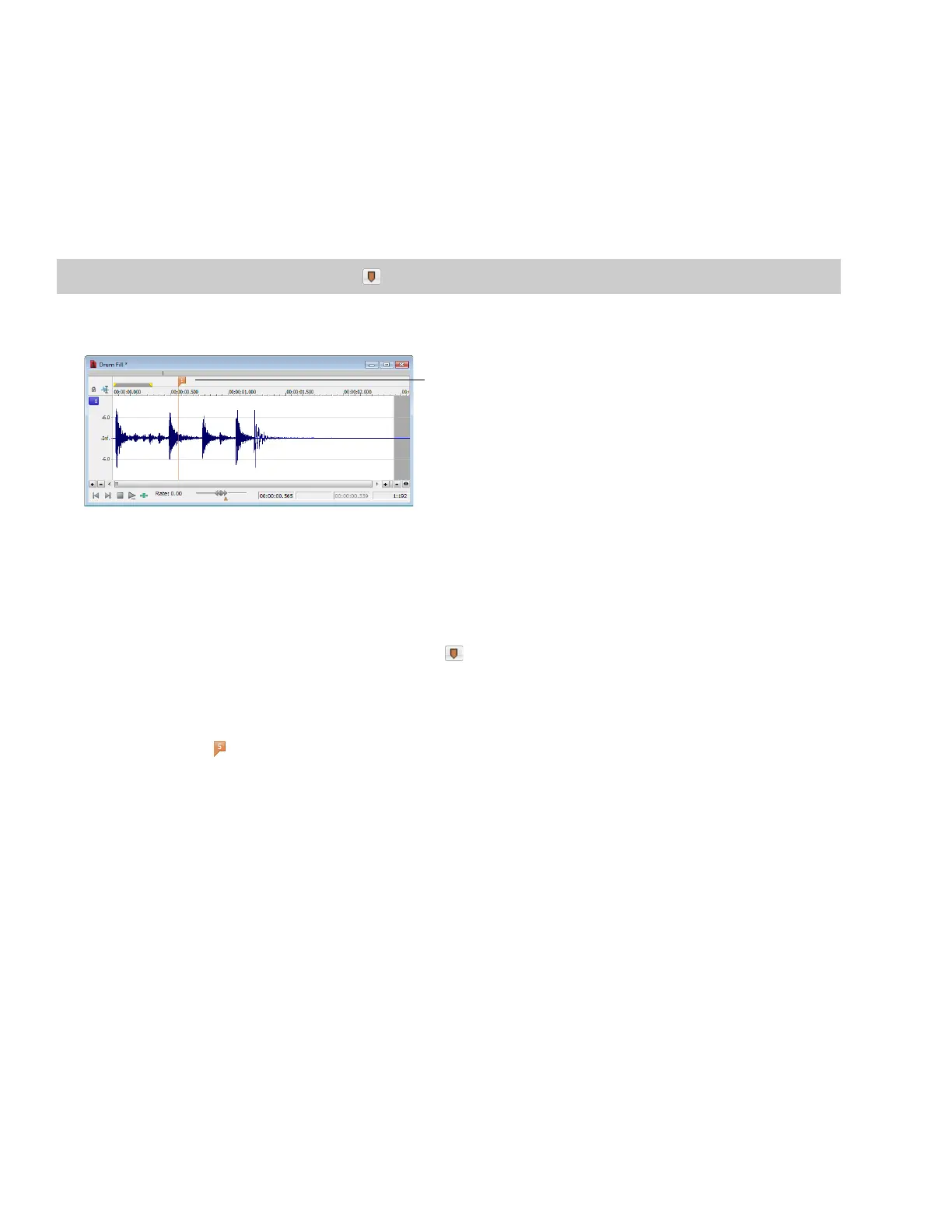
A marker is a tag placed in an audio file that is used as a reference point. Markers make navigating a file easier and more efficient.
Markers can be quickly selected from the list in the Go To dialog. Also, markers are displayed in the Regions List for quick playback.
Inserting markers
1.
Click to position the cursor in the waveform.
2.
From the Insert menu, choose Marker. A marker is placed in the waveform at the exact location of the cursor.
Tip:
You can also click the Insert Marker button ( ) on the Insert toolbar or press M.
3.
If you want to name the marker, right-click the tag and choose Rename from the shortcut menu. Type a name for the marker in the
edit box and press Enter.
Inserting markers during playback
To insert markers in real time during playback, press M.
Inserting markers during recording
To insert markers during recording, click the Insert Marker button (
) in the Record dialog or press M. For more information, see
Inserting markers while recording on page 143.
Naming or renaming markers
Right-click the marker tag ( ) and choose Rename from the shortcut menu. Type the name of the marker in the edit box and press
Enter when you’re finished.
—or—
Double-click to the right of the marker and type a name in the edit box.
114
| CHAPTER 7









 To Next Page