Removing a plug-in from a chain
To remove a specific plug-in from a chain, select it and click the Remove Selected Plug-In button ( ). The plug-in is removed and the
remaining plug-ins are adjusted.
Tip:
You can also remove plug-ins by performing one of the following actions:
• Press Ctrl+Tab to select the next plug-in or Ctrl+Shift+Tab to select the previous plug-in, and then press Ctrl+Delete to remove the
selected plug-in from the chain.
• Right-click a plug-in in the chain and choosing Remove from the shortcut menu.
You can arrange the order of plug-ins in the chain in either the Plug-In Chainer or the Plug-In Chooser.
Note:
The order of plug-ins in a chain can have a dramatic effect on the final product of audio signal processing.
Arranging plug-in order in the Plug-In Chainer
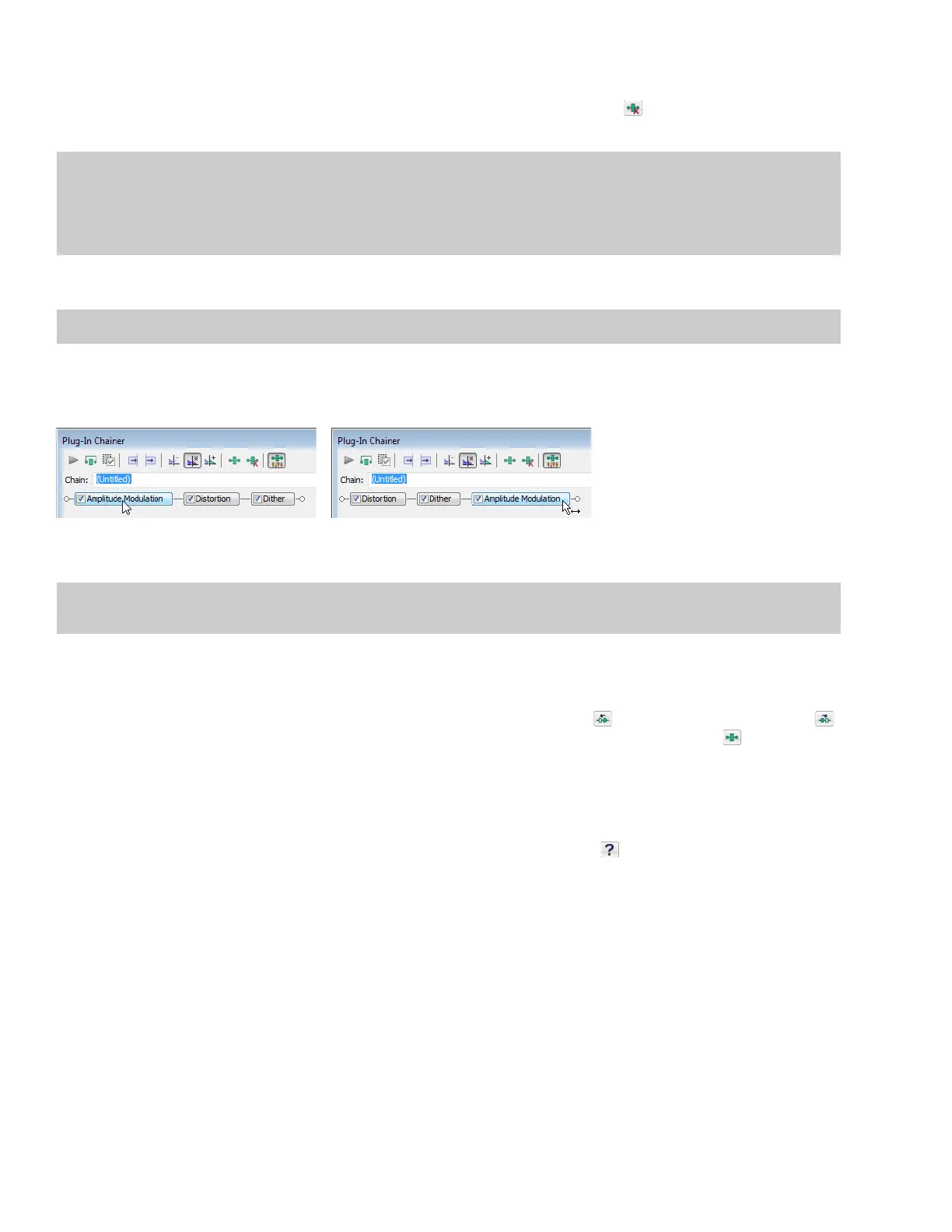
In the Plug-In Chainer window, drag an effect to a new location in the chain.
Drag a plug-in in the Plug-In Chainer
to a new location in the chain.
Tip:
You can also change the plug-in order by right-clicking a plug-in in the chain and choosing either Move Left or Move Right from
the shortcut menu.
Arranging plug-in order in the Plug-In Chooser
You can drag an effect to a new location in the chain in the Plug-In Chooser in the same way you can in the Plug-In Chainer. In addition,
you can rearrange the chain by selecting a plug-in and clicking the Shift Plug-In Left button (
) or the Shift Plug-In Right button ( )
to move it forward or backward in the chain. To access the Plug-In Chooser, click the Add Plug-Ins to chain button ( ) in the Plug-In
Chainer window.
Configuring chained plug-ins
To configure the parameters of specific plug-in, select it from the chain. The plug-in’s parameters display, allowing you to adjust all
controls as needed. For help on the different plug-in controls, click the Help for Effect button (
) or click a control and press Shift+F1.
198
| CHAPTER 12












 To Next Page