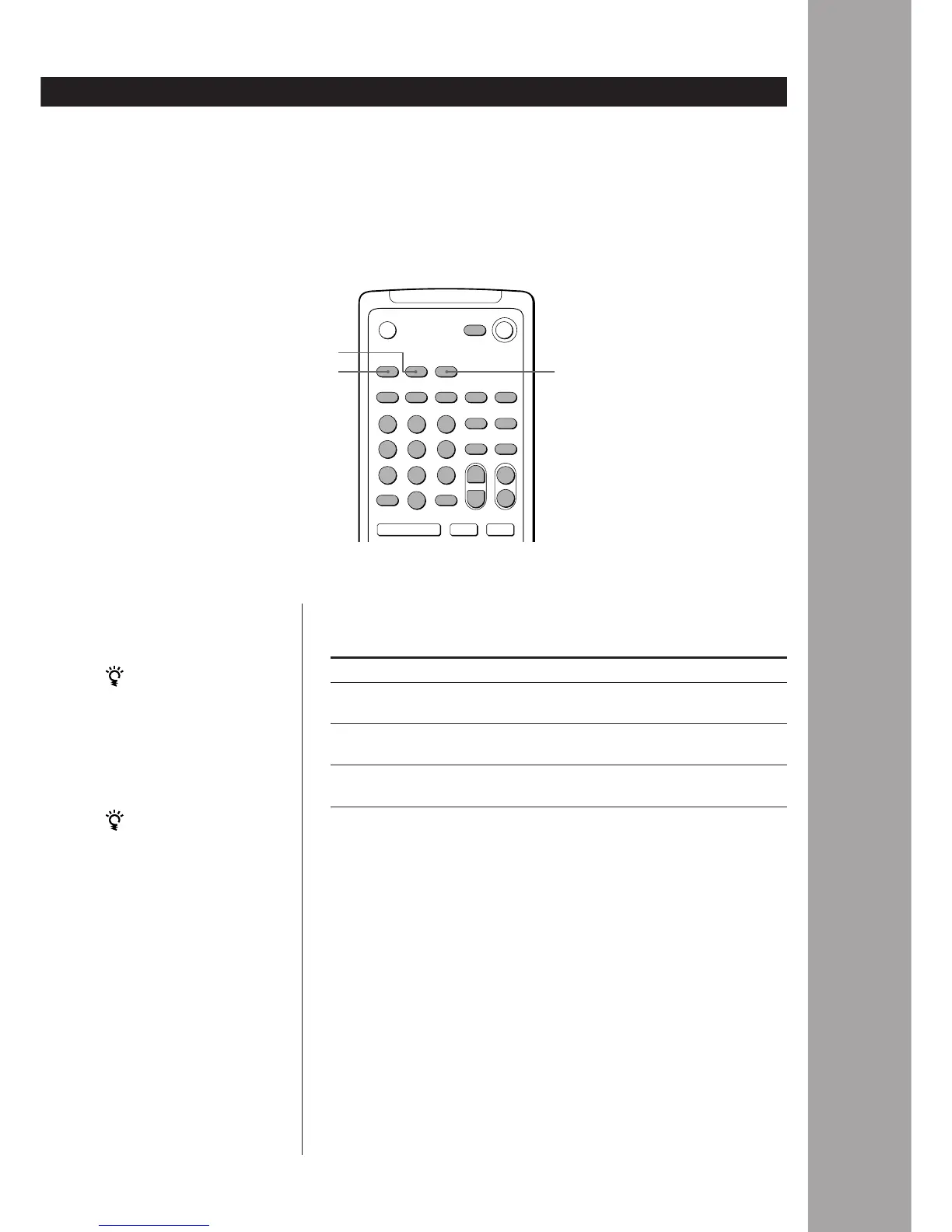
With the factory settings, VIDEO 1 lets you control a Sony VHS video deck
and VIDEO 2 lets you control a Sony 8 mm video deck.
To control a Press
Sony TV TV CONTROL, then press the button(s) for the
operation you desire.
Sony VHS video deck VIDEO 1, then press the button(s) for the
operation you desire.
Sony 8 mm video deck VIDEO 2, then press the button(s) for the
operation you desire.
To turn a Sony video deck on or off
1 Press VIDEO 1 or VIDEO 2 to select the component you want to turn on or
off.
2 Press VISUAL POWER.
To turn a Sony TV on or off
1 Press TV CONTROL.
2 Press VISUAL POWER.
To switch the input on a Sony TV
1 Press TV CONTROL.
2 Press TV/VIDEO.
To record on a Sony video deck using this remote
1 Press VIDEO 1 or VIDEO 2 to select the video deck.
2 Press ( and r at the same time.
If you use Sony video
components
The system automatically
switches to the appropriate
video input when you press
VIDEO 1 or VIDEO 2 on the
remote.
Watching TV without the
audio system (for Sony TVs
only)
Press TV CONTROL to set
the remote to operate TV
functions only.
See “Description of other
buttons on the remote” on
page 24 for available
functions.
VIDEO 2
VIDEO 1 TV CONTROL
(continued)


 To Next Page