44
Operating the Radio Using OSD
Tuning Preset Stations One by One
1
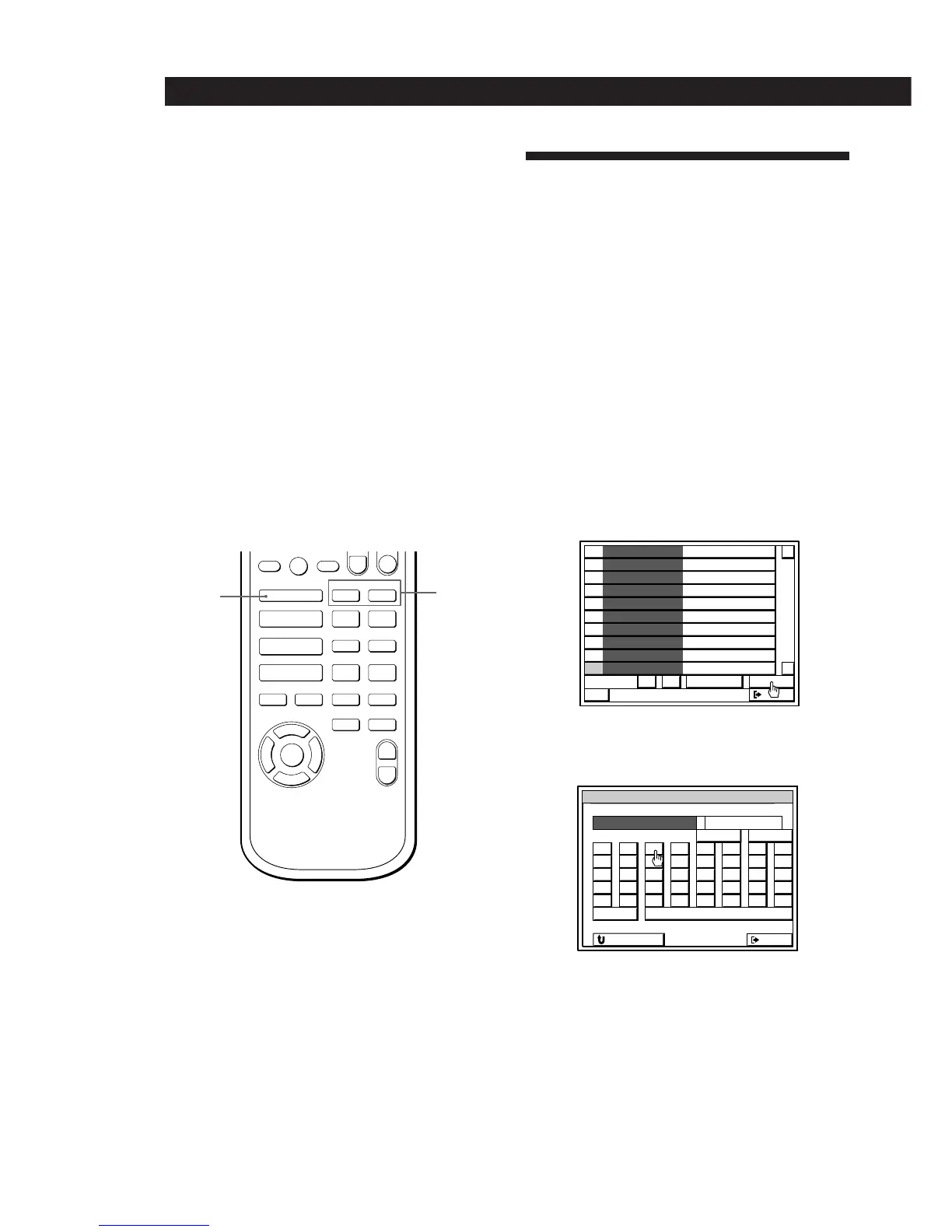
Click FUNCTION in the main menu.
2 Click TUNER .
3 Click SUB.
4 Click TUNING MODE repeatedly to select
“PRESET”.
5 Click + or – next to the frequency to tune in a
preset station.
Tuning preset stations without using the
on-screen display
You can also tune stations without using the on-screen
display. You might find this necessary for broadcasts
that are difficult to receive when the TV is turned on,
such as those from AM stations.
1 Press TUNER/BAND repeatedly to select FM or
AM.
2 Press TUNING MODE on the right front speaker
repeatedly so that “PRESET” appears in the
display.
3 Press TUNING + or – to tune in desired the preset
station.
Naming Preset Stations
You can customize the tuner’s preset list by entering
names up to 10 characters long for each preset radio
station.
1 Click FUNCTION in the main menu.
2 Click TUNER .
3 Click LIST to display the tuner’s preset list.
4 Click > or . to display the preset station (1 ~ 30)
you want to name.
5 Click the preset number of the station you want to
name.
6 Click INDEX.
The TUNER INDEX SETTING menu appears.
7 Spell out the name by clicking each character in
order.
To enter a space
Click the space bar.
To switch between upper and lower case letters
Click CAPS.
If you make a mistake
Click ? or / to move the cursor to the character to be
changed, then click the correct character (or click the
space bar to erase the character).
TUNER INDEX SETTING
EXIT
A
F
K
P
U
B
G
L
Q
V
C
H
M
R
W
D
I
N
S
X
E
J
O
T
Y
1
4
7
/
Z
2
5
8
0
–
3
6
9
*
+
CAPS
bB
RETURN
10
FM
87.50
M
Hz
MEMORY
+
FM
BAND
95.50
M
Hz
INDEX
STEREO
EXIT
10
–
AUTO
FM
87.50
M
Hz
9
FM
87.50
M
Hz
8
FM
87.50
M
Hz
7
FM
87.50
M
Hz
6
FM
87.50
M
Hz
5
FM
4
FM
106.00
M
Hz
3
FM
87.50
M
Hz
2
FM
87.50
M
Hz
1
FM
87.50
M
Hz
108.00
M
Hz
v
V
Ȯ
Æ
=
+
pP
OSD ON/OFF
EXITRETURN
OSD CONTROL
ENTER
MEMORY
+
–
0
)
TUNING
BAND
TUNER
+
–
4
$
TUNER
TUNING
–/+
TUNER/
BAND


 To Next Page