41
Operating the Radio Using OSD
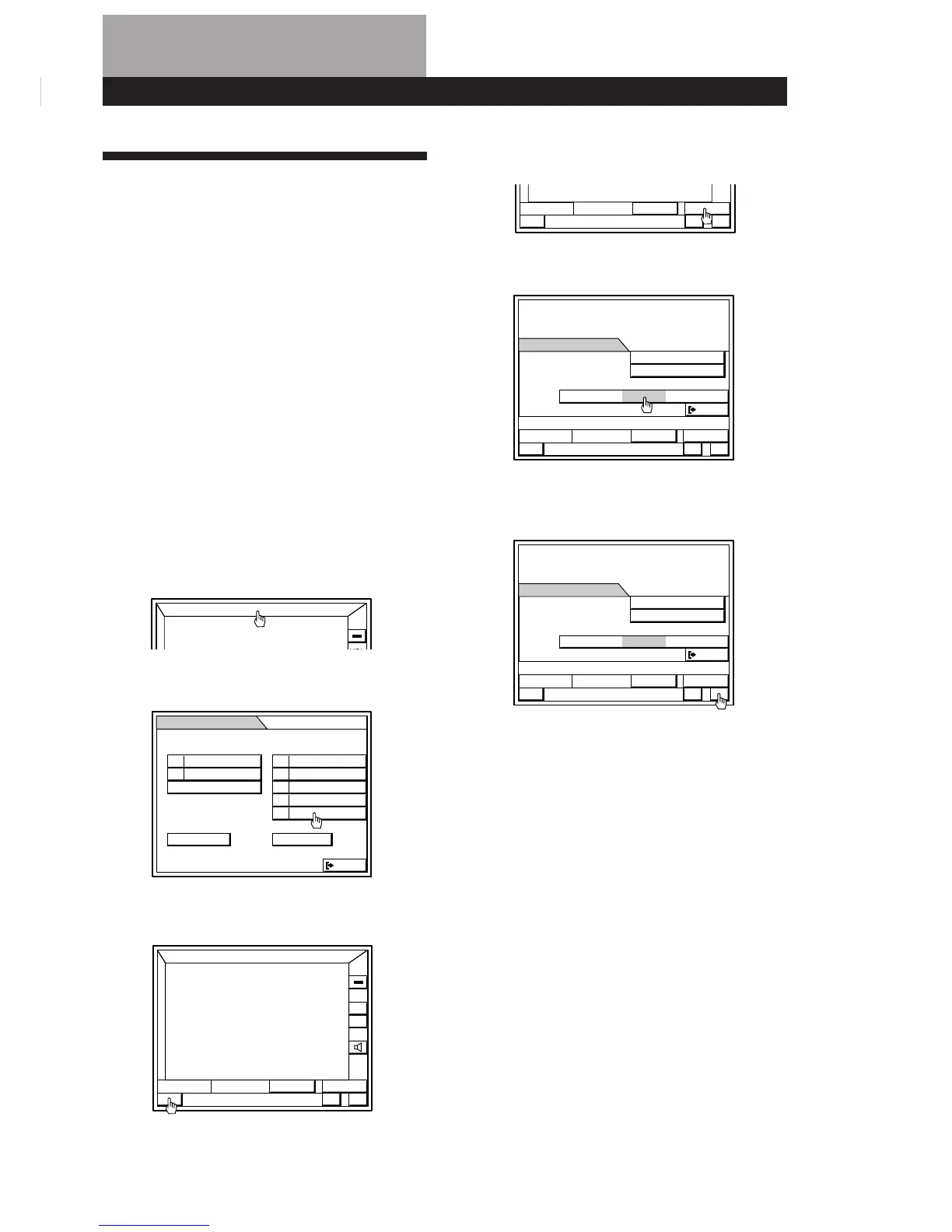
4 Click SUB
5 Click TUNING MODE repeatedly to select AUTO.
6 Click + or – next to the frequency to tune in a
station.
The tuner starts scanning radio frequencies and
stops automatically when it finds a clear station.
When an FM stereo broadcast is received,
“STEREO” turns from grey to orange.
When you tune past either end of the band, the
tuner automatically jumps to the opposite end
and continues scanning in the same direction.
Every time a station is received, the tuner stops
scanning. To continue scanning, press the icon
again.
When the desired station is not tuned in
Automatic tuning may skip stations with a weak signals.
Tune in the station manually.
1 Click TUNING MODE repeatedly to select “MANUAL”.
2 Click + or – repeatedly until the desired station is tuned
in.
FUNCTION
SYS
OFF
EXIT
FUNCTION
TUNER
SOUNDVISUAL
FUNCTION
+
–
VOL
SYS
OFF
LIST
S
O
U
N
D
+
–
FM
BAND
87.50
M
Hz
SUB
STEREO
LIST
+
–
FM
BAND
87.50
M
Hz
SUB
STEREO
LIST
+
–
FM
BAND
87.50
M
Hz
SUB
STEREO
SUB
PRESET
REC EDIT
STEREO/MONO
TUNING MODE
EXIT
AUTOMANUAL
LIST
+
–
FM
BAND
87.50
M
Hz
SUB
STEREO
SUB
STEREO
PRESET
REC EDIT
STEREO/MONO
TUNING MODE
EXIT
AUTOMANUAL
Operating the Radio Using OSD
Listening to the Radio
When you want to play a radio program, you can have
the tuner automatically scan the radio frequencies and
tune in the stations with clear signals. This feature
saves you time in searching for stations with clear
signals.
However, stations with weak signals may be skipped
by automatic tuning. Manually tune in the ones
skipped by automatic tuning.
To prevent noise pickup, keep the AM loop antenna away
from the unit and TV set.
If the noise is not reduced, turning off your TV may improve
reception.
Before you start
make sure you have connected the FM and AM
antennas as shown on pages 9 and 10.
1 Click FUNCTION in the main menu.
2 Click TUNER .
3 Click BAND to select FM or AM.
(continued)


 To Next Page