1-6
24
Setting the clock
Setting the clock
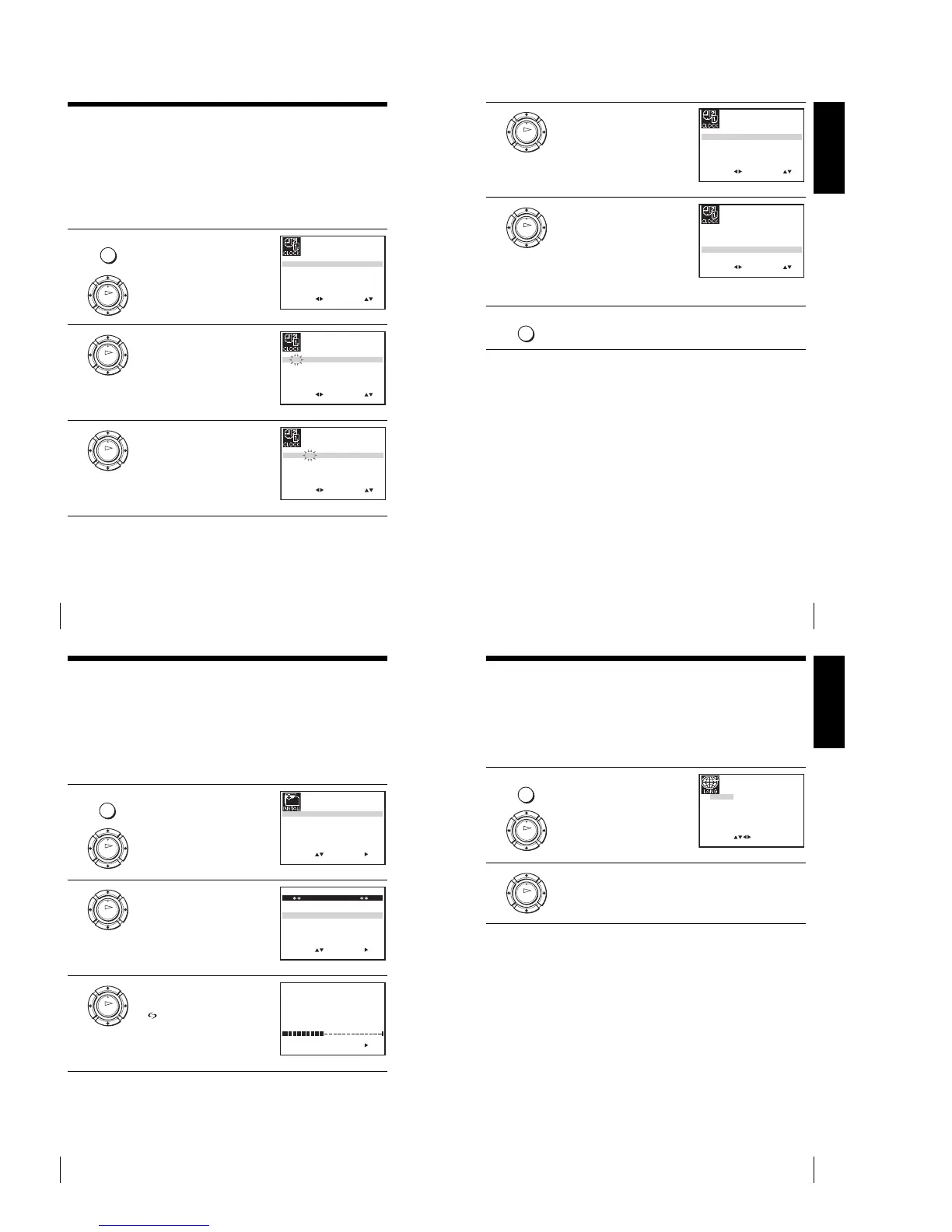
Yo u must set the time and date on the VCR to use the timer features properly.
The Auto Clock Set function* works only if a station in your area is broadcasting a
time signal.
Before you start
…
•Turn on the VCR and the TV.
•Set the TV to the video channel.
•Refer to “Index to parts and controls” for button locations.
1
Press MENU, then press M/m/</
, to highlight CLOCK SET and
press OK.
2
Press M/m to set the hour.
3
Press , to select the minutes and
set the minutes by pressing M/m.
MENU
OK
SET
MENU:
:
OK:END
SELECT
12 0 1 JAN/0:20
WED
03/
AUTO CLOCK ON:
:
EXIT
OK
SET
MENU:
:
OK:END
SELECT
18 0 1 JAN/0:20
WED
03/
AUTO CLOCK ON:
:
EXIT
OK
SET
MENU:
:
OK:END
SELECT
18 3 1 JAN/0:20
WED
03/
AUTO CLOCK ON:
:
EXIT
Getting Started
25
Setting the clock
Tips
•If you set AUTO CLOCK* to ON, the Auto Clock Set function is activated
whenever the VCR is turned off. The time is adjusted automatically by making
reference to the time signal from the station.
•To change the digits while setting, press < to return to the item to be changed, and
select the digits by pressing M/m.
*not available on SLV-SE630N and SE430K
4
Set the day, month, and year in
sequence by pressing , to select
the item to be set, and press M/m to
select the digits, then press ,.
The day of the week is set
automatically.
5
Press M/m to select ON for the
setting of the Auto Clock Set
function*.
The VCR automatically sets the
clock according to the time signal
broadcast between the channels
PR 1 to PR 5.
If you do not need the Auto Clock
Set function, select OFF.
6
Press MENU to exit the menu.
OK
SET
MENU:
:
OK:END
SELECT
18 3 82 SEP/0:20
SUN
03/
AUTO CLOCK ON:
:
EXIT
OK
SET
MENU:
:
OK:END
SELECT
18 3 82 SEP/0:20
SUN
03/
AUTO CLOCK ON:
:
EXIT
MENU
26
Downloading the TV tuner’s preset data (SLV-SE830N, SE730N and SX730N only)
Downloading the TV tuner’s preset data
(SLV-SE830N, SE730N and SX730N only)
Yo u can download your TV tuner’s preset data to the VCR and tune the VCR
according to that data using the SMARTLINK connection.
Before you start
…
•Turn on the VCR and the TV.
•Set the TV to the video channel.
•Refer to “Index to parts and controls” for button locations.
1
Press MENU, then press M/m/</
, to highlight INSTALLATION
and press OK.
2
Press M/m to highlight
SMARTLINK, then press ,.
3
Press M/m to highlight TV CH
DOWNLOAD, then press ,. The
Preset Download function starts and
the indicator flashes in the
display window during download.
MENU
OK
SET
MENU:
:
OK:END
SELECT
AUTO SET UP
MANUAL SET UP
SMARTLINK
32:VCR OUTPUT CH
:
EXIT
TV SYSTEM
:G
OK
EXIT MENU:
SET :
OK:END
SELECT
SMARTLINK
TV DIRECT RECORD : OFF
TV CH DOWNLOAD
:
OK
TV CH DOWNLOAD
40%
START:
OK:END EXIT MENU:
PLEASE WAIT
Getting Started
27
Selecting a language
Selecting a language
You can change the on-screen display language from the one you selected with the
Auto Set Up function.
Before you start…
•Turn on the VCR and the TV.
•Set the TV to the video channel.
•Refer to “Index to parts and controls” for button locations.
1
Press MENU, then press M/m/</
, to highlight LANGUAGE SET
and press OK.
2
Press M/m/</, to highlight the abbreviation of the desired
language from the table on page 20, then press OK.
MENU
OK
EXIT MENU:OK:SET
SELECT
GB
CZ
TR
RU
HU
PL
SK
:
OK



 To Next Page