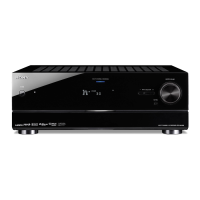
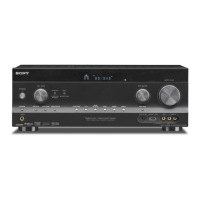
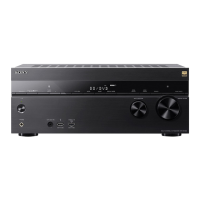
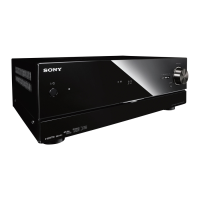
You can control the receiver using Video & TV SideView from a mobile device or tablet device.
You need to register your mobile devices in which Video & TV SideView is installed to the
receiver before you use Video & TV SideView for the first time.
Search for Video & TV SideView on Google Play or the App Store and download to your mobile
device.
Note
The registration can only be performed on the home menu.
[87] Using Network Features Using Video & TV SideView to control the receiver from a
smartphone or tablet device
Checking the registered Video & TV SideView device
(Registered Remote Devices)
You can check the Video & TV SideView devices which are able to control the receiver.
Note
You can register up to 5 Video & TV SideView devices. If you want to add a new device when a
maximum of 5 devices are set, remove unnecessary devices before adding the new device.
[88] Using Network Features Using Video & TV SideView to control the receiver from a
smartphone or tablet device
Deleting Video & TV SideView device from device list
You can check and delete the Video & TV SideView devices which are able to control the
receiver.
Download Video & TV SideView app to your mobile device.
1
Turn on the receiver and then connect it to the same network as your mobile device.
2
Press HOME to return to the home menu.
3
Turn on Video & TV SideView, and then select [Add device] and follow the screen
instructions both on Video & TV SideView and the receiver.
After registration is completed you can control the receiver using Video & TV SideView.
4
Select [Setup] - [Network Settings] from the home menu.
1
Select [Registered Remote Devices].
2
Select [Setup] - [Network Settings] from the home menu.
1
Select [Registered Remote Devices].
2



 To Next Page