23
Chapter 2 Menu
4
Repeat steps 2 and 3 until the desired menu is
displayed.
For more information about setting and
adjustments, see the next page.
To abort menu operation
Press the MENU button. The menu of the upper level
is displayed.
The setting or adjustment being performed is canceled,
and data loading or saving is aborted.
If “NG” or “ERROR” appears during menu operation
Press the MENU button to return to the menu in use.
Choosing one of two or more selections
Selecting in yellow text
1
Using the UP/DOWN buttons or PHASE knob,
move the cursor to the desired item and press the
ENTER or Ent button.
The selected item is displayed in yellow text and
set to setting mode.
2
Using the UP/DOWN buttons or PHASE knob,
change the setting.
3
Press the ENTER or Ent button.
The setting is confirmed (The item is displayed in
white text again).
Selecting from the setting list
1
Using the UP/DOWN buttons or PHASE knob, move
the cursor to the desired item in the setting list.
2
Press the ENTER button.
The display returns to the menu of the upper level,
and the selected setting is executed.
Entering a numerical value
1
Using the UP/DOWN buttons or PHASE knob,
move the cursor to the desired item and press the
ENTER or Ent button.
The selected item is displayed in yellow text and
set to setting mode.
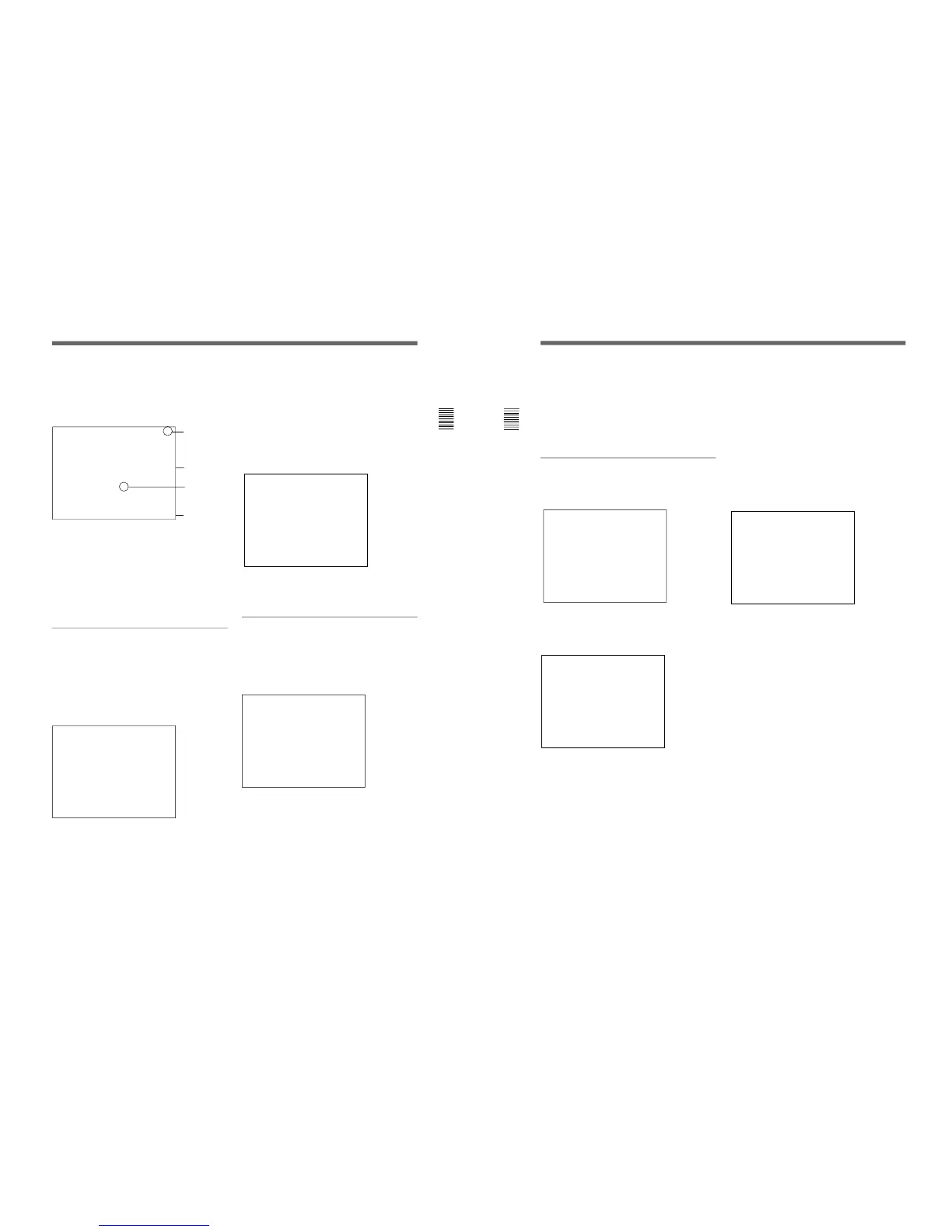
Enters
numerical
values.
[ ↓ ] indicates that
the menu
continues onto
next page.
[ ↑ ] indicates that
the menu is
continued from
previous page.
Selects from
various options.
Indicates that
this item has
sub-list. Thus,
you can go to
the lower level.
(Continued)
24
Chapter 2 Menu
Basic Menu Operations
2
Set the value in one of the following three ways:
• Enter the value directly using the numeric keypad
• Select the value using the UP/DOWN buttons
• Select the value using the PHASE knob
3
Press the ENTER button.
The setting is confirmed (The item is displayed in
white text again).
Entering characters
1
Display the setting menu and set the cursor to
NEW NAME using the UP/DOWN buttons or
PHASE knob.
2
Press the ENTER button.
“?” is displayed in yellow. The “?” indicates the
position where character input is possible.
3
Select the character you wish to enter using the
UP/DOWN buttons or PHASE knob. When you
press the UP button, or turn the PHASE knob
clockwise, the characters and symbols appear in
the order shown below.
A, B, .............Y, Z, 0, 1, ...............8, 9, ( , ), :, ;, .,
-, +, /, &, CH, (space), ?
If you press the DOWN button or turn the PHASE
knob to the left, the characters and symbols appear
in the reverse order described above.
4
Press the ENTER button.
The selected character is entered.
5
Repeat steps 3 and 4 until all the characters are
entered, then press the ENTER button.
The selected characters are confirmed, and the
display returns to the menu of the previous level.
To correct the entered character
Press the Del button on the numeric keypad. The
character on the left side of the “?”(in yellow) is
deleted.




 To Next Page