19
Operation
Calibrating your System----cont.
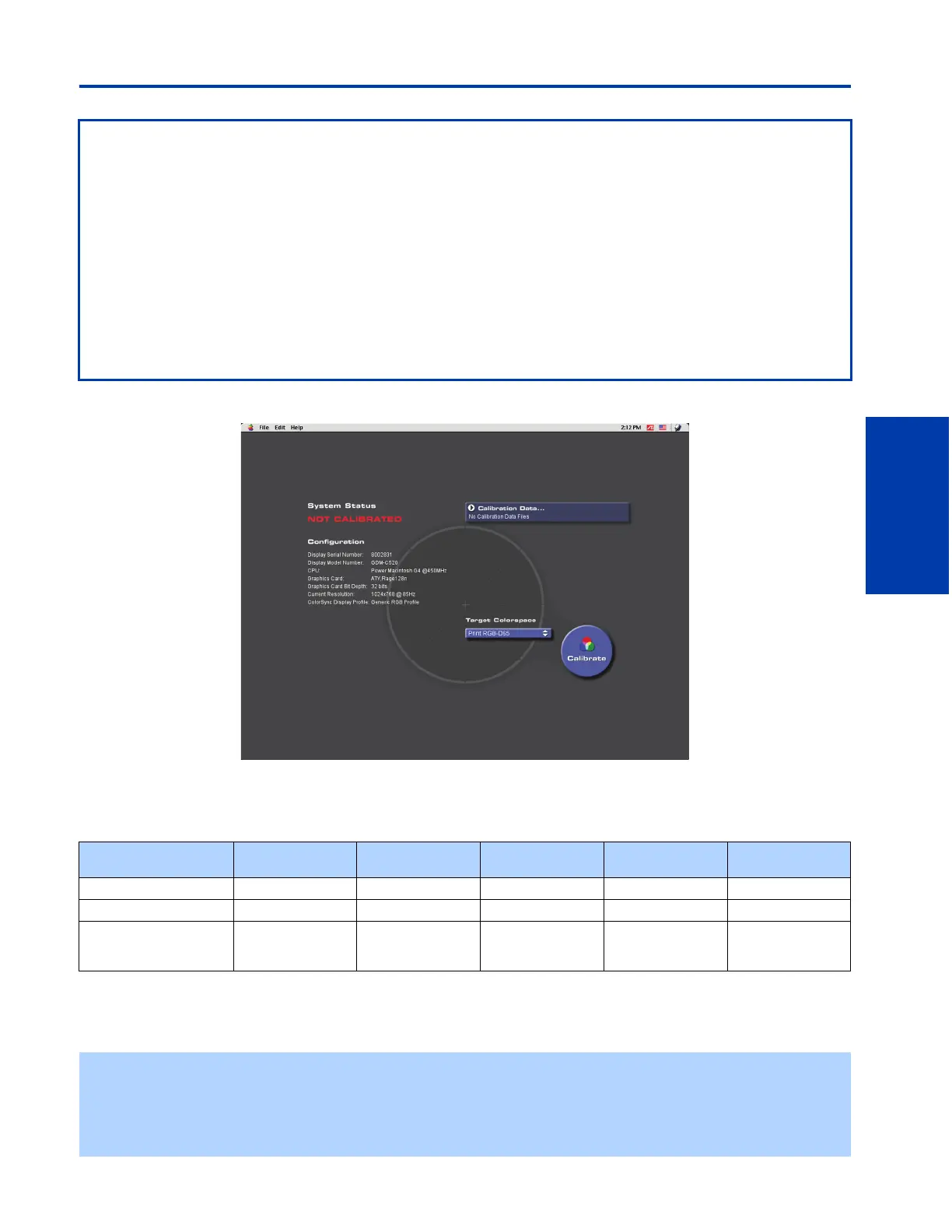
When you first start the Artisan
TM
Software, you will see the following screen:
1 Select the preset colorspace to which you want your display to be calibrated by clicking on the “Target Colorspace”
drop-down menu. You can calibrate your display to any one of the following standard target colorspaces:
2 Click on the desired target colorspace.
3 Click on the “Calibrate” button to continue.
Before Calibrating
❑ Make sure that your color settings are set to "millions" or at least 16-bit color.
❑ Make sure your display is set to "Professional" mode. To do this, press the "Picture Effect" button on the front of your
GDM-C520 display until the on-screen display shows "Professional".
❑ Warm the display up by leaving the display turned on and displaying a relatively bright screen (over 50%) for at least an
hour before calibration.
❑ Make sure that the Artisan
TM
Sensor is connected to one of your computer’s USB ports.
❑ Make sure that the display and Artisan
TM
Sensor are clean before beginning calibration. If necessary, the suction cups
can be cleaned with a damp, lint-free cloth. The display screen should be cleaned according to the instructions titled
“Notes On Cleaning the Screen’s Surface” on page 3 of the display manual.
❑ Turn the light in the room down to approximately 16 lux. The calibration process works best when there is little light in
the room.
Name x
value
y
value
Y value
(White)
Y value
(Black)
TRC
Print RGB D50 .3457 .3587 85.0 cd/m^2 0.34 cd/m^2 Gamma 1.80
Print RGB D65 .3128 .3292 85.0 cd/m^2 0.34 cd/m^2 Gamma 1.80
Web RGB (sRGB) .3128 .3292 85.0 cd/m^2 0.40 cd/m^2 Gamma 2.20
modified per ITU
initial slope
✍ If your calibration data is still valid (i.e. if you have calibrated your system within the past 30 days), you can update your
system's calibration instead of recalibrating your system fully. This process will ensure that your system is within
tolerance and will reset the 30 day timer on your calibration data. To update your system’s calibration, click on the “File”
option in the command bar at the top of your display’s screen, click on “Update Calibration Data,” and then continue with
the calibration process.




 To Next Page