EasyManua.ls Logo

Sony TRINITRON KV-29C3A - Advanced Operation; Optional Equipment

Sony TRINITRON KV-29C3A
84 pages
Print Icon
To Next Page IconTo Next Page
To Previous Page IconTo Previous Page
Loading...
You
can
connect
a
wide
range
of
optional
equipment
to
your
TV.
Refer
to
the
illustrations
on
the
back
lap
page
of
this
Instruction
Manual.
Symbol
Acceptable
input
signals
Available
output
signals
1
Normal
audio/video
and
RGB
Audio/
video
from
TV
tuner
2/4392
Normal
audio/video
and
$
video
Audio/
video
from
selected
source
3,-©3
Normal
audio/video
and
$
video
No
output
About
$
video
input
Video
signals
may
be
separated
into
Y
(luminance)
and
C
(chrominance)
signals.
Separating
the
two
signals
prevents
interference
and
thus
improves
the
picture
quality.
Tips:
*
If
the
picture
or
sound
is
distorted,
move
the
VCR
away
from
the
TV.
¢
When
connecting
a
monaural
VCR,
connect
only
the
white
jack
to
both
the
TV
and
VCR.
Selectiig
input
and
Output
Signals’
~
a)
Direct
Access
Buttons
Selecting
the
Input
Press
=)
@
{@
repeatedly
to
select
one
of
the
following
input
modes:
Symbol
on
the
screen
input
signals
1
Audio/
video
through
Euro
AV
connector
a)
RGB
through
Euro
AV
connector
£2
Audio/
video
through
Euro
AV
connector
32
S
video
through
Euro
AV
connector
O38
Audio/
video
through
the
phono
jacks
93
S
video
through
the
4
pin
DIN
B
Press
2
@
to
restore
the
normal
TV
picture.
Selecting
the
Output
from
Euro
AV
connector
@>
2/32
Press
>
®
repeatedly
to
select
one
of
the
following
output
sources
for
the
connector
2/432
TE:
Symbol
on
the
screen
2/-<3
2
1M
connector
output
signal
1@
Audio/
video
from
Euro
AV
connector
2
Audio/
video
from Euro
AV
connector
2S
Audio/
video
from
Euro
AV
connector
3
Audio/
video
from
the
phono
jacks
3
Audio/video
from
the
4
pin
DIN
iB}
TV
Audio/
video
from
the
aerial
terminal
1F
40
|
Advanced
Operation
Optional
Equipment
b)
Using
the
Menu
»Video
Connection«
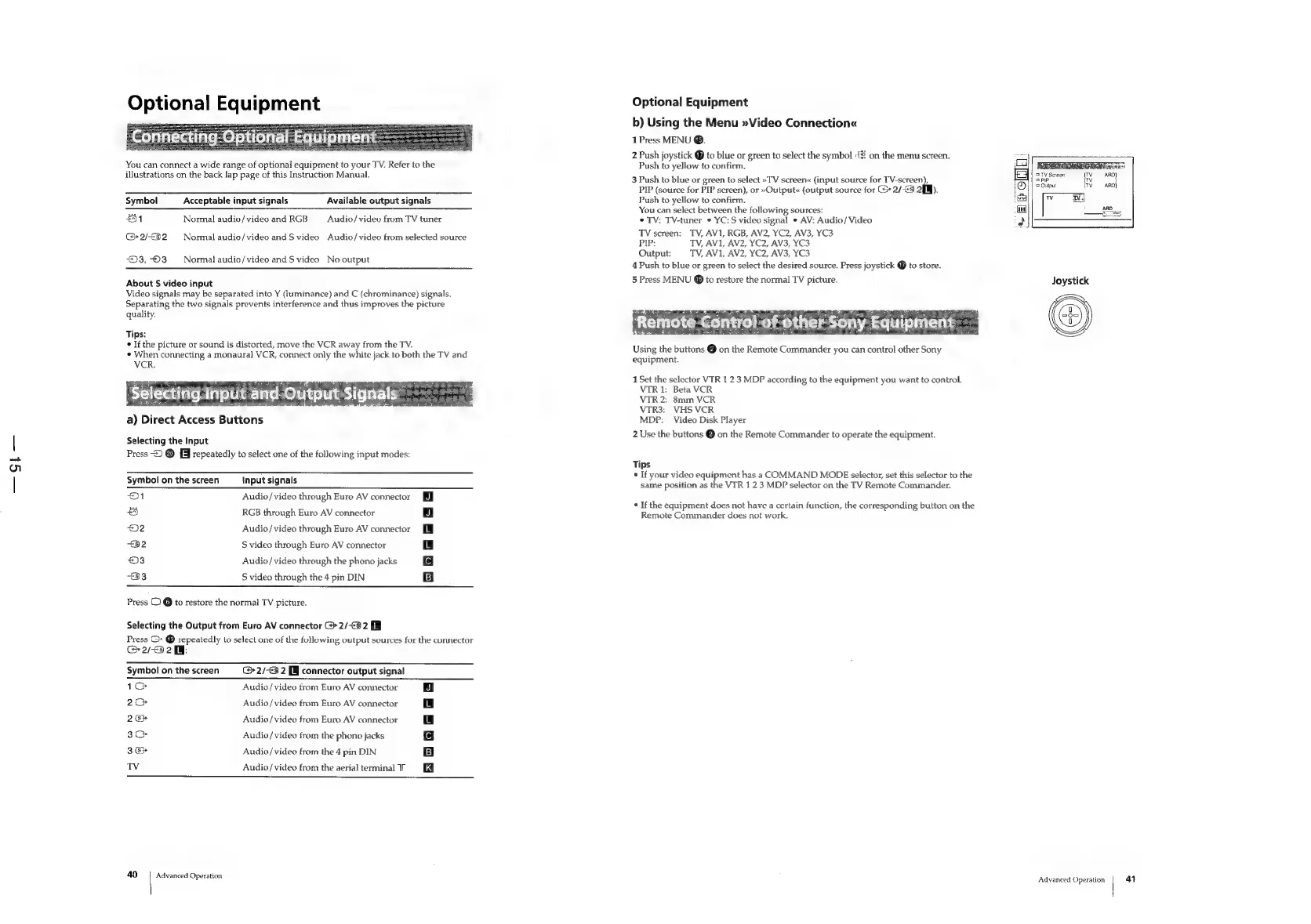
1
Press
MENU
®.
2
Push
joystick
@
to
blue
or
green
to
select
the
symbol
8
on
the
menu
screen.
Push
to
yellow
to
confirm.
3
Push
to
blue
or
green
to
select
»
TV
screen«
(input
source
for
TV-screen),
PIP
(source
for
PIP
screen),
or
»Output«
(output
source
for
>
2/-¢5
2[fM).
Push
to
yellow
to
confirm.
You
can
select
between
the
following
sources:
*
TV:
TV-tuner
*
YC:S
video
signal
*
AV:
Audio/Video
TV
screen:
TV,
AV1,
RGB,
AV2,
YC2,
AV3,
YC3
PIP:
TV,
AV1,
AV2,
YC2,
AV3,
YC3
Output:
TV,
AVI, AV2, YC2, AV3,
YC3
4
Push
to
blue
or
green
to
select
the
desired
source.
Press
joystick
to
store.
5
Press
MENU
to
restore
the
normal
TV
picture.
Using
the
buttons
@
on
the
Remote
Commander
you
can
contro!
other
Sony
equipment.
1
Set
the
selector
VTR
1
23
MDP
according
to
the
equipment
you
want
to
control.
VTR
1:
Beta
VCR
VTR
2:
8mm
VCR
VTR3:
VHS
VCR
MDP:
Video
Disk
Player
2
Use
the
buttons
@
on
the
Remote
Commander
to
operate
the
equipment.
Tips
*
If
your
video
equipment
has
a
COMMAND
MODE
selector,
set
this
selector
to
the
same
position
as
the
VIR
1
23
MDP
selector
on
the
TV
Remote
Commander.
¢
If
the
equipment
does
not
have
a
certain
function,
the
corresponding
button
on
the
Remote
Commander
does
not
work.
5
TV
Screen
(Ty
ARD]
is
opr
v
i
3
Output
ARD}
&
OIE
|
op
Joystick
Advanced
Operation
4}

Related product manuals