EasyManua.ls Logo

Sony TRINITRON KV-29C3A - Page 9

Sony TRINITRON KV-29C3A
84 pages
Print Icon
To Next Page IconTo Next Page
To Previous Page IconTo Previous Page
Loading...
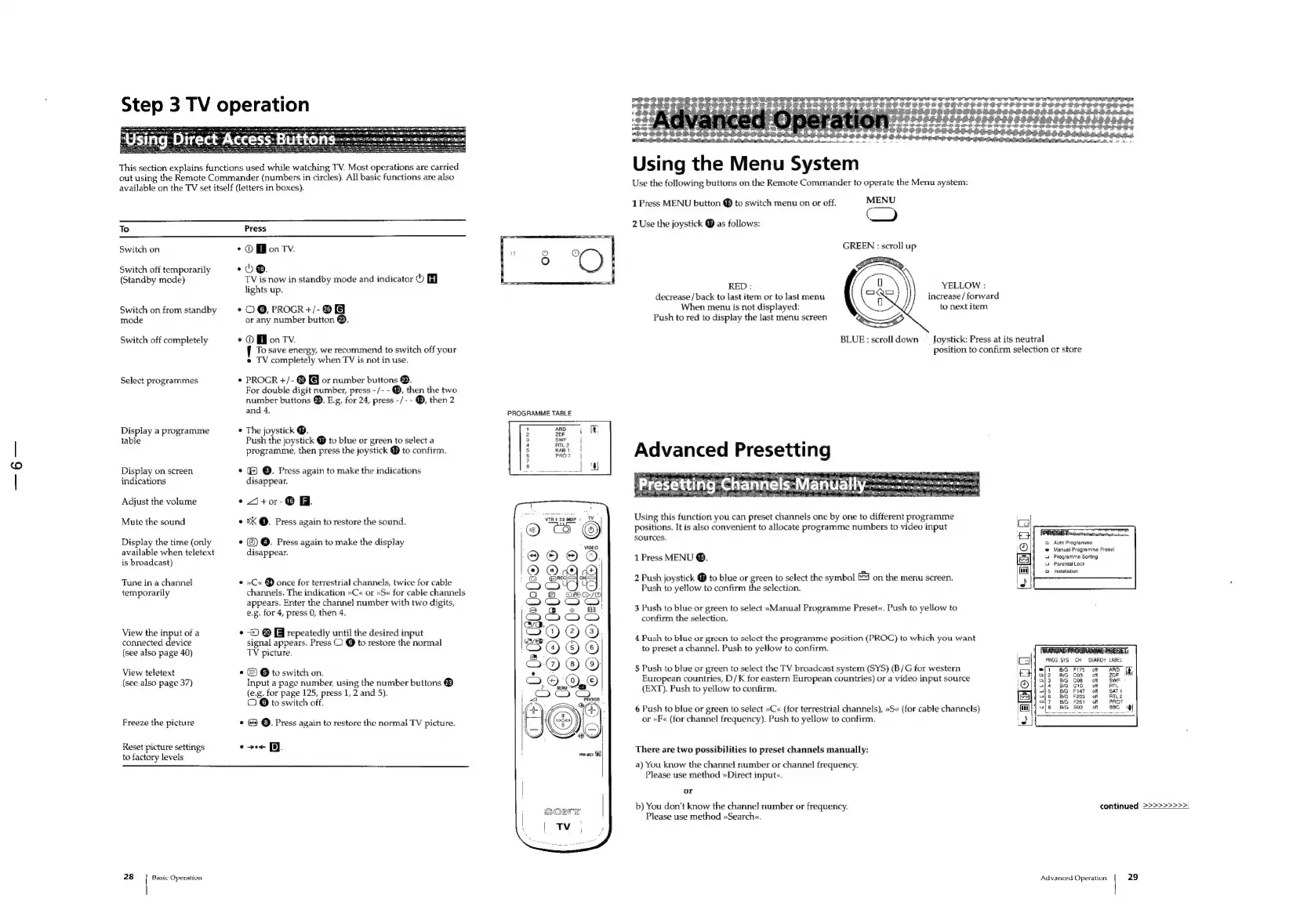
Step
3
TV
Operauon
This
section
explains
functions
used
while
watching
TV.
Most
operations
are
carried
out
using
the
Remote
Commander
(numbers
in
circles).
All
basic
functions
are
also
available
on
the
TV
set
itself
(letters
in
boxes).
To
Press
¢
@
BM
onTVv.
Switch
on
Switch
off
temporarily
-O®@.
(Standby
mode)
TV
is
now
in
standby
mode
and
indicator
o
lights
up.
Switch
on
from
standby
«OG,
PROGR+/-®
mode
or
any
number
button
®.
Switch
off
completely
*@MonTv.
To
save
energy,
we
recommend
to
switch
off
your
¢
TV
completely
when
TV
is
not
in
use.
PROGR
+/-
@
@
or
number
buttons
®.
For
double
digit
nombes
press
-/-
-
®,
then
the
two
number
buttons
@.
E.g.
for
24,
press
-/-
-
®,
then
2
and
4.
Select
programmes
Display
a
programme
The
joystick
@.
table
Push
the
joystick
@
to
blue
or
green
to
select
a
programme,
then
press
the
joystick
®
to
confirm.
Display
on
screen
*
®
O.
Press
again
to
make
the
indications
indications
disappear.
Adjust
the
volume
«
4J+or-®
Mute
the
sound
*
2X
@.
Press
again
to
restore
the
sound.
Display
the
time
(only
*
@
@.
Press
again
to
make
the
display
available
when
teletext
disappear.
is
broadcast)
Tune
in
a
channel
©
»C«
®
once
for
terrestrial
channels,
twice
for
cable
channels.
The
indication
»C«
or
»S«
for
cable
channels
appears.
Enter
the
channel
number
with
two
digits,
e.g.
for
4,
press
0,
then
4.
temporarily
View
the
input
of
a
-[08
repeatedly
until
the
desired
input
connected
device
signal
appears.
Press
©
@
to
restore
the
normal
(see
also
page
40)
TV
picture.
View
teletext
*
©
O
to
switch
on.
(see
also
page
37)
Input
a
page
number,
using
the
number
buttons
@
(e.g.
for
page
125,
press
1,
2
and
5).
©
©
to
switch
off.
Freeze
the
picture
*
&
©.
Press
again
to
restore
the
normal
TV
picture.
o
>e<
Bi.
Reset
picture
settings
to
factory
levels
28
Basic
Operation
PROGRAMME
TABLE
vInt23mop
:
CeQo0cO®
@
s
fd
)
E1@
®
ie
iS
Q
NS
8
ie}
05
[eeYds-}
©OOC(Cs(20sO
©
OIGIOles
©
©
0-
Oe
80
g
GIS
oi
©:*
©O©O020
" 3
CPI
OS
tert
t
abe
EVERS
See
eee
ee
PEPSEES
psesteses,
oitsasesstsinaset.
Hee
+
rretasecpeseevssvessstesssetess:
PEER
eth
ieee
teat
bnibetnmata
keen
-
RAN
oe
Using
the
Menu
System
Use
the
following
buttons
on
the
Remote
Commander
to
operate
the
Menu
system:
1
Press
MENU
button
®
to
switch
menu
on
or
off.
MENU
2
Use
the
joystick
@
as
follows:
GREEN
:
scroll
up
RED:
0
decrease
/
back
to
last
item
or
to
last
menu
When
menu
is
not
displayed:
Push
to
red
to
display
the
last
menu
screen
YELLOW
:
increase
/
forward
to
next
item
BLUE:
scroll
down
_
Joystick:
Press
at
its
neutral
position
to
confirm
selection
or
store
Advanced
Presetting
Using
this
function
you
can
preset
channels
one
by
one
to
different
programme
positions.
It
is
also
convenient
to
allocate
programme
numbers
to
video
input
sources.
Auto
Programme
Manual
Programme
Preset
Programme
Sorting
Parental
Lock
Instatiation
1
Press
MENU
®.
2
Push
joystick
@
to
blue
or
green
to
select
the
symbol
£4
on
the
menu
screen.
Push
to
yellow
to
confirm
the
sclection.
3
Push
to
blue
or
green
to
select
»Manual
Programme
Preset«.
Push
to
yellow
to
confirm
the
selection.
4
Push
to
blue
or
green
to
select
the
programme
position
(PROG)
to
which
you
want
to
preset
a
channel.
Push
to
yellow
to
confirm.
PROG
SYS
CH
SEARCH
LABEL
5
Push
to
blue
or
green
to
select
the
TV
broadcast
system
(SYS)
(B/G
for
western
European
countries,
D/K
for
eastern
European
countries)
or
a
video
input
source
(EXT).
Push
to
yellow
to
confirm.
cCoctroos
6
Push
to
blue
or
green
to
select
»C«
(for
terrestrial
channels),
»S«
(for
cable
channels)
or
»F«
(for
channel
frequency).
Push
to
yellow
to
confirm.
There
are
two
possibilities
to
preset
channels
manually:
a)
You
know
the
channel
number
or
channel
frequency.
Please
use
method
»Direct
input«.
or
b)
You
don't
know
the
channel
number
or
frequency.
Please
use
method
»Search«.
Advanced
Operation
29
continued
>>>>>>>>>:

Related product manuals