EasyManua.ls Logo

Sony TRINITRON KV-29C3A - Page 10

Sony TRINITRON KV-29C3A
84 pages
Print Icon
To Next Page IconTo Next Page
To Previous Page IconTo Previous Page
Loading...
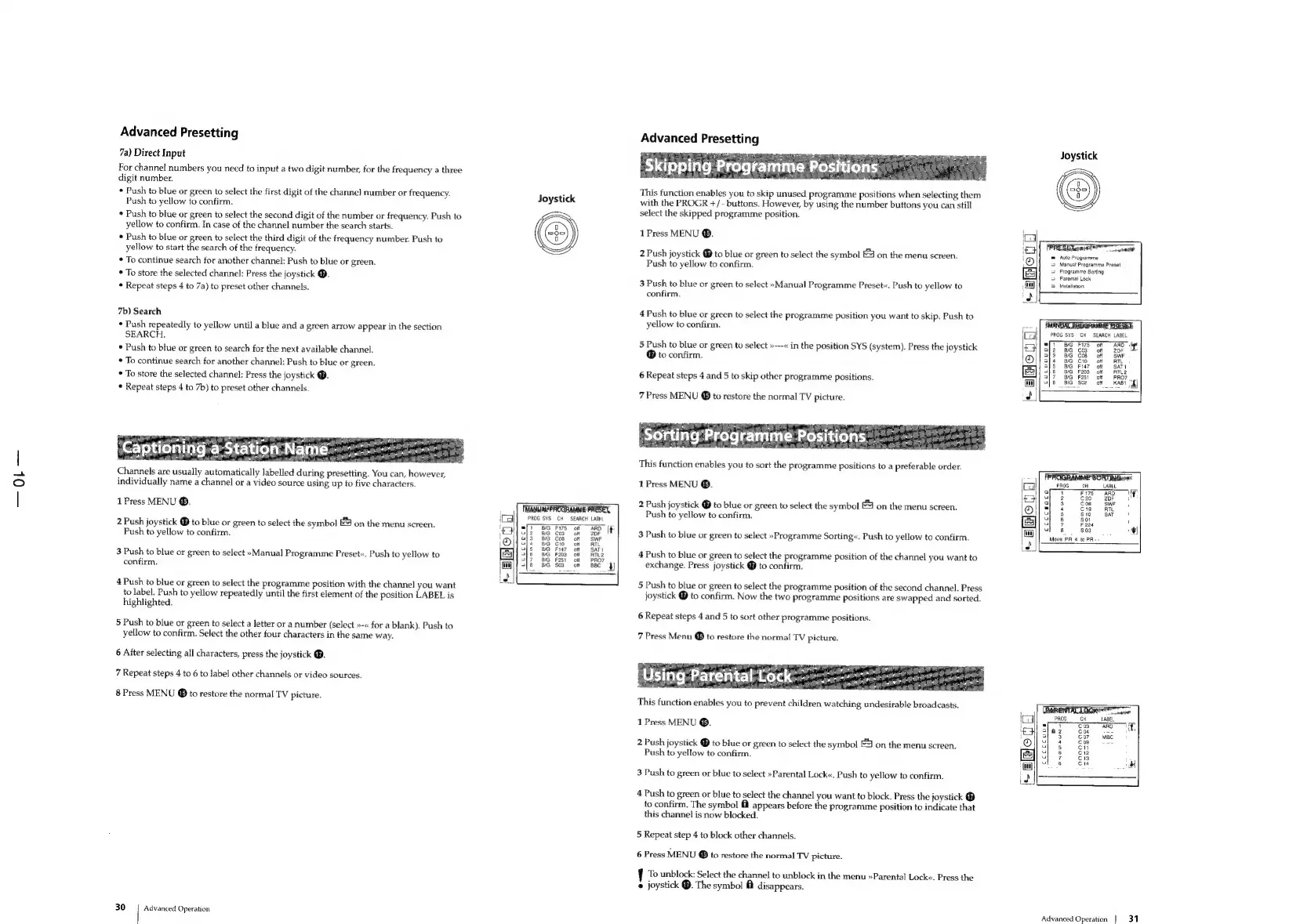
Advanced
Presetting
7a)
Direct
Input
For
channel
numbers
you
need
to
input
a
two
digit
number,
for
the
frequency
a
three
digit
number.
¢
Push
to
blue
or
green
to
select
the
first
digit
of
the
channel
number
or
frequency.
Push
to
yellow
to
confirm,
Joystick
*
Push
to
blue
or
green
to
select
the
second
digit
of
the
number
or
frequency.
Push
to
yellow
to
confirm.
In
case
of
the
channel
number
the
search
starts.
*
Push
to
blue
or
green
to
select
the
third
digit
of
the
frequency
number.
Push
to
yellow
to
start
the
search
of
the
frequency.
*
To
continue
search
for
another
channel:
Push
to
blue
or
green.
*
To
store
the
selected
channel:
Press
the
joystick
@.
*
Repeat
steps
4
to
7a)
to
preset
other
channels.
7b)
Search
*
Push
repeatedly
to
yellow
until
a
blue
and
a
green
arrow
appear
in
the
section
SEARCH.
*
Push
to
blue
or
green
to
search
for
the
next
available
channel.
*
To
continue
search
for
another
channel:
Push
to
blue
or
green.
To
store
the
selected
channel:
Press
the
joystick
@.
*
Repeat
steps
4
to
7b)
to
preset
other
channels.
‘Captioning
-a-Station:
Name
Channels
are
usually
automatically
labelled
during
presetting.
You
can,
however,
individually
name
a
channel
or
a
video
source
using
up
to
five
characters.
1
Press
MENU
®.
PROG
SYS
CH
SEARCH
LABEL.
2
Push
joystick
@
to
blue
or
green
to
select
the
symbol
E23
on
the
menu
screen.
Push
to
yellow
to
confirm.
3
Push
to
blue
or
green
to
select
»Manual
Programme
Preset«.
Push
to
yellow
to
confirm.
|
off
ul
ott
al
otf
a
off
a
off
3
off
a
off
4
off
4
Push
to
blue
or
green
to
select
the
programme
position
with
the
channel
you
want
to
label.
Push
to
yellow
repeatedly
until
the
first
element
of
the
position
LABEL
is
highlighted.
5
Push
to
blue
or
green
to
select
a
letter
or
a
number
(select
»-«
fora
blank).
Push
to
yellow
to
confirm.
Select
the
other
four
characters
in
the
same
way.
6
After
selecting
all
characters,
press
the
joystick
@.
7
Repeat
steps
4
to
6
to
label
other
channels
or
video
sources.
8
Press
MENU
@
to
restore
the
normal
TV
picture.
30
Advanced
Operation
Advanced
Presetting
This
function
enables
you
to
skip
unused
programme
positions
when
selecting
them
with
the
PROGR
+/-
buttons.
However,
by
using
the
number
buttons
you
can
still
select
the
skipped
programme
position.
1
Press
MENU
®.
2
Push
joystick
®
to
blue
or
green
to
select
the
symbol
E41
on
the
menu
screen.
Push
to
yellow
to
confirm.
3
Push
to
blue
or
green
to
select
»Manual
Programme
Preset«.
Push
to
yellow
to
confirm.
4
Push
to
blue
or
green
to
select
the
programme
position
you
want
to
skip.
Push
to
yellow
to
confirm.
5
Push
to
blue
or
green
to
select
»---«
in
the
position
SYS
(system).
Press
the
joystick
@
to
confirm.
6
Repeat
steps
4
and
5
to
skip
other
programme
positions.
7
Press
MENU
@
to
restore
the
normal
TV
picture.
rting:Programme
Positions
~~
This
function
enables
you
to
sort
the
programme
positions
to
a
preferable
order.
1
Press
MENU
®.
2
Push
joystick
®
to
blue
or
green
to
select
the
symbol
EJ
on
the
menu
screen.
Push
to
yellow
to
confirm.
3
Push
to
blue
or
green
to
select
»Programme
Sorting«.
Push
to
yellow
to
confirm.
4
Push
to
blue
or
green
to
select
the
programme
position
of
the
channel
you
want
to
exchange.
Press
joystick
@
to
confirm.
5
Push
to
blue
or
green
to
select
the
programme
position
of
the
second
channel.
Press
joystick
®@
to
confirm.
Now
the
two
programme
positions
are
swapped
and
sorted.
6
Repeat
steps
4
and
5
to
sort
other
programme
positions.
7
Press
Menu
to
restore
the
normal
TV
picture.
Using
Parental
Leck-
This
function
enables
you
to
prevent
children
watching
undesirable
broadcasts.
1
Press
MENU
®.
2
Push
joystick
to
blue
or
green
to
select
the
symbol
&
on
the
menu
screen.
Push
to
yellow
to
confirm.
3
Push
to
green
or
blue
to
select
»Parental
Lock«.
Push
to
yellow
to
confirm.
4
Push
to
green
or
blue
to
select
the
channel
you
want
to
block.
Press
the
joystick
®
to
confirm.
The
symbol
f
appears
before
the
programme
position
to
indicate
that
this
channel
is
now
blocked.
5
Repeat
step
4
to
block
other
channels.
6
Press
MENU
@
to
restore
the
normal
TV
picture.
To
unblock:
Select
the
channel
to
unblock
in
the
menu
»Parental
Lock«.
Press
the
e
joystick
®.
The
symbol
@
disappears.
Joystick
Auto
Programme
Manuat
Programme
Preset
Programme
Sorting
Parental
Lock
Installation
IMANUAL
PROGRANNE
PRESET
PROG
SYS
CH
SEARCH
LABEL
PROG
CH
Cccceoco
(BARENTALLOGKC
PT
PROG
CH
ABEL
bal
Cos
ARO
;
fos
EG
ME
a}
3
cov Mac
af
Cog
===
ub
cn
upg
C1
apo?
C13
utos
C14
et
Advanced
Operation
|
31

Related product manuals