EasyManua.ls Logo

Sony TRINITRON KV-29C3A - Page 11

Sony TRINITRON KV-29C3A
84 pages
Print Icon
To Next Page IconTo Next Page
To Previous Page IconTo Previous Page
Loading...
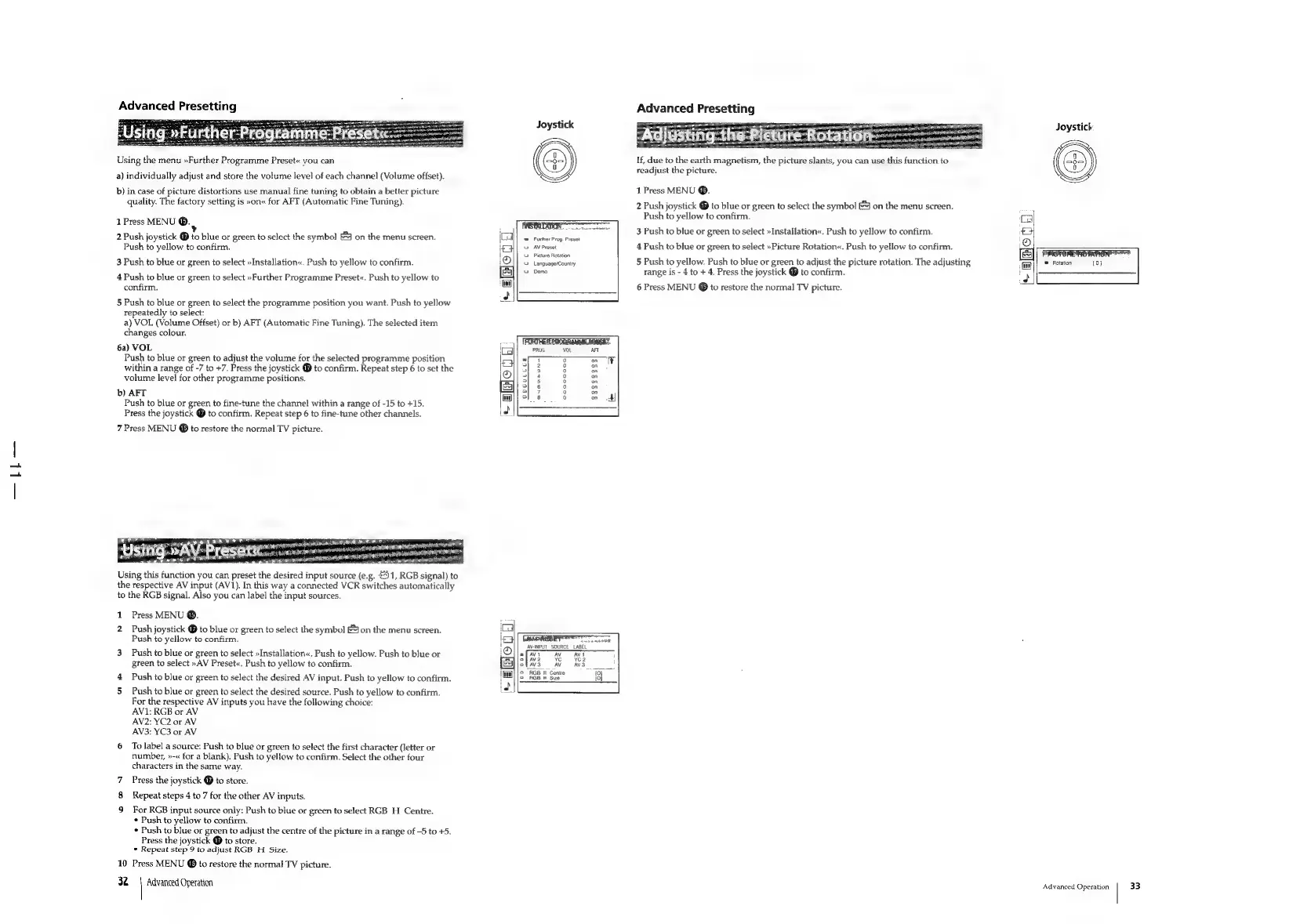
Advanced
Presetting
Joystick
Joystick
Using
the
menu
»Further
Programme
Preset«
you
can
If,
due
to
the
earth
magnetism,
the
picture
slants,
you
can
use
this
function
to
readjust
the
picture.
a)
individually
adjust
and
store
the
volume
level
of
each
channel
(Volume
offset).
b)
in
case
of
picture
distortions
use
manual
fine
tuning
to
obtain
a
better
picture
1
Press
MENU
®.
quality.
The
factory
setting
is
»on«
for
AFT
(Automatic
Fine
Tuning).
2
Push
joystick
@
to
blue
or
green
to
select
the
symbol
E23
on
the
menu
screen.
Push
to
yellow
to
confirm.
1
Press
MENU
©.
<1
ne
i y
bes
:
Peal
yarn
ee
art
3
Push
to
blue
or
green
to
select
»Installation«.
Push
to
yellow
to
confirm.
2
Push
joystick
@
to
blue
or
green
to
select
the
symbol
fe]
on
the
menu
screen.
=
Further
Prog.
Preset
8
4 s
y
Push
to
yellow
to
confirm.
AV
Preset
4
Push
to
blue
or
green
to
select
»Picture
Rotation«.
Push
to
yellow
to
confirm.
Picture
Rotation
A
ees
3
Push
to
blue
or
green
to
select
»Installation«.
Push
to
yellow
to
confirm.
2
Language/Country
5
Push
to
yellow.
Push
to
blue
or
green
to
adjust
the
picture
rotation.
The
adjusting
©
Rotation
\
Dema
range
is
-
4
to
+
4.
Press
the
joystick
®
to
confirm.
4
Push
to
blue
or
green
to
select
»Further
Programme
Preset«.
Push
to
yellow
to
confirm.
6
Press
MENU
@
to
restore
the
normal
TV
picture.
5
Push
to
blue
or
green
to
select
the
programme
position
you
want.
Push
to
yellow
repeatedly
to
select:
a)
VOL
(Volume
Offset)
or
b)
AFT
(Automatic
Fine
Tuning).
The
selected
item
changes
colour.
6a)
VOL
Push
to
blue
or
green
to
adjust
the
volume
for
the
selected
programme
position
|
within
a
range
of
-7
to
+7.
Press
the
joystick
@
to
confirm.
Repeat
step
6
to
set
the
|
volume
level
for
other
programme
positions.
b)
AFT
Push
to
blue
or
green
to
fine-tune
the
channel
within
a
range
of
-15
to
+15.
Press
the
joystick
@
to
confirm.
Repeat
step
6
to
fine-tune
other
channels.
|
7
Press
MENU
@
to
restore
the
normal
TV
picture.
ocoucces
ae]
ng
Using
this
function
you
can
preset
the
desired
input
source
(e.g.
£3
1,
RGB
signal)
to
the
respective
AV
input
(AV1).
In
this
way
a
connected
VCR
switches
automatically
to
the
RGB
signal.
Also
you
can
label
the
input
sources.
Press
MENU
®.
Push
joystick
@
to
blue
or
green
to
select
the
symbol
£4
on
the
menu
screen.
ia
Push
to
yellow
to
confirm.
CARRS
ET
nT
ae
AV-INPUT
SOURCE
LABEL
AV
AV
“RGB
H
Centre
i
RGB
_H
Size
3
Push
to
blue
or
green
to
select
»Installation«.
Push
to
yellow.
Push
to
blue
or
green
to
select
»AV
Preset«.
Push
to
yellow
to
confirm.
Push
to
blue
or
green
to
select
the
desired
AV
input.
Push
to
yellow
to
confirm.
5
Push
to
blue
or
green
to
select
the
desired
source.
Push
to
yellow
to
confirm.
For
the
respective
AV
inputs
you
have
the
following
choice:
AV1:
RGB
or
AV
AV2:
YC2
or
AV
AV3:
YC3
or
AV
6
To
label
a
source:
Push
to
blue
or
green
to
select
the
first
character
(letter
or
number,
»-«
for
a
blank).
Push
to
yellow
to
confirm.
Select
the
other
four
characters
in
the
same
way.
7
Press
the
joystick
@
to
store.
Repeat
steps
4
to
7
for
the
other
AV
inputs.
9
For
RGB
input
source
only:
Push
to
blue
or
green
to
select
RGB
H
Centre.
¢
Push
to
yellow
to
confirm.
*
Push
to
blue
or
green
to
adjust
the
centre
of
the
picture
in
a
range
of
-5
to
+5.
Press
the
joystick
@
to
store.
°
Repeat
step
9
to
adjust
RGB
H
Size.
10
Press
MENU
©
to
restore
the
normal
TV
picture.
32
|
Advanced
Operation
Advanced
Operation
|
33

Related product manuals