16
Projecting an Image
B Projecting/Adjusting an Image
Projecting an Image
The size of a projected image depends on the distance between the projector and screen. Install
the projector so that the projected image fits the screen size. For details on projection distances
and projected image sizes, see
“Projection Distance” (page 76).
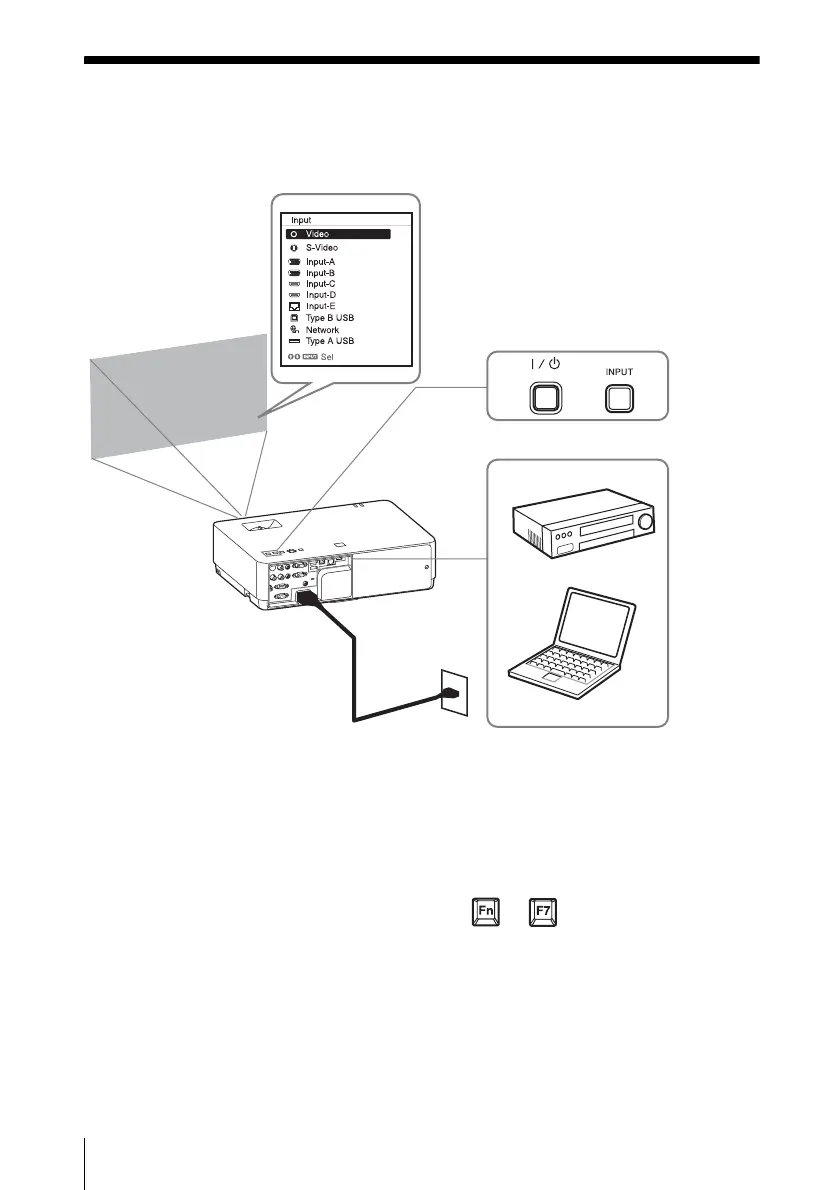
1 Plug the AC power cord into the wall
outlet.
2 Connect all equipment to the projector
(page 9).
3 Press the ?/1 key to turn on the unit.
4 Turn on the connected equipment.
5 Select the input source.
Press the INPUT key on the projector to
display the menu for switching input
signal on the screen. Press the INPUT
key repeatedly, or press the
V/v key to
select an image to be projected.
6 When projecting a computer image,
switch your computer’s output to
external display.
The method to switch the output varies
depending on the type of computer.
(Example)
To project image files stored in a USB
memory device, see “USB Media
Viewer” (page 56). To play video and
audio using USB Connection, see
“Playing Video and Audio using USB
Connection” (page 54). To use
Presentation Function via Network, see
“Presentation Function via Network”
(page 46).
Computer
Video equipment
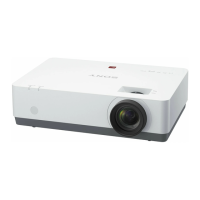
Projector
Wall outlet
1
2
5
4
3
6
*The display image is
VPL- EW348.
+


 To Next Page