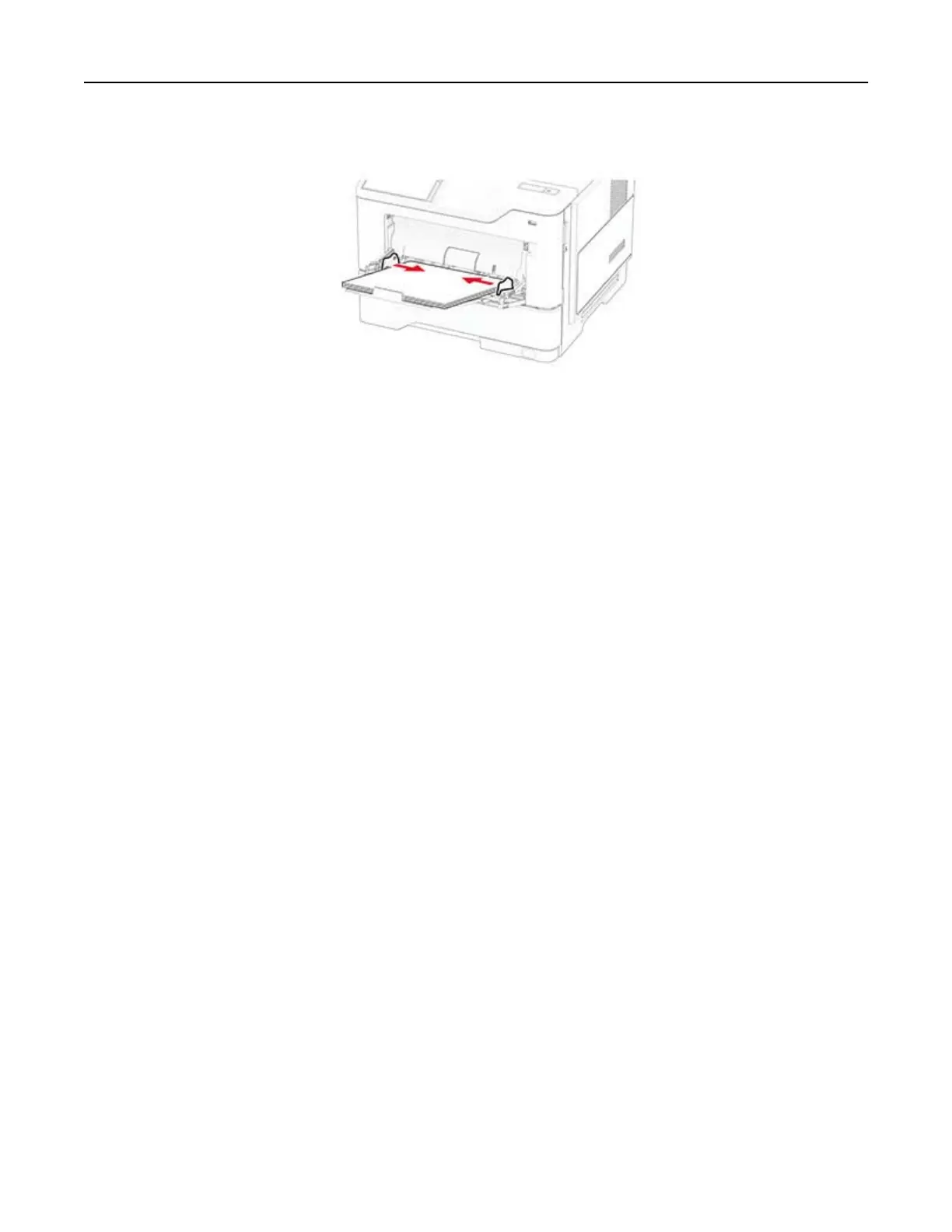
4 Adjust the guide to match the size of the paper that you are loading.
5 From the control panel, set the paper size and paper type to match the paper loaded.
Linking trays
1 From the home screen, touch Settings > Paper > Tray
Configuration
> select a paper source.
2 Set the same paper size and paper type for the trays that you are linking.
3 From the home screen, touch Settings > Device > Maintenance >
Configuration
Menu > Tray
Configuration
> Tray Linking.
4 Touc h Automatic.
To unlink trays, make sure that no trays have the same paper size and paper type settings.
Warning—Potential Damage: The temperature of the fuser varies according to the specified paper type. To
avoid printing issues, match the paper type setting in the printer with the paper loaded in the tray.
Installing and updating software, drivers, and firmware
Installing the printer software
Notes:
• The print driver is included in the software installer package.
• For Macintosh computers with macOS version 10.7 or later, you do not need to install the driver to print
on an AirPrint-certified printer. If you want custom printing features, then download the print driver.
1 Obtain a copy of the software installer package.
• From the software CD that came with your printer.
• From our website or the place where you purchased the printer.
2 Run the installer, and then follow the instructions on the computer screen.
Set up, install, and configure 29



 To Next Page