Page 6 of 34
POWER UP YOUR 4G WI-FI HOTSPOT
Press and hold the Power key for 1-2 seconds until the display lights up.
The Wi-Fi hotspot will be available after about 20 seconds.
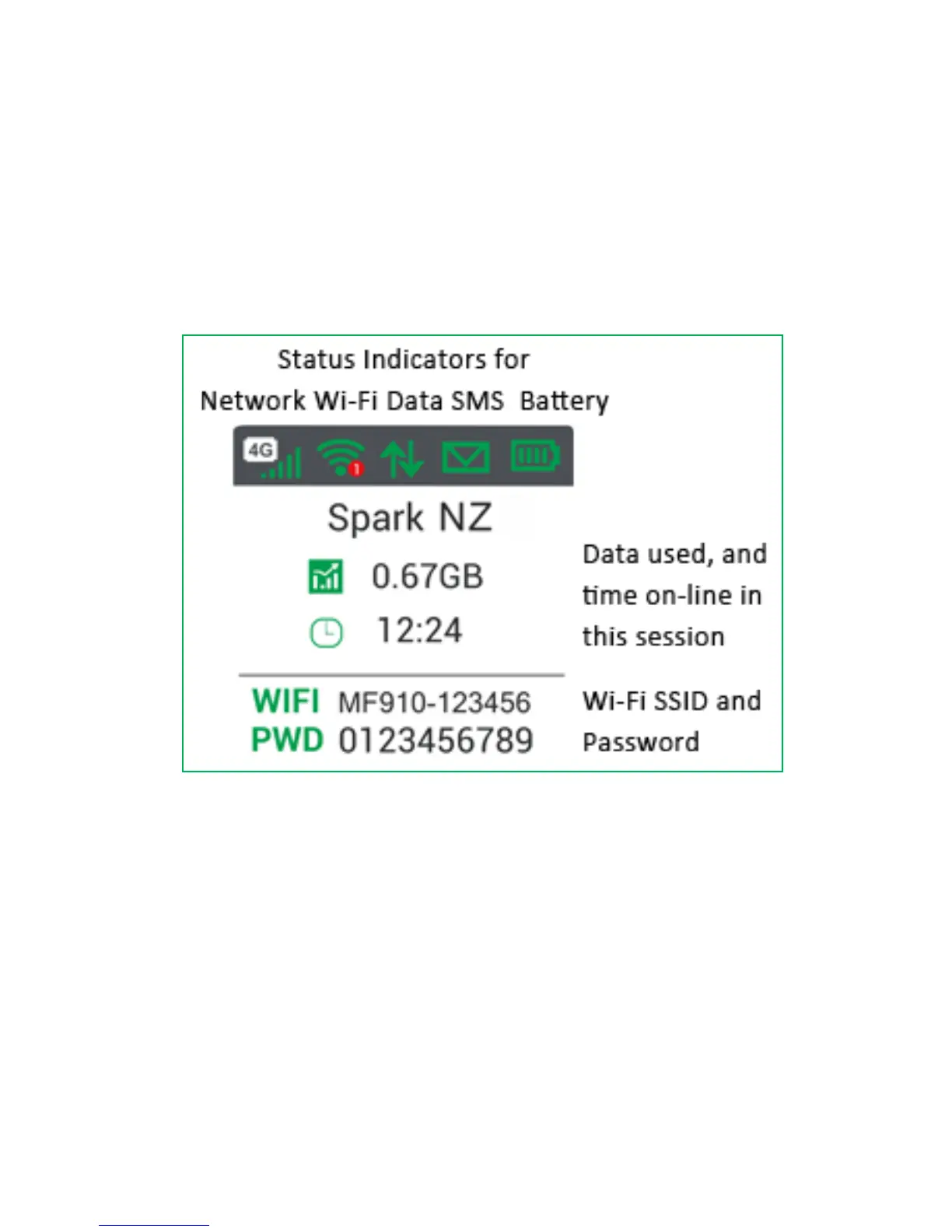
Check the condition of your Wi-Fi hotspot as shown by the display.
To switch your device Off, press and hold the power key for 5 seconds until the
display starts to shut down.
DISPLAY LAYOUT AND ICONS
During periods of inactivity it is normal for the display to turn off to preserve
battery life. Press the power key briefly to confirm the device status if required.
CONNECT DEVICES BY WI-FI
Your Wi-Fi hotspot can connect up to ten devices via Wi-Fi providing internet
access for all your devices on the go.
• On the devices you wish to connect make sure Wi-Fi is switched on, then search
for Wi-Fi devices.
• The Wi-Fi hotspot will show up as MF910-xxxxxx, click on this device to connect.
• Consult your device display and enter the default Password which is case
sensitive. Any letters entered must be in upper case (capitals).
Connection example for Windows 7 computer:


 To Next Page