Page 7 of 34
1. On your task bar, next to the clock, click on the Network Interface icon
2. Click on the Wireless device called MF910-xxxxxx
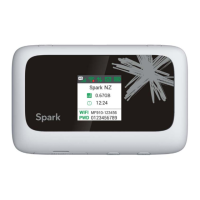
3. Enter the password exactly as shown on the display observing the correct case
for all letters
4. With Connect Automatically enabled your computer will remember the
password and connect to your Wi-Fi device when it is on and in range.
TIP
It is also possible to connect via USB connection. See later for details.
QUICK REFERENCES
Browser home page
http://192.168.0.1
Administrator login password
Default SSID MF910-xxxxxx
This is displayed on the screen when the device is
powered up. This can be switched off via the
Settings > Wi-Fi menu
Default Wi-Fi Key 10 characters which are case sensitive.
This is displayed on the screen when the device is
powered up. This can be switched off via the
Settings > Wi-Fi menu
Restore defaults From the powered up state:
Open the SIM slot on the device. Locate the Reset
button and use a small object such as a pin or
paperclip to press the button.
Hold the Reset button for five seconds until the
display shows ‘Resetting’
All passwords and settings will be restored to
defaults and the hotspot will reboot.
Use the default credentials on the screen to log
back onto your device.


 To Next Page