26
E-DOC-CTC-20050705-0001 v1.0
Chapter 5
SpeedTouch™ Diagnostics
5.1 Checking the Status of your SpeedTouch™
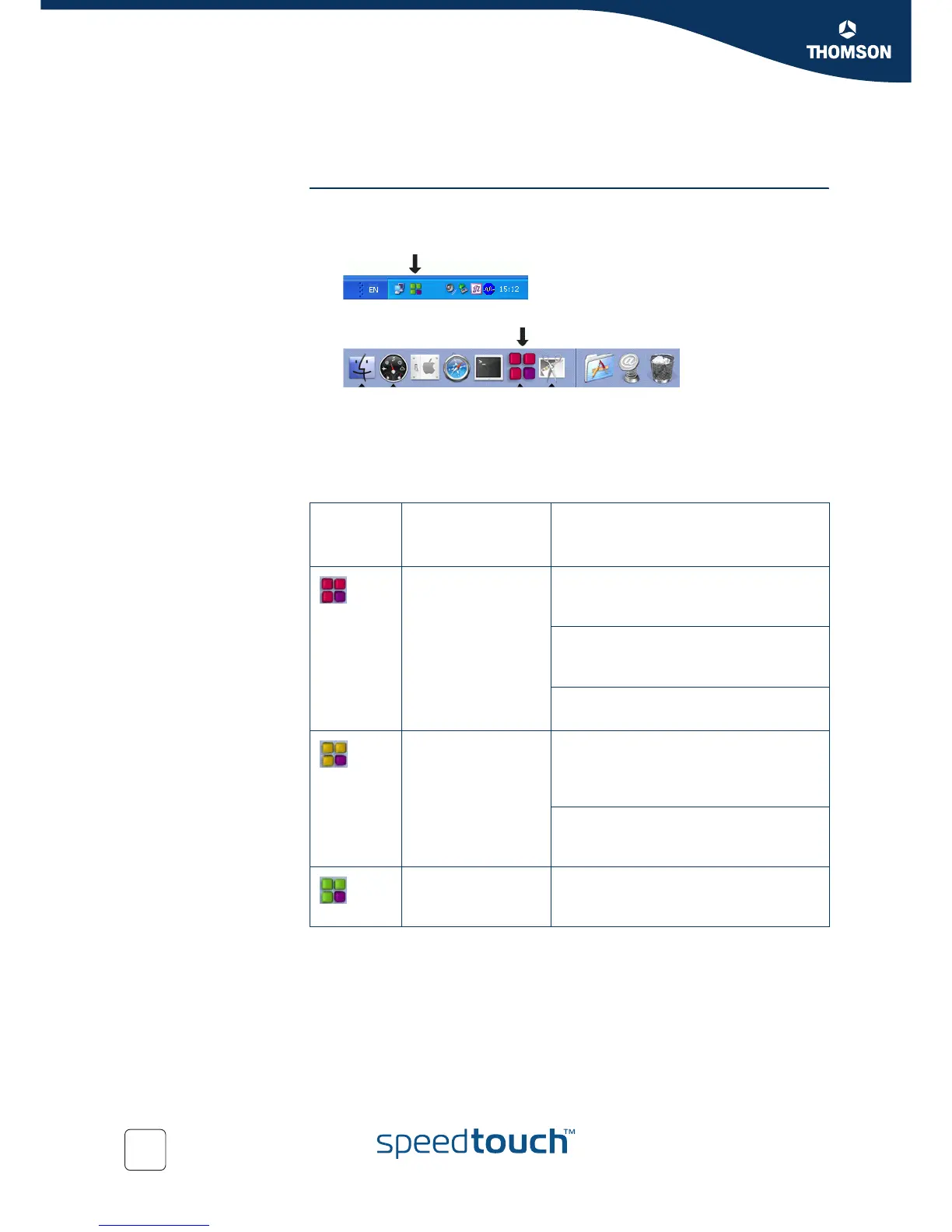
Diagnostics icon As soon as your SpeedTouch™ is installed, you can check its status by looking at the
SpeedTouch™ Diagnostics icon:
In Microsoft Windows: in the status area of your Windows taskbar.
In Mac OS X: in the Dock.
You can click this icon to see the SpeedTouch™ Diagnostics window, which will give
you more detailed information about the connection status of your SpeedTouch™.
See also “5.2 Using SpeedTouch™ Diagnostics” on page 27.
The SpeedTouch™ Diagnostics icon is coloured, depending on the status of the
SpeedTouch™.
Diagnostic
s
icon
Status in
Diagnostics
window
Meaning and/or solution
Device not detected The SpeedTouch™ is not plugged into the
computer's USB port. Plug it in to restore
the connection.
The SpeedTouch™ is not functioning.
Refer to “4 Troubleshooting and Software
Updates” on page 19.
The SpeedTouch™ is not installed
correctly. Reinstall you SpeedTouch™.
Device Connected
DSL synchronization
pending
The SpeedTouch™ is plugged in, but is not
(yet) ready. Wait until your SpeedTouch™
is connected and you see the status icon
below.
The SpeedTouch™ is plugged in, but the
DSL cable is unplugged. Plug in the DSL
cable.
Device Connected
DSL line
synchronized
The SpeedTouch™ is connected, and
ready.



 To Next Page