ACCOUNT INFORMATION
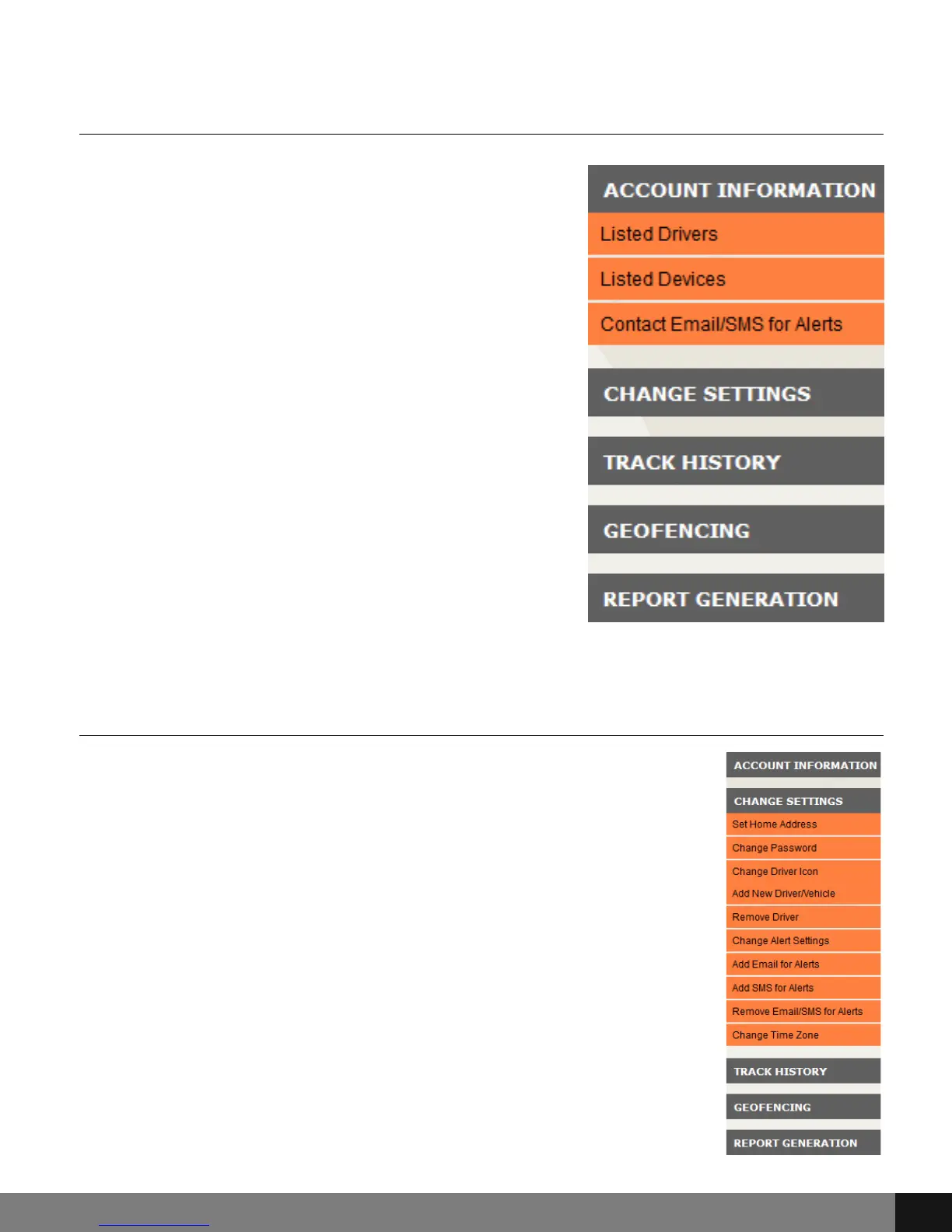
Click the ACCOUNT INFORMATION button
to open a drop-down menu with Listed
Drivers, Listed Devices and Contact
Email/SMS for Alerts buttons. By clicking
the Listed Drivers option, a pop up will
appear with listed drivers as assigned to
the active device. By clicking the Listed
Devices option, a pop up will appear with
listed devices (in this case the GL300), the
date of activation and device description.
The Contact Email/SMS for Alerts button
will show contact information for active
alerts as selected in the CHANGE
SETTINGS > Add Email for Alerts or > Add
SMS for Alerts button drop-down menu.
ACCOUNT INFORMATION
Click the ACCOUNT INFORMATION button
to open a drop-down menu with Listed
Drivers, Listed Devices and Contact
Email/SMS for Alerts buttons. By clicking
the Listed Drivers option, a pop up will
appear with listed drivers as assigned to
the active device. By clicking the Listed
Devices option, a pop up will appear with
listed devices (in this case the GL300), the
date of activation and device description.
The Contact Email/SMS for Alerts button
will show contact information for active
alerts as selected in the CHANGE
SETTINGS > Add Email for Alerts or > Add
SMS for Alerts button drop-down menu.
CHANGE SETTINGS
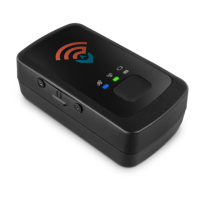
The CHANGE SETTINGS button enables a drop down menu
with the following options: Set Home Address, Change
Password, Change Driver Icon, Add New Driver/Vehicle,
Remove Driver, Change Alert Settings, Add Email for Alerts,
Add SMS for Alerts, Remove Email/SMS for Alerts and
Change Time Zone. Click any option to access a pop up
screen that allows for preference changes.
Spy Tec www.spytecinc.comSpy Tec www.spytecinc.com 9


 To Next Page