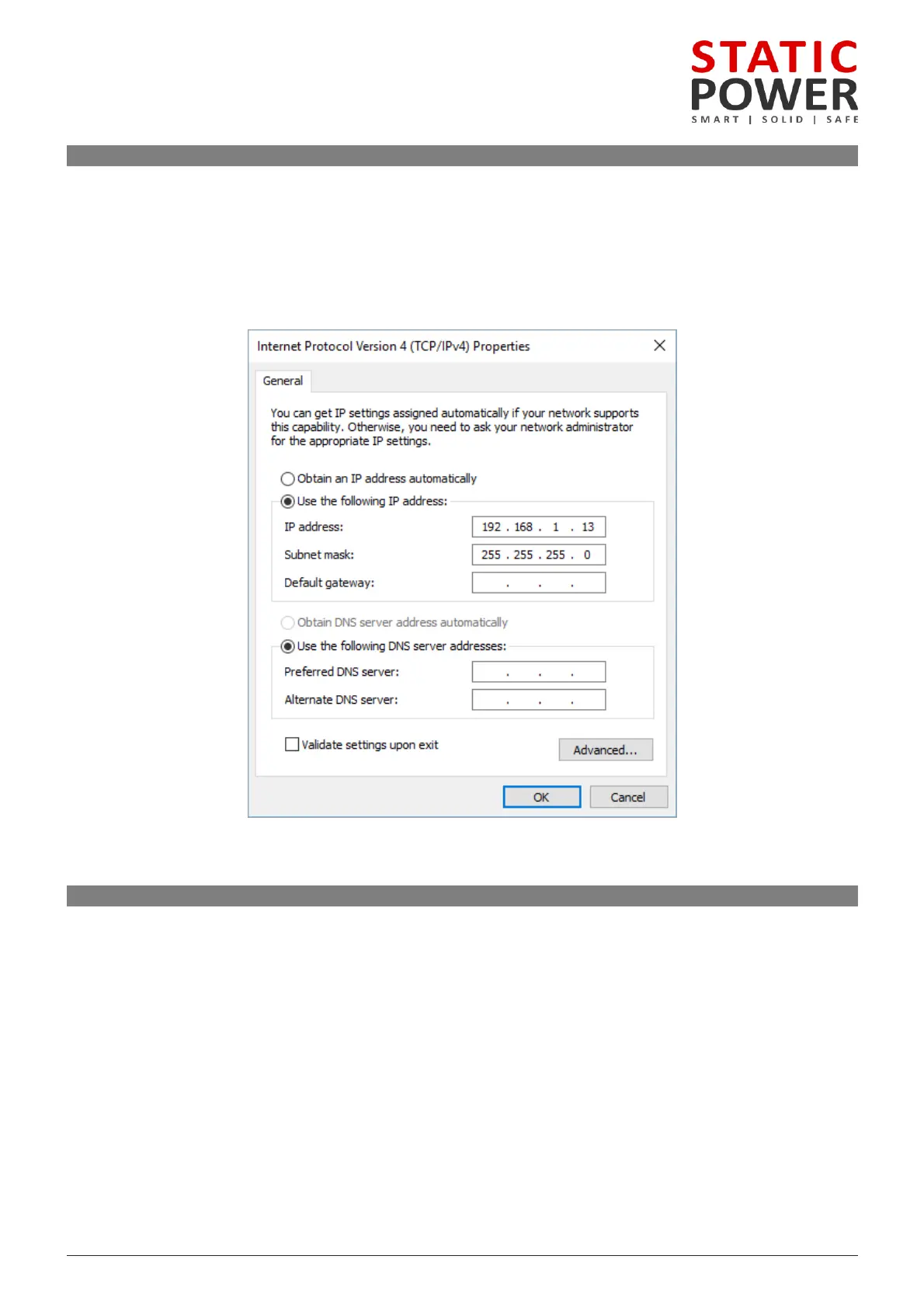
connecting directly to a PC, both the STS and PC must have statically assigned IP addresses on the
. Set the IP address of the STS in the Communications screen described earlier. By default this is
.168.1.2 with Mask: 255.255.255.0
set the IP address of your computer in Windows 7 go to: Network and Sharing Centre Change
right-click the network interface Properties. Select TCP/IPv4 Properties. Change the values to
shown below and click OK, you soon should be connected to your device.
other operating systems, please refer to the OS networking manual.
.3 Connecting to the Web Server
use a ping test to confirm the connection on a PC, run command prompt (CMD) and type ping (space) then
address of the device then press enter.
the IP address into the web browser address bar brings up the web server home page. If the DHCP
have not yet been registered on your network you may need to remove the cable for 5 to 10
reconnect the cable, this in turn should re-register the device on the network.



 To Next Page