Page 21
7.4 – BACKUP
Use the File List sub menu to find recorded video on your system and copy it to a USB flash drive (not included).
The system is compatible with most major brands of USB flash drives, with capacities from 256MB to 4GB.
To back up recorded data:
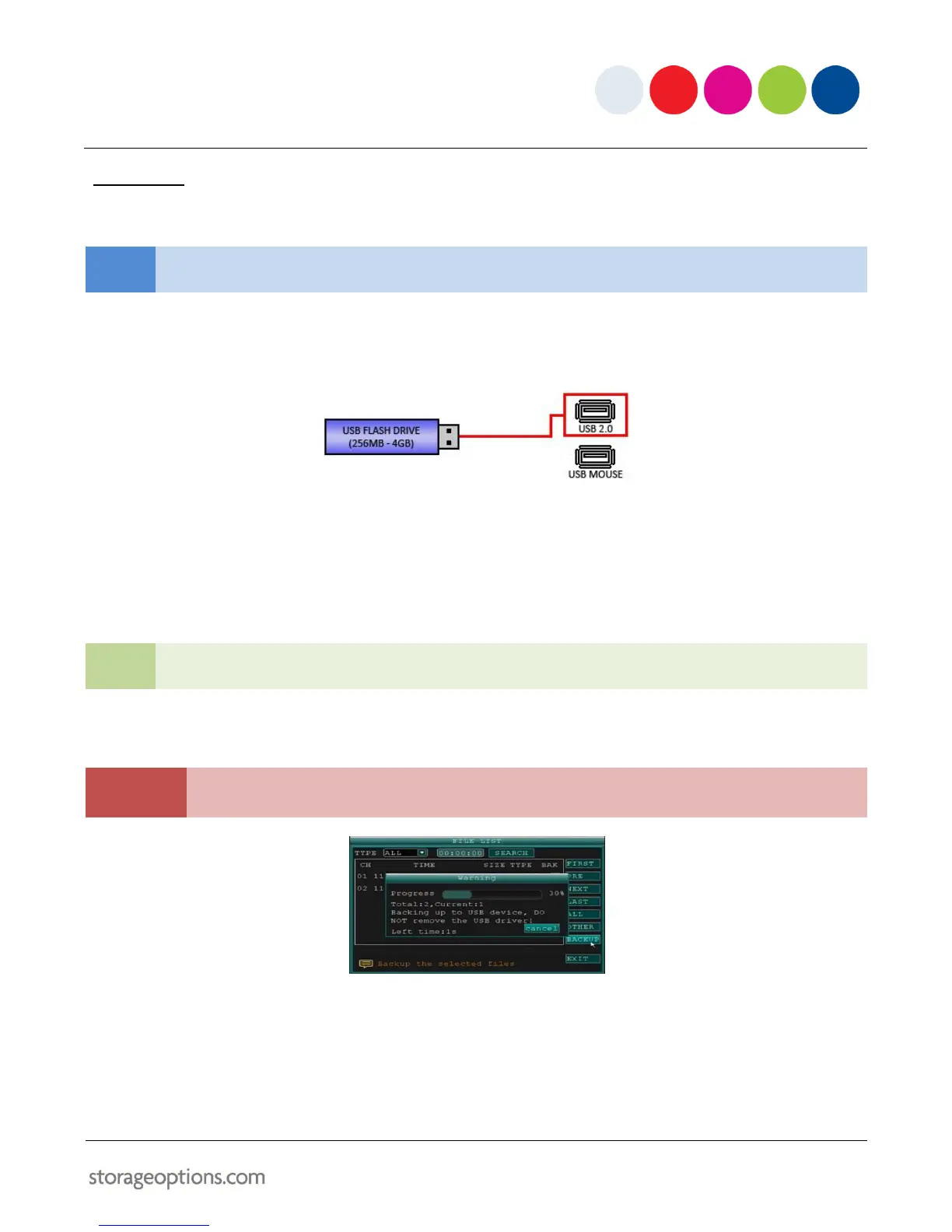
1. Connect a blank USB flash drive to the top USB port on the rear panel of the system.
2. Open the Search menu and search for recorded data on the system.
3. Click FILE LIST.
4. Click the "BAK" box next to a file name to mark it for backup. Select multiple files if needed. Click ALL to
select all files. Click OTHER to invert the current file selection.
The size of each file is shown in the File List menu. Use this to help you choose a USB flash drive large
enough to hold all the files you wish to back up.
5. Click BACKUP from the side panel to immediately begin copying the selected files to the USB flash drive.
Backup progress appears in the status window.
DO NOT remove the USB flash drive during backup – doing so may damage it or cause file corruption.
When there is not enough free space on the USB flash drive, the system will prompt “Space not enough”.
If this event occurs, please replace the USB flash drive with another that has adequate free space.
You can remove the USB flash drive when the backup is finished.


 To Next Page