Page 45
9.2 – MAIN SCREEN
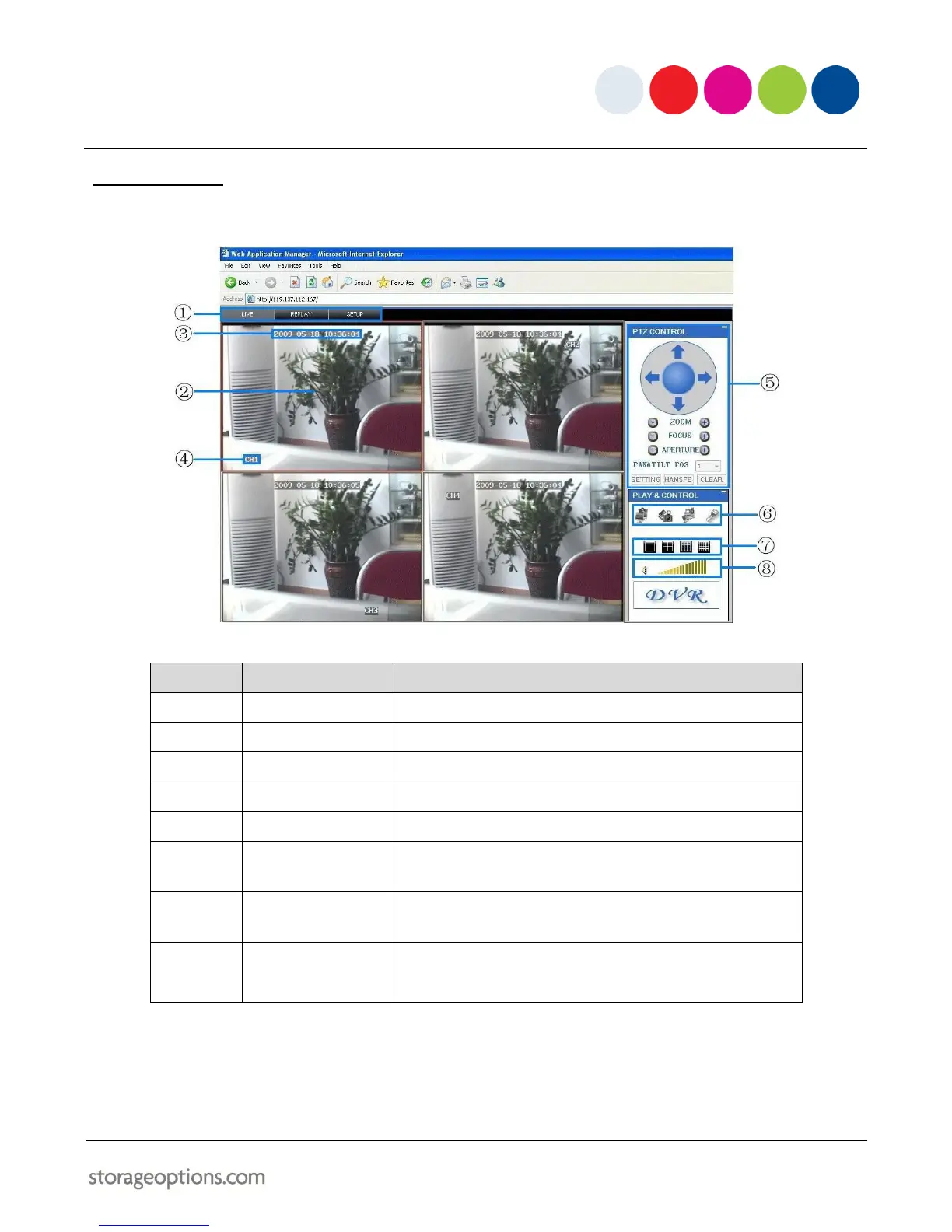
Once logged in, the Remote Surveillance main screen appears in the browser.
Choose from LIVE (default view), REPLAY and SETUP.
Main display screen for live viewing and playback.
Time and date for each channel.
Appears in each channel to indicate channel number.
Pan Tilt Zoom controls for compatible cameras.
Click icons to show / hide channels, take screen captures
and record.
Click icons to view channels in full-screen, quad grid and
split-screen configurations.
Select a channel (the current channel is outlined in red) and
then click the bars to increase / decrease volume. Click the
speaker icon to mute / unmute sound.*
* Audio capable cameras (not included) are required for audio listening and recording.


 To Next Page