Page 37
8.7 – SYSTEM
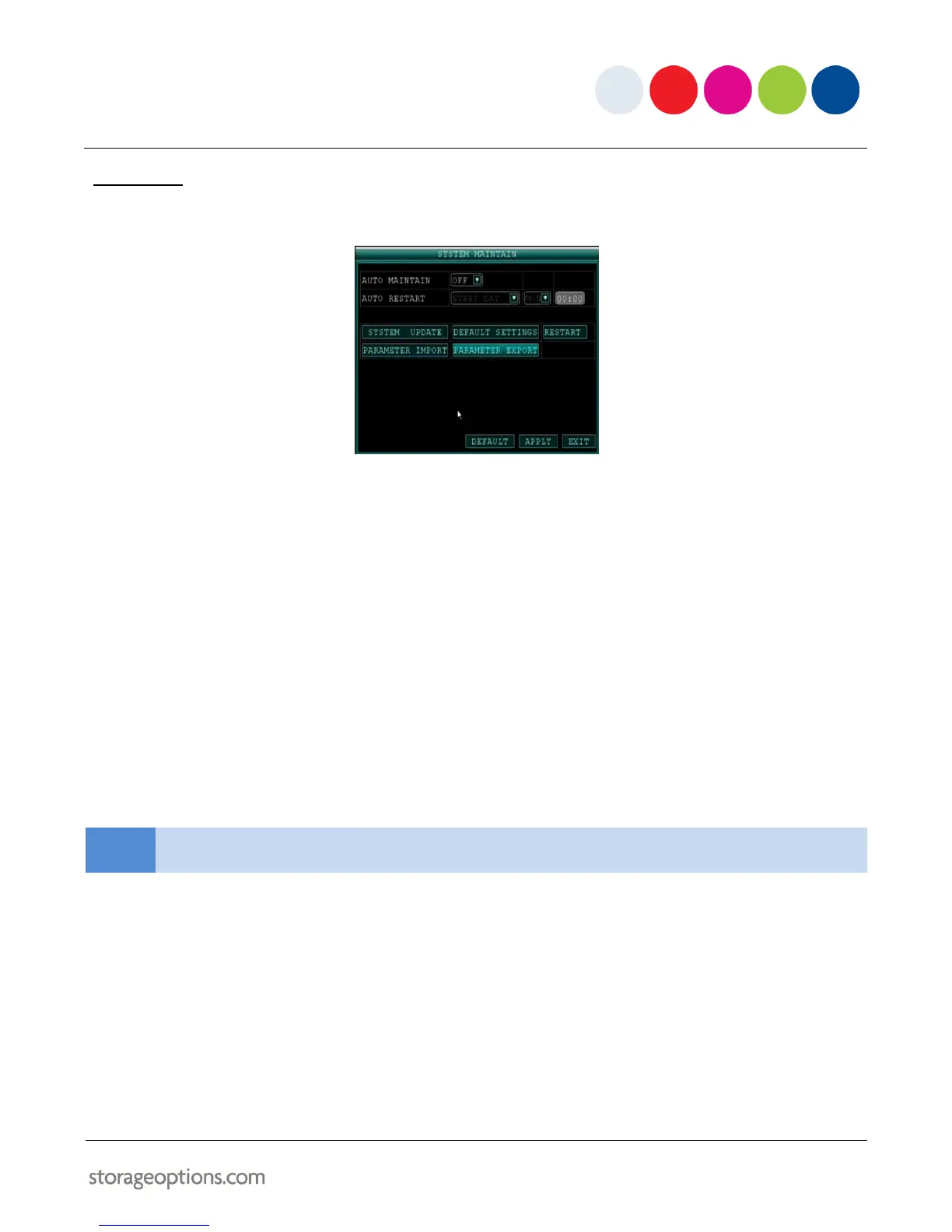
Use the System menu to update system firmware and set an automatic system reset schedule.
To enable auto-reset:
1. Under AUTO RESET, select ON. The Settings option will appear.
2. Under SETTINGS, select EVERY DAY, EVERY WEEK or EVERY MONTH. The Date drop-down menu will appear.
3. Select the date for auto-reset from the drop-down menu.
4. Enter the time for auto-reset using the virtual keyboard (mouse only).
5. Click APPLY to save changes, then click CLOSE in the confirmation window.
To restore factory settings:
1. Click DEFAULT SETTINGS.
2. Click OK on the prompt.
To restart the machine (soft-reset):
1. Click RESTART.
2. Click OK on the prompt. The system will perform a soft-reset and load to a live split-screen view.


 To Next Page