EasyManua.ls Logo

Strong PrimaSat II - User Manual

Strong PrimaSat II
19 pages
Print Icon
To Next Page IconTo Next Page
Loading...
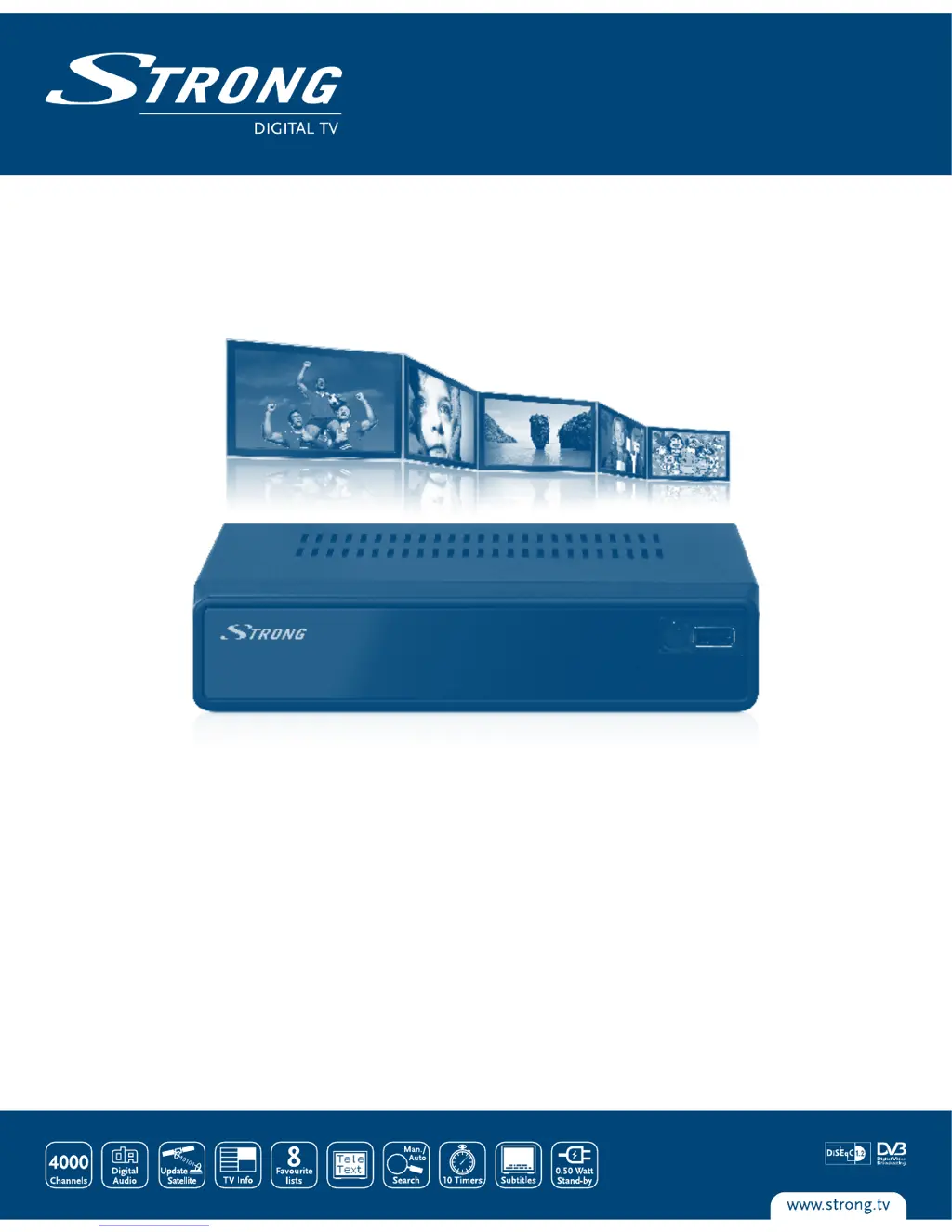
Digital Satellite Receiver
PrimaSat II
User manual

Questions and Answers

  • T
    Thomas ShafferAug 19, 2025
    What to do if my Strong PrimaSat II Receiver has no picture or sound?
    • C
      Cassandra PattersonAug 19, 2025
      If your Strong Receiver isn't showing a picture or producing sound, there might be a few reasons: * Check the audio/video output connection from the receiver to your TV, ensuring it's correctly connected. * Make sure the audio isn't muted by pressing the Mute button. Also, try pressing the AUDIO button to select a different audio channel. * Verify that your TV is powered on and set to the correct channel or input.
  • J
    Jon GarciaAug 21, 2025
    Why does my Strong PrimaSat II Receiver remote control not work?
    • N
      Nancy WilliamsAug 21, 2025
      If the remote control for your Strong Receiver isn't working, it might be due to the batteries. Please check if the batteries are correctly inserted. If they are, check the batteries, and if exhausted replace the batteries in the remote control.
  • N
    Nathan HendersonAug 23, 2025
    What to do if my Strong PrimaSat II Receiver has no picture?
    • D
      David Chapman IIIAug 25, 2025
      If your Strong Receiver isn't displaying a picture, it could be due to a few reasons: * The receiver might not be getting a signal. Check the antenna cable, replace it if necessary, or ensure it's tightly connected to the receiver. * Some tuner parameters might be incorrect. Set the values of the tuner parameters correctly in the installation menu. * The dish might be misaligned. Check the signal strength with a spectrum analyzer and adjust your dish accordingly.
  • D
    Dale WilliamsonAug 26, 2025
    How to fix Strong Receiver when USB storage device is not recognized?
    • S
      stonejulieAug 26, 2025
      If your Strong Receiver isn't recognizing the USB storage device, the issue might be with the file system format. Ensure that your USB device uses the FAT32 file system.
  • J
    John CookAug 28, 2025
    Why does my Strong PrimaSat II Receiver switch off automatically?
    • D
      Darrell BrownAug 28, 2025
      Your Strong Receiver might be switching off automatically because the Auto Standby function is enabled. Disable Auto Standby. See section 4.1.4 for details.
  • M
    Marie ThompsonAug 30, 2025
    What to do if the external USB HDD does not start on my Strong Receiver?
    • G
      Gwendolyn GrantAug 30, 2025
      If your external USB HDD isn't starting when connected to your Strong Receiver, it could be due to high power consumption. Connect an extra power supply adapter to your USB HDD.
  • R
    Renee ShawSep 1, 2025
    What to do if the display on the front panel of my Strong Receiver does not light up?
    • A
      Amanda AlvaradoSep 1, 2025
      If the display on the front panel of your Strong Receiver isn't lighting up, there could be a few reasons: * Check that the power cord is properly plugged into the wall outlet. * Ensure the receiver is switched ON and not in stand-by mode. * Note that some models do not have a display.
  • M
    Matthew HarrisonSep 3, 2025
    Why is there no picture or sound on my Strong PrimaSat II?
    • C
      Cathy HillSep 3, 2025
      There could be several reasons for this: * Check the Audio/Video output connection from the receiver to your TV to ensure it's correctly connected. * Make sure the audio isn't muted by pressing the Mute button. Also, verify the correct audio channel by pressing the AUDIO button and selecting other channels. * Ensure your TV is powered on and set to the correct channel or input.
  • K
    Karen McculloughSep 5, 2025
    What to do if the display on the Strong PrimaSat II front panel does not light up?
    • A
      Anthony LongSep 5, 2025
      If the display on the front panel isn't lighting up, check these things: * Verify that the power cord is securely plugged into the wall outlet. * Ensure the receiver is switched ON and not in stand-by mode. * Note that some models do not have a display.
  • B
    Brent MarquezSep 7, 2025
    Why is there no picture on my Strong Receiver?
    • S
      Susan HendersonSep 7, 2025
      If you're not getting a picture, it could be due to a few reasons: * The receiver might not be receiving a signal. Check the antenna cable, replace it if necessary, or ensure it's tightly connected to the receiver. * Incorrect tuner parameter values can cause this issue. Set the tuner parameters correctly in the installation menu. * The dish direction could be off. Verify the signal strength with a spectrum analyzer and adjust your dish accordingly.

Summary

1.0 Introduction

1.1 Safety Instructions

General safety precautions for installation, usage, and cleaning of the receiver.

2.0 Your Receiver

2.1 Front Panel

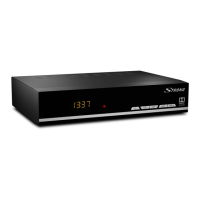
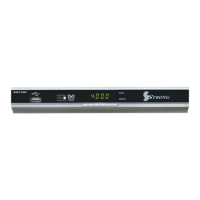
Details the components on the front panel: Indication LED, Remote Sensor, and USB Connection.

2.2 Rear Panel

Identifies connections on the rear panel, including SAT IN for satellite signal.

2.3 Remote Control Unit

Details the functions of each button on the remote control unit.

3.0 Connections

4.0 First Time Installation

4.1 OSD Settings

Guide to configuring OSD Language, Audio Language, and Subtitle Language settings.

4.2 My Dish

Configuration settings for satellite dish type, including switch type and alignment.

4.2.1 Switch Type

Allows selection of the dish switch type: DiSEqC 1.0/1.1, DiSEqC 1.2/USALS, or NONE.

4.2.1.1 DiSEqC 1.0;1.1

Configuration for DiSEqC 1.0/1.1, including satellite selection and signal strength check.

4.2.1.2 DiSEqC 1.2;USALS

Setup for DiSEqC 1.2/USALS with motor-driven dishes, covering LNB type, location, and limits.

4.2.1.3 NONE; Toneburst

Settings for systems without DiSEqC, including Toneburst configuration for one or two dishes.

5.0 Main Menu

5.1 TV

Accesses TV-related functions, including channel management and favorites.

5.4 Configuration

Access to system configuration settings, including installation, TV setup, and PIN codes.

5.4.1 Installation

Contains submenus for OSD settings, My Dish, and TP Manager for system setup.

5.4.2 TV Setup

Settings for TV format, system (PAL/NTSC), OSD transparency, banner display, and video output.

5.4.3 PIN Code

Manages PIN code settings for various security features like menu and channel locks.

5.4.5 Set Default

Resets the receiver to factory default settings, erasing all user data and preferences.

5.4.6 SW Update

Procedures for updating the receiver's software via OTA or USB.

5.4.6.1 Update by OTA

Instructions for updating software directly from the satellite (Over-The-Air).

5.4.6.2 Update by USB

Guide to updating software by downloading files to a USB device and connecting it.

7.0 Audio Language Selection

10.0 Trouble Shooting

11.0 Specifications

Strong PrimaSat II Specifications

Demodulator IconDemodulator
modulationQPSK
input symbol rate2~45 Ms/s
Video Decoder IconVideo Decoder
profile levelMPEG-2 MP@ML
input rateMax. 60 Mbits/s
video resolution720 x 576 pixels (PAL), 720 x 480 pixels (NTSC)
Audio Decoder IconAudio Decoder
sampling rate32, 44.1, 48 kHz
audio modesStereo, Dual mono, Mono
Tuner IconTuner
input frequency range950~2150 MHz
rf input level-25 ~ -65 dBm
lnb power13/18 V DC (± 5%) max. 500 mA, Overload protected
System and Memory IconSystem and Memory
flash memory16 Mb
sdram64 Mb
General Data IconGeneral Data
input voltage range100 - 240 V AC 50/60 Hz
power consumptionmax 18 W, typ. 4.6 W
size179 x 130 x 44 mm

Related product manuals