User’s Manual - 35
Copyright(c) 2005, Sun Microsystems, Inc. All rights reserved.
Troubleshooting
Self-Test Feature Check
If there is something wrong with the input signal, a message appears on the screen or
the screen goes blank although the power indicator LED is still on. The message may
indicate that the monitor is out of scan range or that you need to check the signal cable.
The location and the position of the monitor may influence the quality and other features
of the monitor.
1. If there are any sub-woofer speakers near the monitor, unplug and relocate the sub-
woofer to another room.
2. Remove all electronic devices such as radios, fans, clocks and telephones that are within
3 feet (one meter) of the monitor.
3. Degauss the monitor if any devices were removed from the area.
A monitor recreates visual signals received from the computer. Therefore, if there is
trouble with the computer or the video card, this can cause the monitor to become blank,
have poor coloring, noise, Sync. Out of Range, etc. In this case, first check the source of
the problem, and then contact a service center or your dealer.
Judging the monitor's working condition
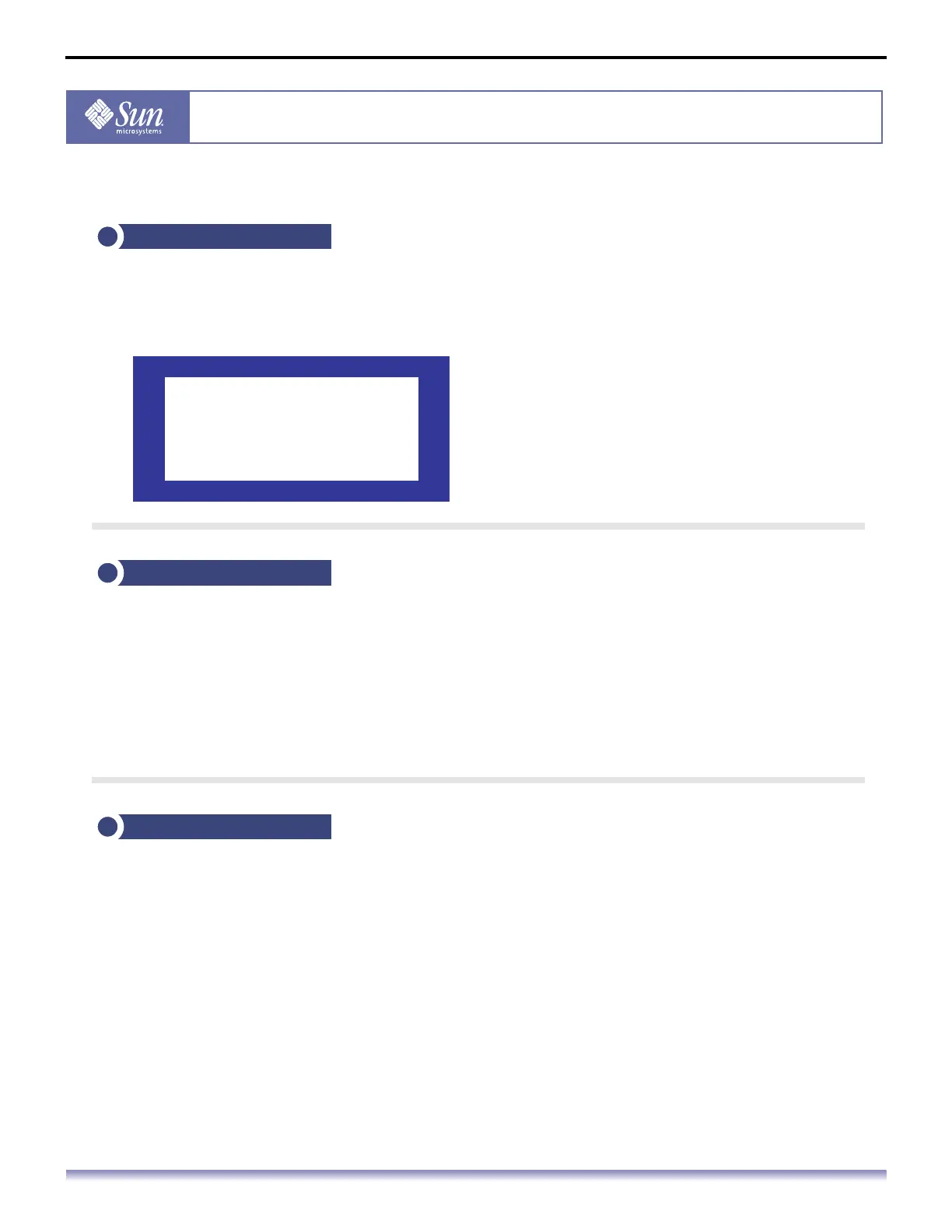
If there is no image on the screen or a "Sync. Out of Range, 68.7kHz 168Hz PP" message
comes up, disconnect the cable from the computer while the monitor is still powered on.
If there is a message coming up on the screen or if the screen goes white, this
means the monitor is in working condition.
In this case, check the computer for trouble.
Warning Messages
Sync Out of Range
68.7kHz 168Hz PP
Environment
Useful Tips


 To Next Page