18
To print a thermal printer report:
1 Ensure Model 1027 and printer are powered up and connected (see Set Up
Thermal Printer on page 4), and a minimum of three hours of data has been
collected.
2 Press and hold both buttons on top of Model 1027 until yellow LED turns on
solid, then release buttons. Yellow LED flashes.
3 While yellow LED is flashing, press and hold PRINT button until yellow LED
turns on solid, not flashing.
4 Release PRINT button. Printer begins printing paper report.
5 When yellow LED flashes once, data transfer is complete.
Computer Reports
Prerequisites
Before creating or printing reports with a computer:
• Communication between Model 1027 and the computer must be set up. See
Set Up Hardware on page 4.
• Radon Monitor software application must be installed. See Set Up Software
on page 6.
Set Up Report Information
If desired, before transferring data from Model 1027 to a computer, configure
header and footer information to be automatically added to each report. This
information must be entered before data is transferred.
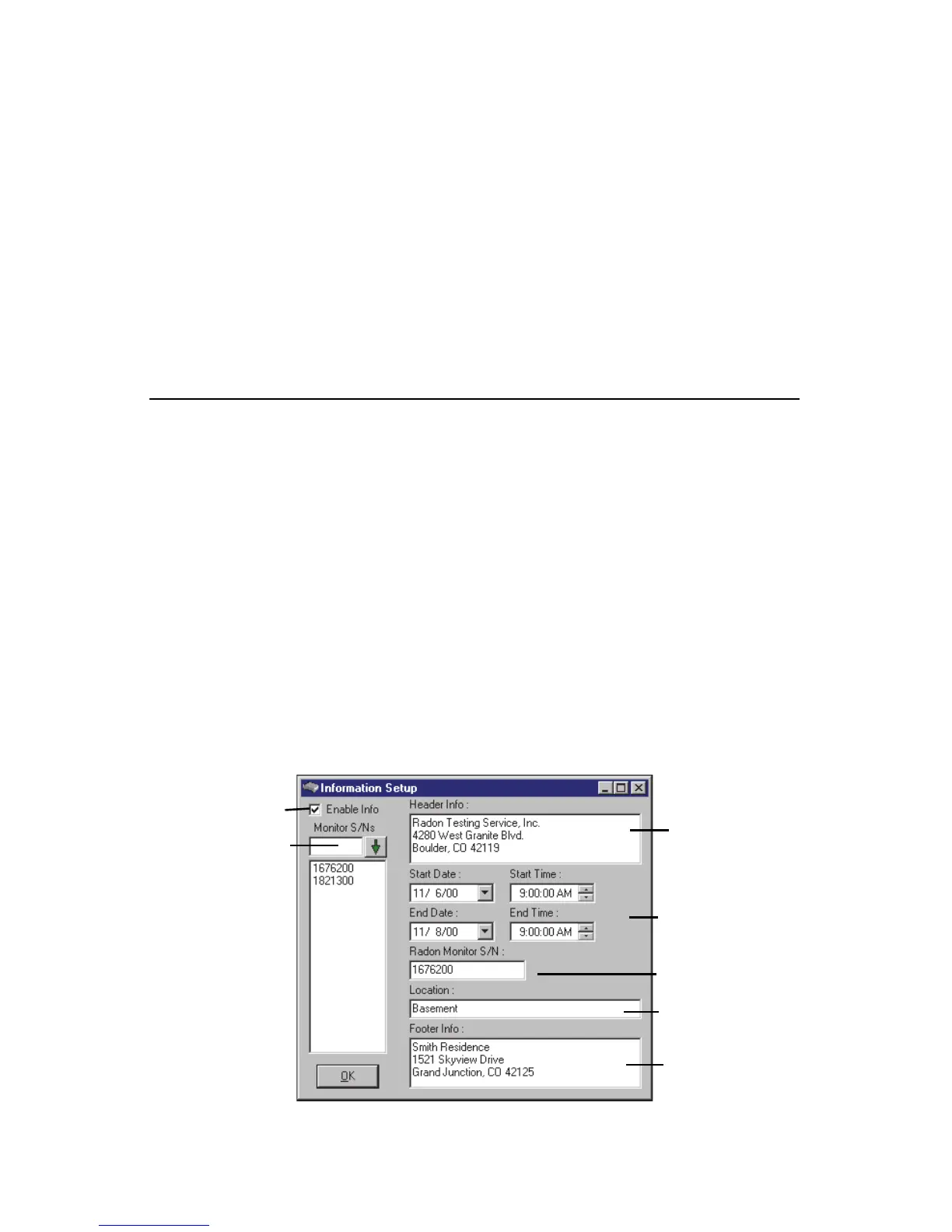
1 Launch Radon Monitor application, then select Edit > Info to open ‘Informa-
tion Setup’ dialog box (Figure 4-2).
Figure 4-2. Information Setup Dialog Box


 To Next Page