19
2 Mark Enable Info checkbox, then enter desired information.
See Table 3, Radon Monitor Report Information, on page 33 for additional
instructions on completing the fields.
3 Click OK, then proceed to Transfer Data below.
Transfer Data
1 Ensure Model 1027 is powered on and connected to computer. (See Using
Serial Port on page 7 or Using USB to Serial Adapter on page 8.)
2 Launch Radon Monitor application.
3 Verify proper Com port is selected. (See Set COM Port in Radon Monitor
Software on page 12.)
4 Optionally, add report information. (See Set Up Report Information on
page 18.)
5 Click Get Data.
Message “Listening for data on Com X...” displays at bottom of screen.
6 On top of Model 1027, press and hold both buttons until yellow LED lights
solid, then release both buttons. Yellow LED flashes.
7 With yellow LED flashing, press and release Print button to transmit data.
Message at bottom of screen displays “Acquiring data on Com X, please
wait...”.
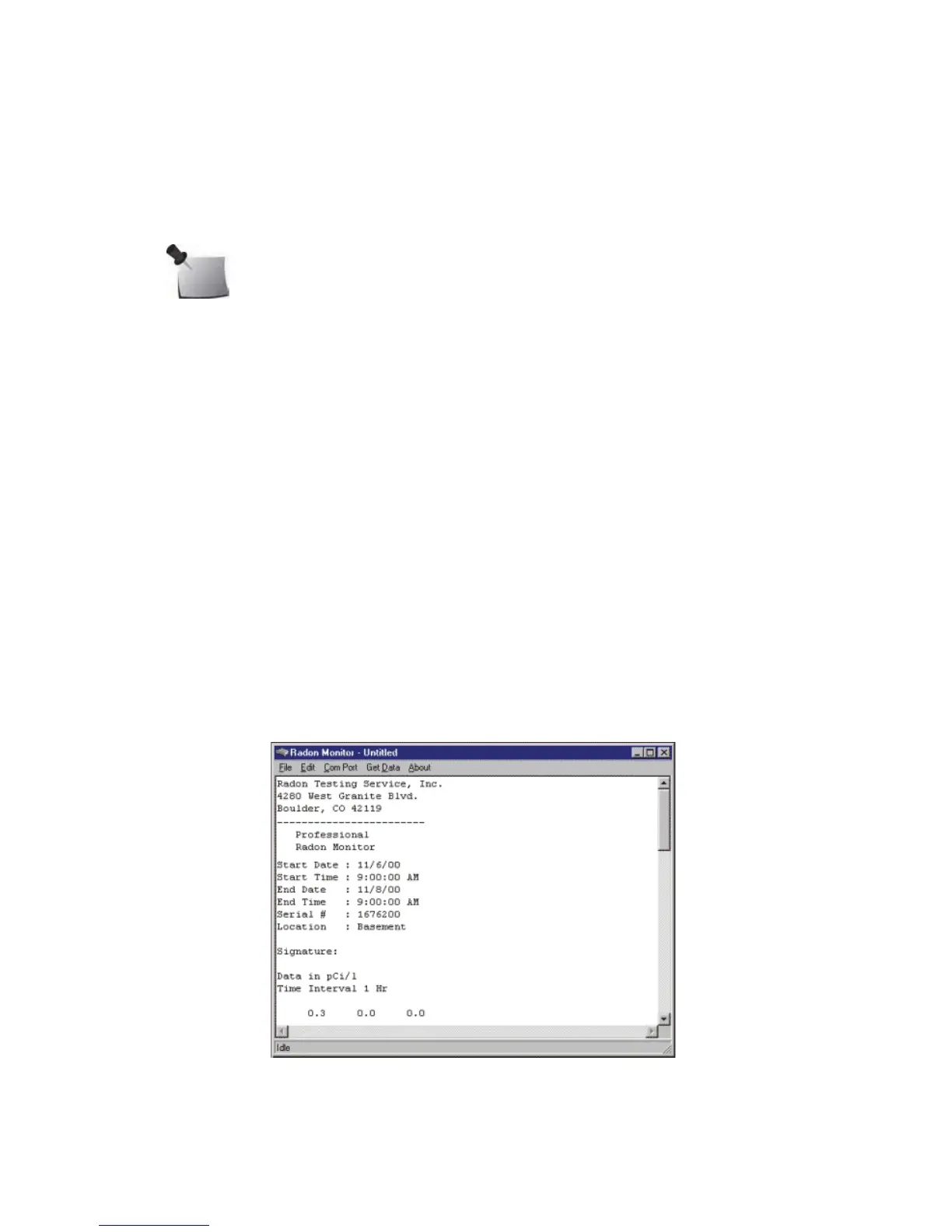
8 When data transfer is complete, report displays (Figure 4-3).
Figure 4-3. Report Displayed in Editing Screen
Note: At least three hours of data should be accumulated before
transferring data.


 To Next Page