62
6.3 App Preparation
step 1 Install the iSolarCloud App with latest version. Refer to "7.2 Installing the App".
step 2 Register an account. Refer to "7.3 Account Registration". If you have got the account and
password from the distributor/installer or SUNGROW, skip this step.
step 3 Download the firmware package to the mobile device in advance. Refer to “Firmware Upa-
date”. This is to avoid download failure due to poor on-site network signal.
- - End
6.4 Plant Creation
Prerequisites:
• The account and password for logging in to iSolarCloud App have been obtained from
the distributor/installer or SUNGROW.
• The communication device is normally connected to the inverter.
• System positioning is enabled and iSolarCloud App is allowed to access location
information.
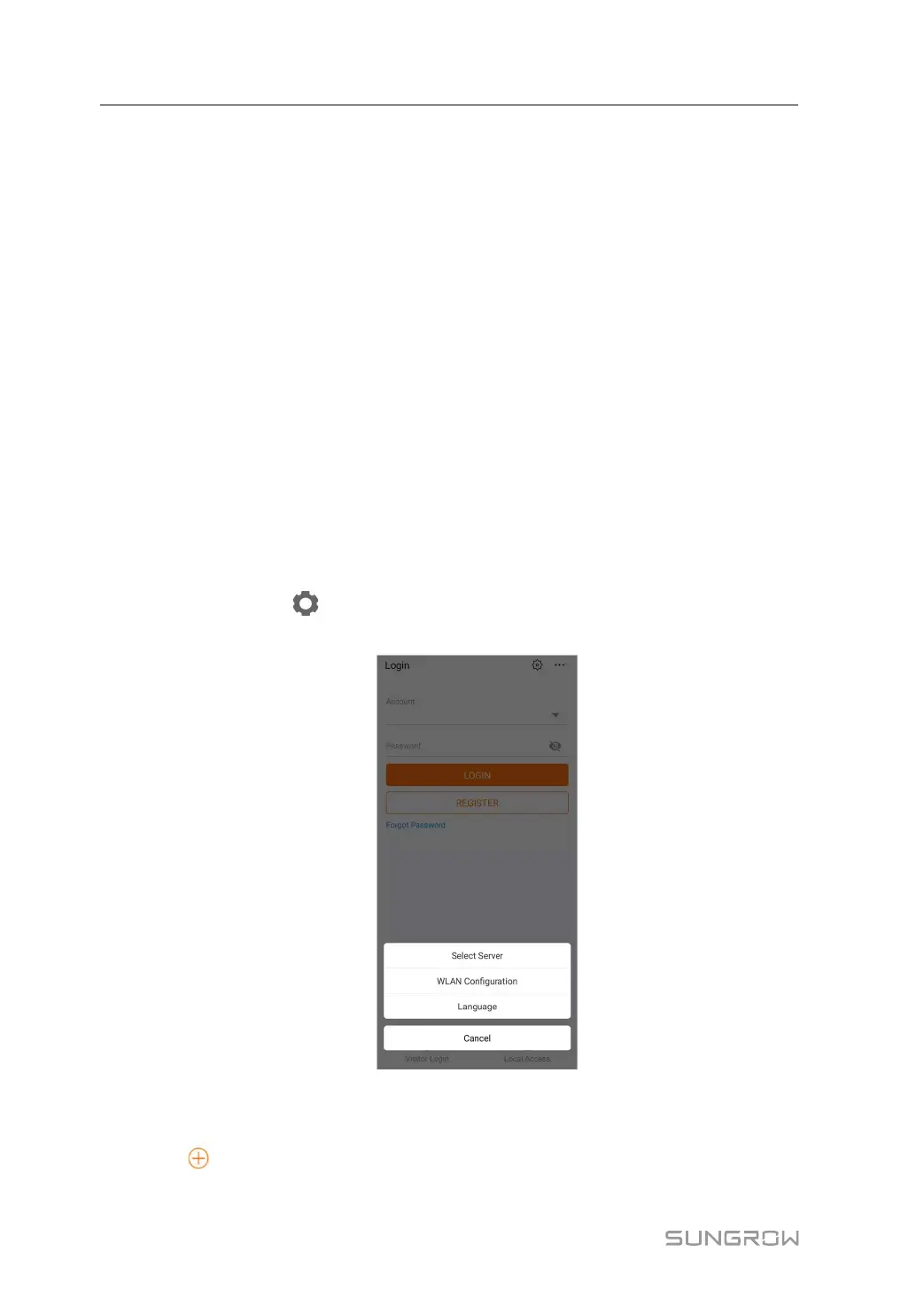
step 1 Open the App, tap
in the upper right corner of the interface, and select the correct ac-
cess address.
figure 6-1 Select Access Address
step 2 Enter the account and password on the login interface, and tap LOGIN to log in.
step 3 Tap
in the upper right corner to enter the plant creation interface.
6 Commissioning User Manual




 To Next Page