SVAT ELECTRONICS
now you can see
CLEARVU2 22
Capturing Images/Video to your Computer
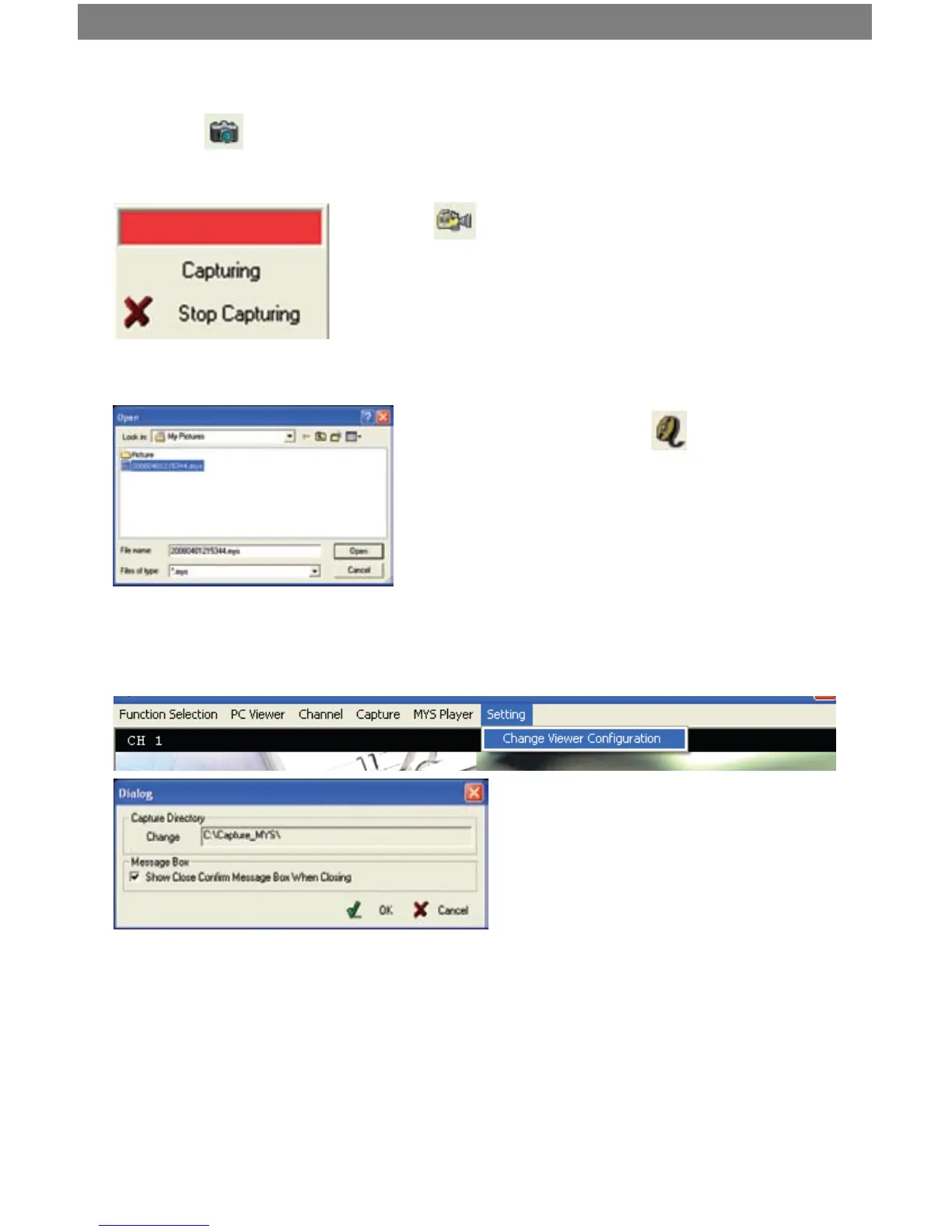
3. To view your captured video, press to switch to capture
playback mode.
4. A dialog box will open, allowing you to select the le to play
back. After you select the le, click Open to begin playback.
Settings
Click the Setting dropdown menu to change the le path of the captured footage (where the footage will be stored).
The default le path is C:\Capture_MYS.
1. Press the button to capture a picture/screenshot of the DVR footage. Screenshots will be stored in JPEG
format, in C:\Capture_MYS. These JPEG picture les can now be stored or emailed.
2. Press the button to record video footage to your computer. Before
clicking the button, ensure that the video is paused. A window will appear,
showing that the video is capturing. Press “Stop Capture” when you are
done capturing. The video will be stored in C:\Capture_MYS, but will only
be readable by the DVR Video Player software.



 To Next Page