PLAYBACK
Make sure ...
• TV/VCR power must be turned on.
1 Insert a prerecorded tape
If the erase-prntection tab has been removed, the
TV/VCR will start playback automatically.
2 To begin playback
Press the PLAY button.
3 To stop playback
Pressthe STOP button when play-
back is completed.
]
]
• Tracking adjustment will be set automatically
(Digital Tracking function) when you start play-
back.
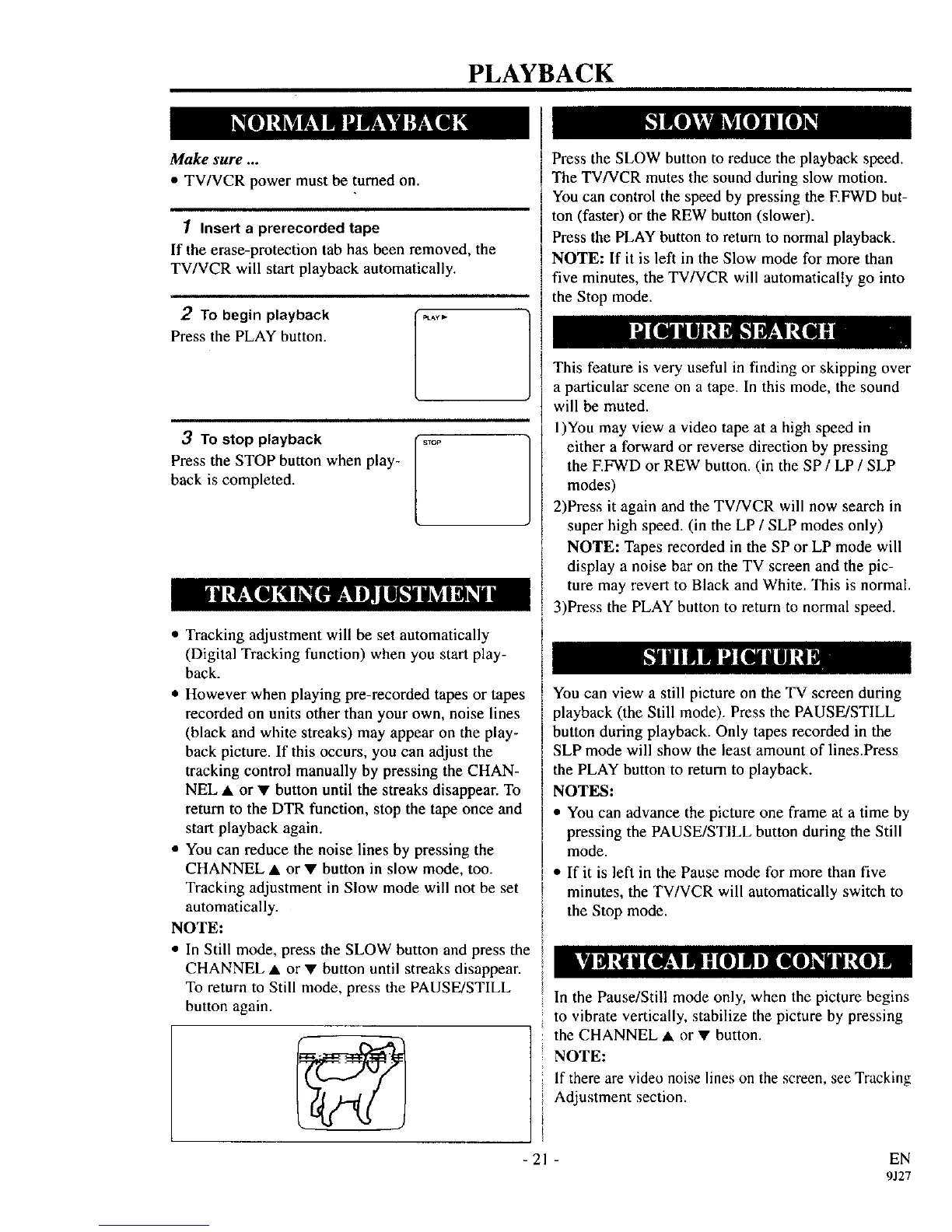
• However when playing pre-recorded tapes or tapes
recorded on units other than your own, noise lines
(black and white streaks) may appear on the play-
back picture. If this occurs, you can adjust the
tracking control manually by pressing the CHAN-
NEL • or • button until the streaks disappear. To
return to the DTR function, stop the tape once and
start playback again.
• You can reduce the noise lines by pressing the
CHANNEL • or • button in slow mode, too.
Tracking adjustment in Slow mode will not be set
automatically.
NOTE:
• In Still mode, press the SLOW button and press the
CHANNEL • or • button until streaks disappear.
To return to Still mode, press the PAUSE/STILL
button again.
Press the SLOW button to reduce the playback speed.
The TV/VCR mutes the sound during slow motion.
You can control the speed by pressing the F.FWD but-
ton (faster) or the REW button (slower).
Press the PLAY button to return to normal playback.
NOTE: If it is left in the Slow mode for more than
five minutes, the TV/VCR will automatically go into
the Stop mode.
This feature is very useful in finding or skipping over
a particular scene on a tape. In this mode, the sound
will be muted.
l)You may view a video tape at a high speed in
either a forward or reverse direction by pressing
the EFWD or REW button. (in the SP / LP / SLP
modes)
2)Press it again and the TV/VCR will now search in
super high speed. (in the LP / SLP modes only)
NOTE: Tapes recorded in the SP or LP mode will
display a noise bar on the TV screen and the pic-
ture may revert to Black and White. This is normal.
3)Press the PLAY button to return to normal speed.
You can view a still picture on the TV screen during
playback (the Still mode). Press the PAUSE/STILL
button during playback. Only tapes recorded in the
SLP mode will show the least amount of lines.Press
the PLAY button to return to playback.
NOTES:
• You can advance the picture one frame at a time by
pressing the PAUSE/STILL button during the Still
mode.
• If it is left in the Pause mode for more than five
minutes, the TV/VCR will automatically switch to
the Stop mode.
In the Pause/Still mode only, when the picture begins
to vibrate vertically, stabilize the picture by pressing
the CHANNEL • or • button.
NOTE:
If there are video noise lines on the screen, see Tracking
Adjustment section.
- 21 - EN
9J27



 To Next Page