Tally Dascom 1225
33
Vertical Alignment
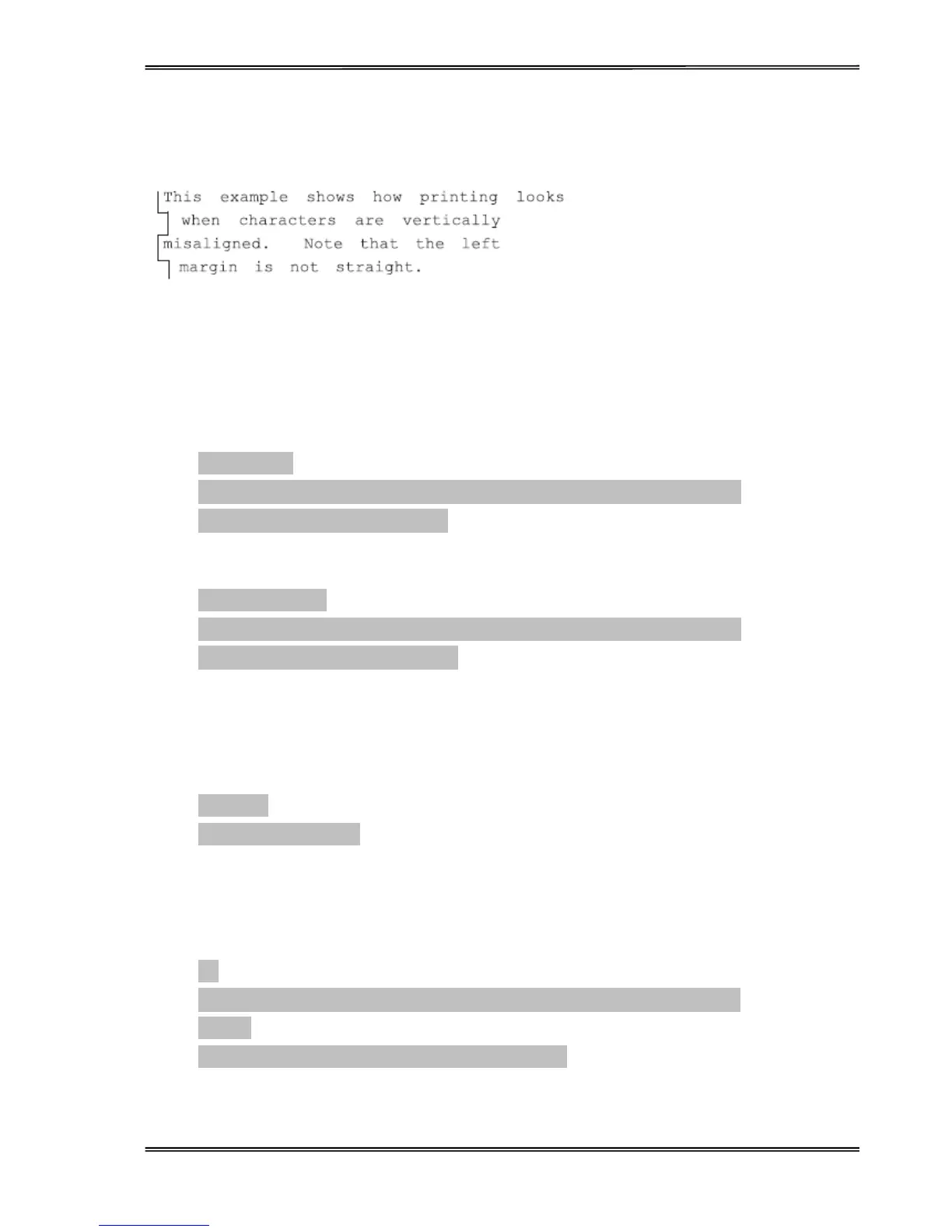
The vertical alignment function is used to resolve any vertical line misalignments in bi-directional printing.
Adjust Vertical Alignment Procedure:
1. Enter the Service Menu by holding down the【Tear/Off】and【LF/FF】keys while powering up.
2. Load paper.
3. The printer will print as follows:
Service Menu
【LF/FF】= OK 【Tear/Off】= Back 【Load/Eject】= Next 【Online】= Exit
Current Setting:Vertical Alignment
4. Press【LF/FF】key to select the current setting. The printer will print as follows:
Vertical Alignment
【LF/FF】= OK 【Tear/Off】= Back 【Load/Eject】= Next 【Online】= Exit
Please select Paper Type:Single Ply
For single ply paper, press【LF/FF】key to select. For multipart paper, press 【Load/Eject】key to go
to “Multipart”,then press【LF/FF】key to select.
5. If single ply is selected for paper type, the following will print:
Single Ply
Current Print Mode: LQ
Press 【Load/Eject】key to scroll to other print modes if required.
6. If LQ is selected, the following will print:
LQ
【LF/FF】= lower ½ to left 【Load/Eject】= lower ½ to right 【Online】= Exit
LQ -2:
||||||||||||||||||||||||||||||||||||||||||||||||||||||||||||||||||||||||||||||||||||||||||
Pressing 【LF/FF】or 【Load/Eject】 key will allow you to adjust the alignment of the vertical lines


 To Next Page