When a file is selected, press the
•
¯
(
Next
)
key to open the pop-up menu.
When
•
New Folder
is selected, press the
¯
(
Next
) key to open a pop-up message to
confirm whether or not you want to create a
new folder.
Icons shown on the FILE/FOLDER
screen
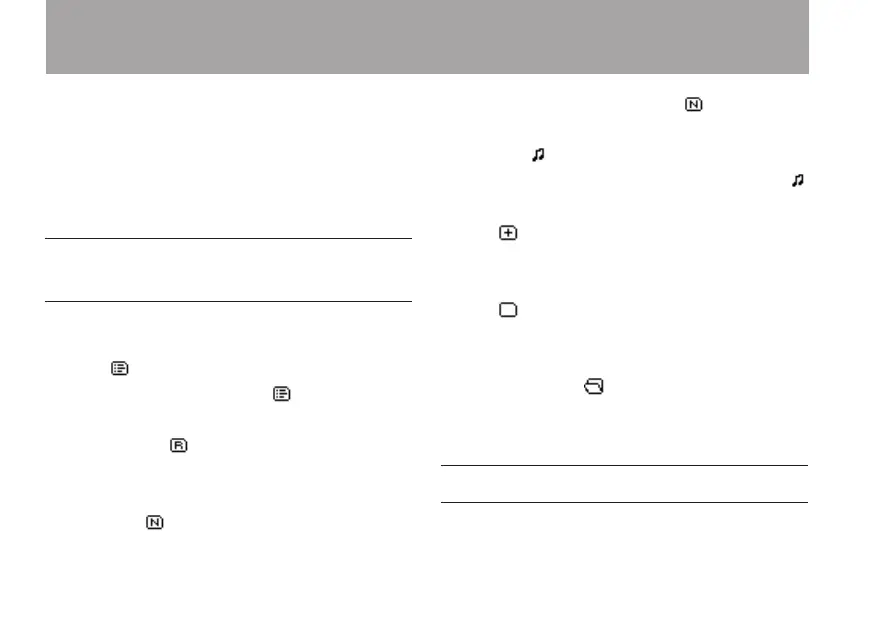
The following types of icons are shown on the
FILE/FOLDER
screen.
Playlist
PLAYLIST
PLAYLIST
appears next to an icon. (See
“Playlist ” on page 74.)
SOUND folder
SOUND
On the root level screen, the
SOUND
folder is
shown as the top level.
New folder
New
Folder
New Folder
appears next to an icon. (See
“Creating a new folder” on page 66.)
Audio file
A music le is shown with its le name after an
icon.
Folder
This icon indicates a folder that contains les or
other folders.
Folder
This icon indicates a folder that does not contain
les or other folders.
Displayed folder
The contents of the current folder are shown on
the screen.
File operations
You can add les to the Playlist and delete them
from the card.
5 – File and folder operations (FILE/FOLDER screen)



 To Next Page