2.3 Mouse Control
Mouse control in Live Display & Playback interface
In the live display & playback interface, double click on any camera window to show the
window in single screen mode; double click the window again to restore it to the previous size.
In the live display & playback interface, if the interfaces display in full screen, move the mouse
to the bottom of the interface to pop up a tool bar. The tool bar will disappear automatically
after you move the mouse away from it for some time; move the mouse to the right side of the
interface to pop up a panel and the panel will disappear automatically after you move the
mouse away from it.
Mouse control in text-input
Move the mouse to the text-input box and then click the box. The input keyboard will pop up
automatically.
2.4 Text-input Instruction
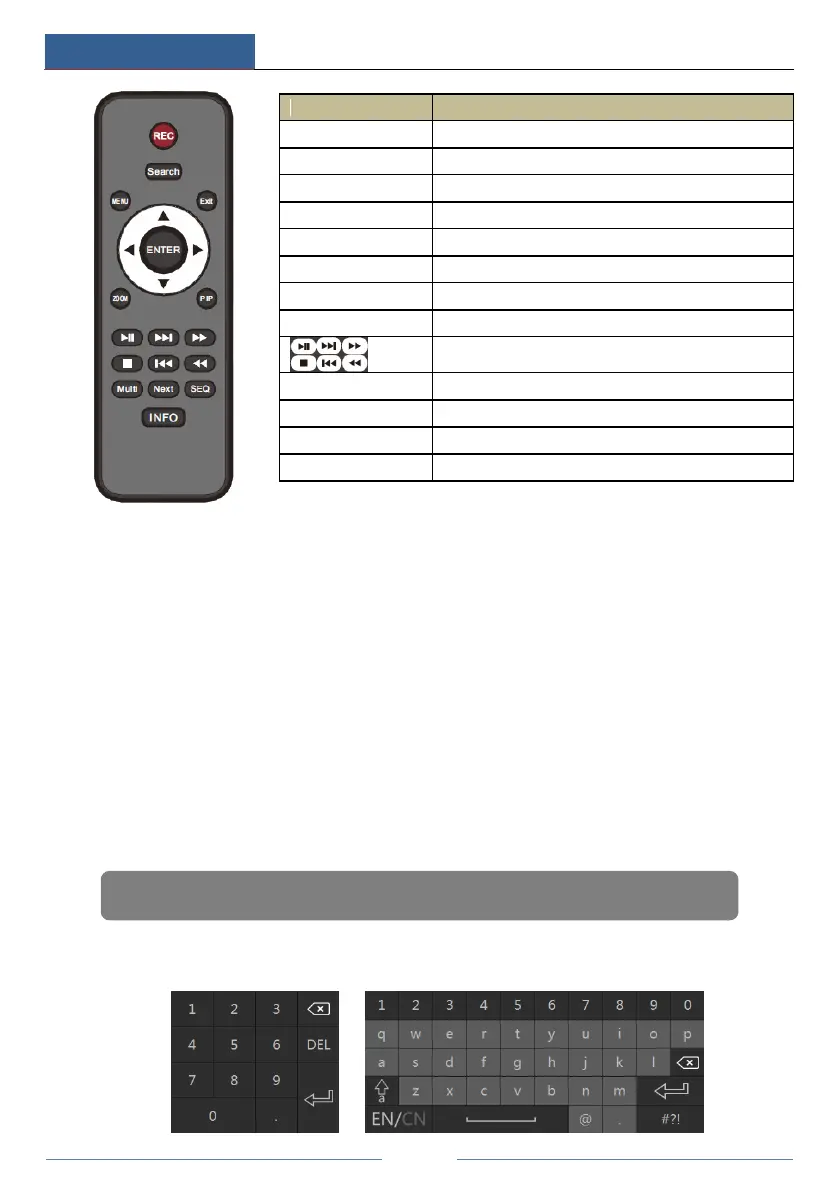
To exit the current interface
To confirm the choice or setup
To control playback. Play(Pause)/Next Frame/Speed
Up/Stop/Previous Frame/Speed Down
To choose multi screen display mode
To go to sequence view mode
Get information about the device
Note: Mouse is the default tool for all operations unless an exception as indicated.



 To Next Page