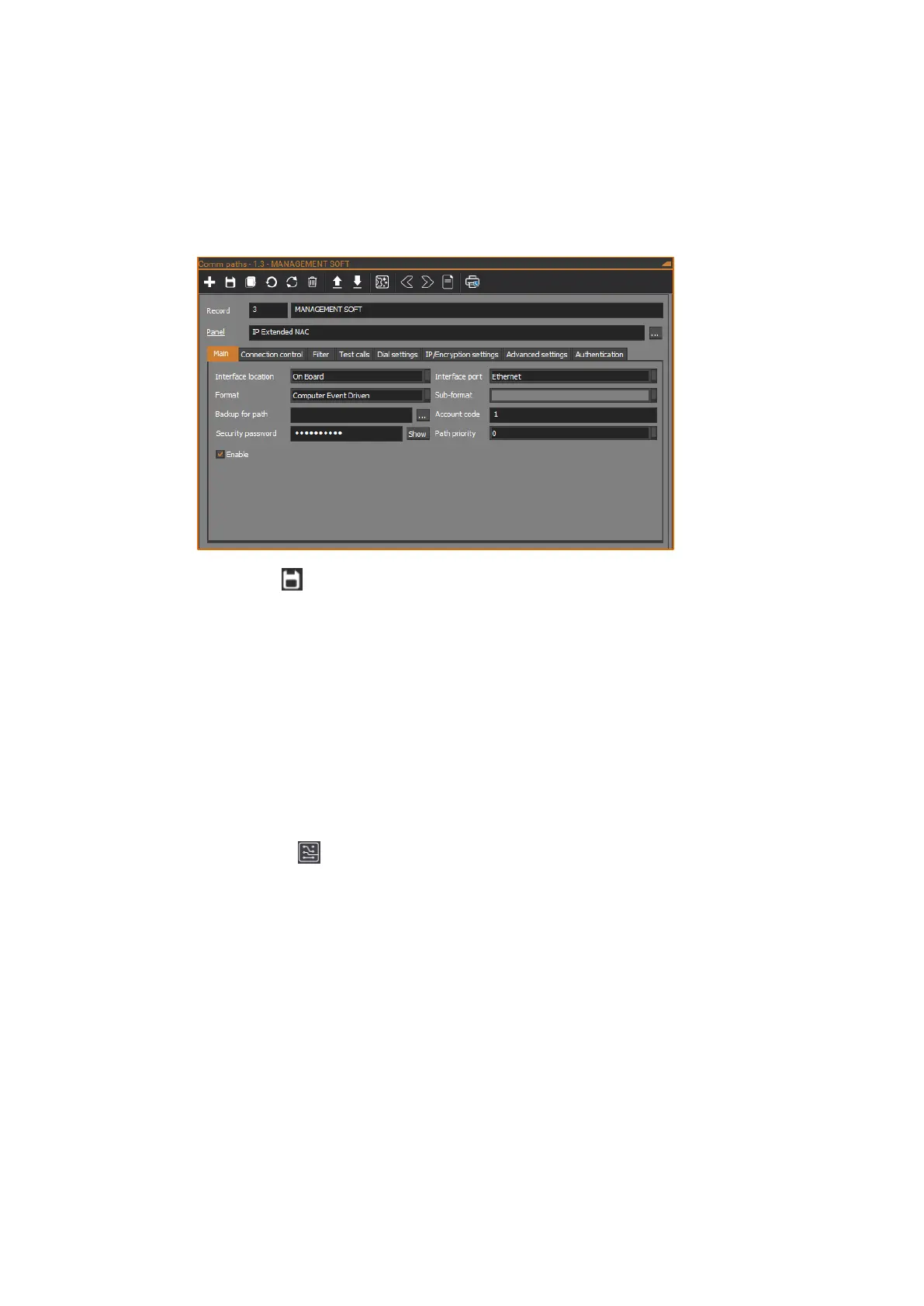
3. On the Main tab, tick the Enable check box to enable the path.
4. Configure any other settings required, such as Account code and
Computer password.
5. On the Comm Paths form, click the Config Wizard button in the toolbar to
set the IP address and Send/Receive port of the management software
computer.
6. Click the Save button in the toolbar to save the Comm path record.
The configured communications path can be used by CTPlus for further
configuration and management, or by TecomC4 for management. If required, set
up additional communications paths by repeating the steps in this section with a
different communications path.
Connecting CTPlus to NAC via IP
If desired, reconfigure the NAC panel record to use Ethernet communications
instead of USB. Using CTPlus, follow these steps:
1. Connect the NAC to the CTPlus computer using an Ethernet cable.
2. Click the Panels button on the Panel programming ribbon tab to open
the Panels form.
3. On the Panels form, select the NAC panel.
4. On the Definition tab, ensure the Account code is set to the
communication path’s Account code, the Authentication type is set to
Security password, and the Security password is set to the
communication path’s Computer password.



 To Next Page