16
To set up a Wi-Fi connection using your security key or password you’ll need to know:
•ThenameofyourWi-Fihomenetworkname(alsocalledSSID)
•YourWi-Fipassword(alsoknownasyourwirelesssecuritykey)
•WEPorWPAsecurityforyournetwork.YoushouldalwayssecureyourWi-Finetwork
with one of these key codes
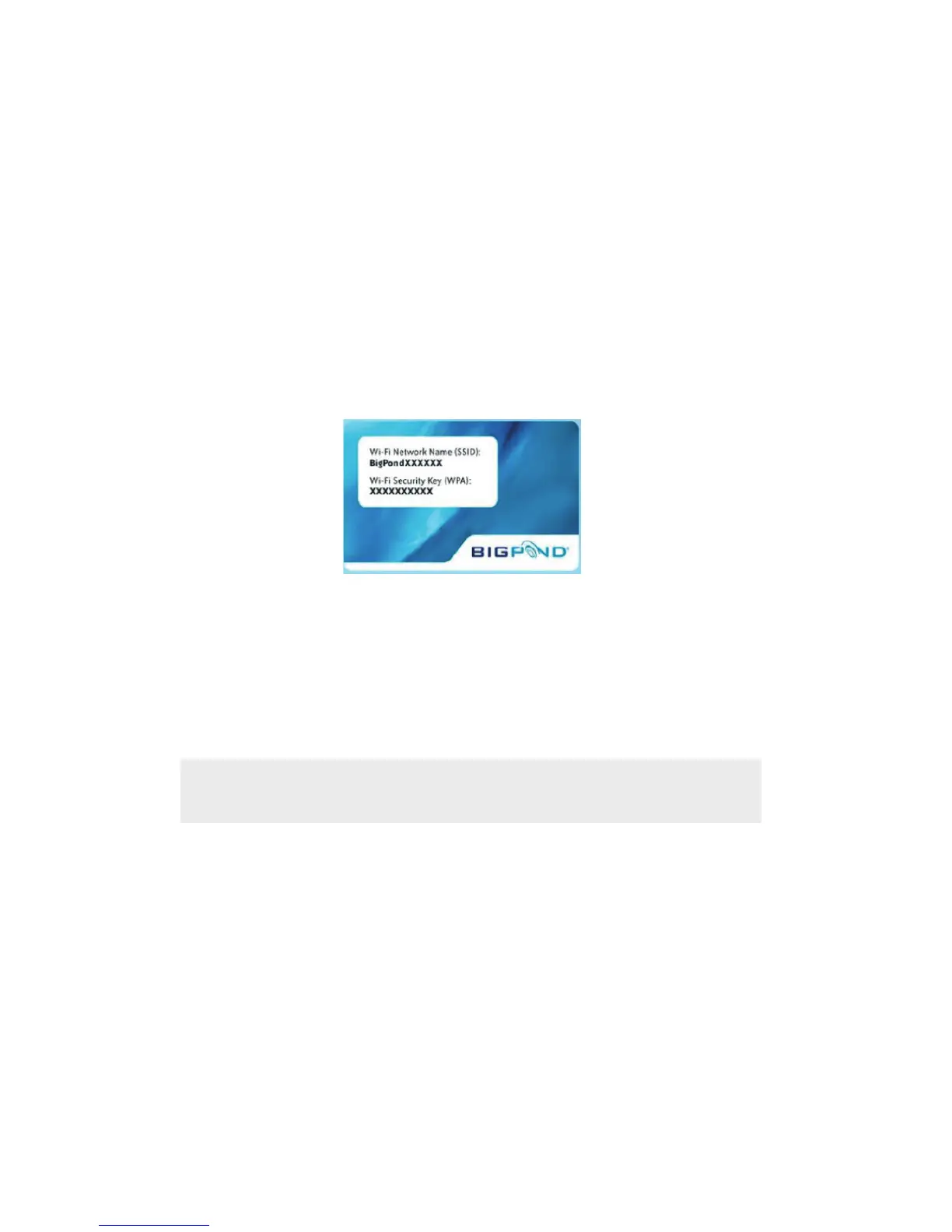
If you need to check these details, the default network SSID and password key
will be printed on the underside of your BigPond
®
gateway, on the Wi-Fi key card
supplied with your gateway, or somewhere in its user’s manual.
When you get to the Internet Connection on-screen instructions:
•Selecttheoptiononthescreencalled‘ConnectviaWi-Fi’andpressOK
•SelectyourWi-Finetworknamefromthelist
•EnteryourWi-Finetworkkey/password
•YouwillneedtoenteryourWi-Fikey/passwordusingthemulti-tapalphanumeric
buttons on your remote control. Use the delete button on your remote control
tocorrectanymistakes.Youcanndthedeletebuttononthebottomofyour
remote control
If your Wi-Fi network is masked, choose ‘Other network’ from the list then enter
the name and key of your Wi-Fi network manually:
•SelectOK when you’re ready to check and establish the connection.
•IfyouneedyourT-Box
®
’s Wi-Fi MAC address you can nd this in the System
InformationpageintheSettingsmenu,onpage38.YoucanalsondyourWi-Fi
modem/routerMACaddressonthesamescreen.
If you still can’t connect wirelessly,checkthelightsonyourWi-Figateway/
modem to make sure Wi-Fi is enabled, and use a Wi-Fi enabled device like your
laptop to the check the signal strength at your T-Box.
Note: Be careful to use upper or lower case, as your security information will be
case sensitive.


 To Next Page