28
Using your Optik TV PVR
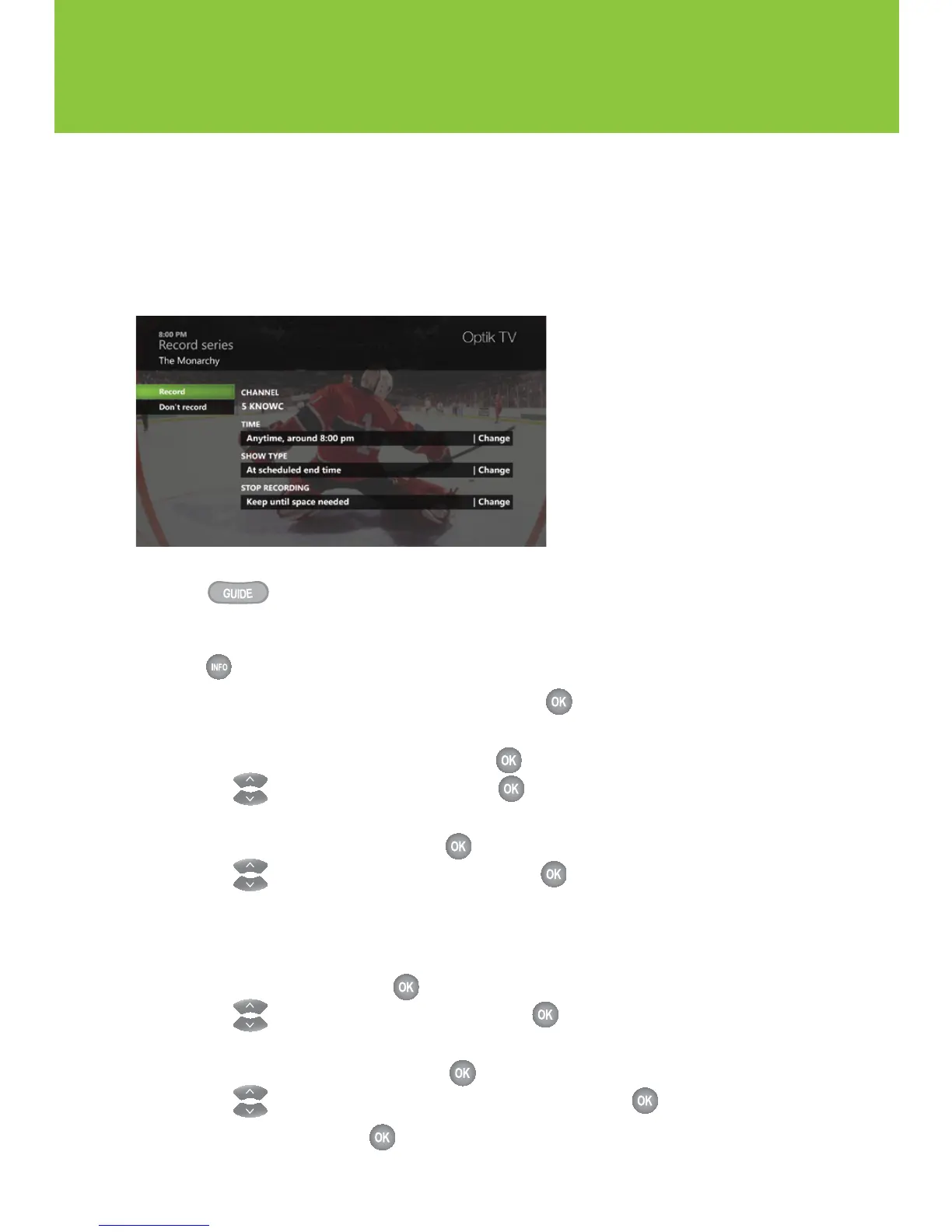
Customizing recording settings
No matter what time an episode of your favourite show ends, you can customize your settings to
extend recording time or protect it from being deleted. And if you’d like to save an entire series, you
can also customize the start time, extend recording time and choose whether you want to record first
runs as well as reruns.
1 Press .
2 Navigate to the program that you want to record.
3 Press .
4 Navigate to Record episode or Record series and press .
n To extend a recording time:
a. Navigate to STOP RECORDING and press
.
b. Use
to select a time period and press .
n To protect your recordings from being deleted automatically:
a. Navigate to KEEP UNTIL and press
.
b. Use
to select one of the following and press .
n Keep until space needed – Deletes the program automatically when space is needed
n Keep until I delete – Stores the program until it is manually deleted
n To change the time slot that you prefer a program series to be recorded in:
a. Navigate to TIME and press
.
b. Use
to select the desired option and press .
n To indicate whether first run and rerun of a series will be recorded:
a. Navigate to SHOW TYPE and press
.
b. Use
to select First run only or First run & rerun and press .
5 Navigate to Record and press .


 To Next Page