26
• Press the function button PREV to display basic information on the previous
record.
• Press the function button NEXT to display the
basic information on the next record.
• Press the function button RETURN to go back to
the previous menu.
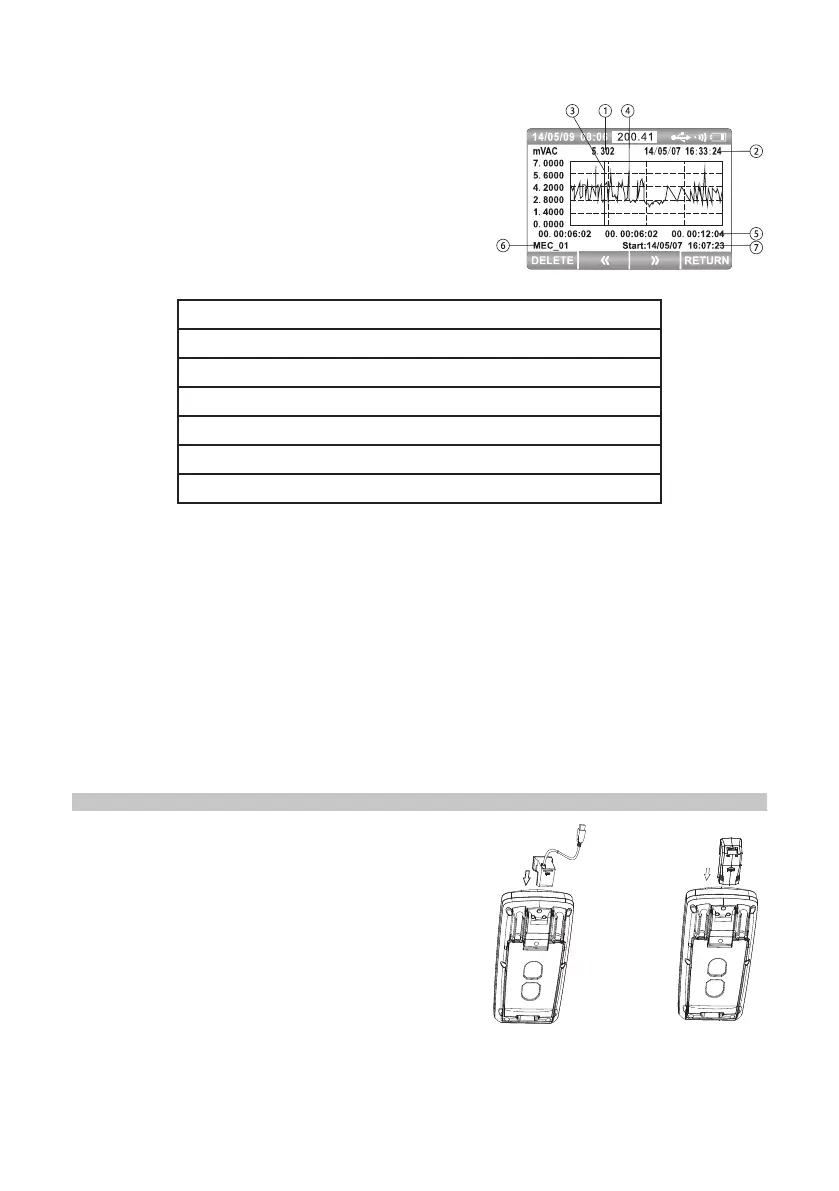
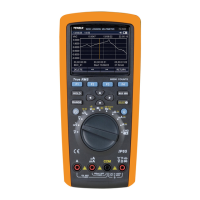
• Press the function button TREND to view the
trend chart of the present record as shown right:
• The display information of trend data is
explained in the following table:
1) Measured value corresponding to cursor
2) Date and time for measurement corresponding to cursor
3) Cursor
4) Trend time
5) Time label of X-axis to display during elapsed time
6) Name of record event
7) Time and date from the start of the recording
• View the trend chart. Press or hold the F2 button to move the cursor left and F3 to
move the cursor to the right.
• The cursor will move one data to the left or right for each press.
• Hold down F2 or F3 to speed the cursor up.
• Press ▲ or ▼ to scale the graph vertically and ◄ or ► to scale the graph
horizontally.
• Press the F1 button to delete this record and again (YES) to conrm, or NO to
cancel the deletion.
- Delete All Record
• Press the function button DELETE to delete all recordings. Press the function
button YES to conrm, or NO to cancel the operation.
COMMUNICATION
• Turn on communication by pressing SETUP,
before moving the cursor to “Communication”.
• Press F1 to turn on and the Bluetooth symbol
will appear in the top right hand corner of the
screen.
• The meter carries a USB communication by
connecting the USB cable to a PC.
• It can also use a bluetooth module (optional)
and mobile phone for bluetooth communication.


 To Next Page