5 WLAN connection - using the App
16
5 WLAN connection - using the App
5.1 Activating/disabling the connection
To connect via WLAN, you need a tablet or smartphone with the
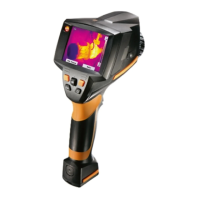
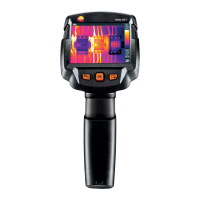
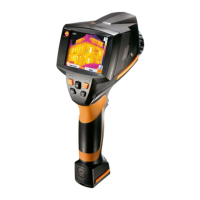
testo Thermography App already installed on it.
You can get the App from the App Store for iOS devices or from the
Play Store for Android devices.
Compatibility:
Requires iOS 8.3 or later / Android 4.3 or later.
The Configuration menu opens.
When connecting for the first time, you will be asked for a password.
This is "thermography" by default.
A check mark appears when WLAN is enabled.
While WLAN is activated, the image gallery cannot be accessed.
Explanation of WLAN icons


 To Next Page