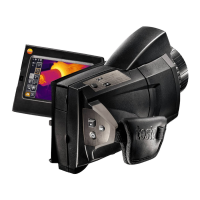
The submenu with the measurement settings opens:
• Pixel mark:
o Center spot: the temperature measuring point in the
centre of the image is marked with white crosshairs and
the value is displayed.
o Coldspot, Hotspot: the lowest or highest temperature
measuring point is marked with blue or red crosshairs and
the value is displayed.
o Show all: All measuring points are displayed.
• Min/Max on area:
o Min/max on area: the minimum, maximum and mean
values for a selected area are displayed.
o Coldspot, Hotspot: the lowest or highest temperature
measuring point within the range selection is marked with
blue or red crosshairs and the value is displayed.
o Show all: All values are displayed. For this, one of the
available options must already be enabled.
• Measuring range: choose between two temperature ranges or
AutoRange.
• Differential temperature: identifies the difference between two
temperatures.
• External values: select Humidity, Current, Voltage, Solar,
Power, None.
• IFOV: the IFOV warner shows what can be measured
accurately from a specific distance.
• Zoom: enlarges the image section (2x, 3x, 4x)


 To Next Page