40 Solving Equations
Solving Equations
Press »B:Solver... to access the built-in numeric solver and the pre-loaded
polynomial and systems of equations solver, PlySmlt2 App.
Numeric Solver
Steps for the Numeric Solver
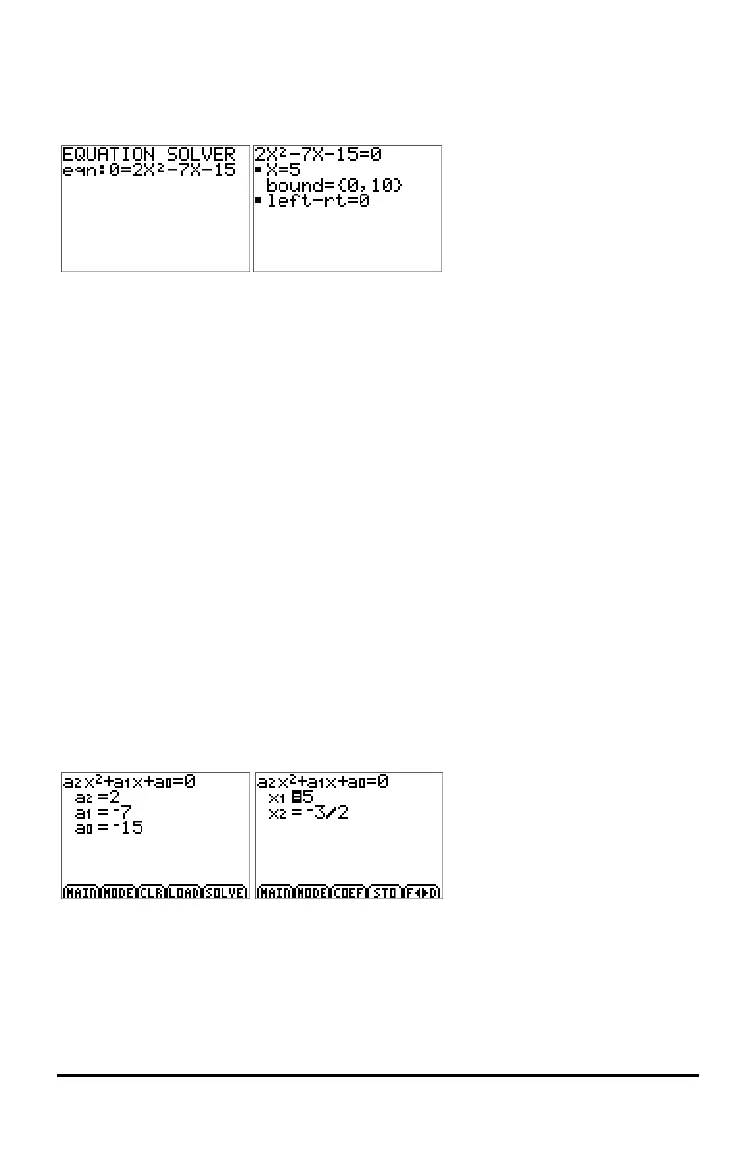
1. Enter your equation as 0=expression and press Í.
2. Place the cursor on the variable to solve.
- For this example, the variable is X with stored value 5.
3. Enter a value for the variable close to your estimate of the solution.
- If needed, look at the graph or table of your equation to know the approximate
location of the solution(s).
- (Advanced) Bound – {-1E99, 1E99} represents the calculator version of the Real
Number line: {-1x10
99
, 1x10
99
}. You can change this interval to be close to
where you estimate the solution especially if you expect multiple solutions
such as for a quadratic equation.
- For many textbook problems, you probably will not have to change this line. ·
4. Press the [ƒ (Í) find the calculator’s numeric solution.
- The solution will be marked with a small square next to the variable.
- The line “left-rt=0” gives the expression evaluated at the calculated solution.
“left-rt=0” implies the equation “0=eqn” is satisfied by the solution. If “left-rt”
is not zero, the value can be interpreted to tell you if the calculated solution is
close to the solution.
Polynomial Solver







 To Next Page