Exam Mode and Exam LED
Battery Management Prior to an Exam
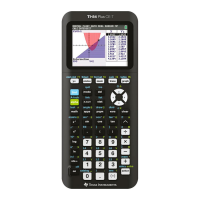
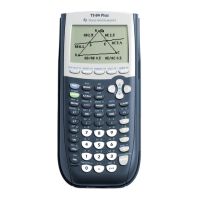
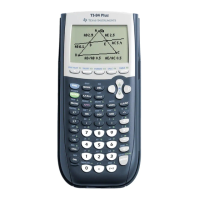
The TI-84 Plus T uses 4 AAA batteries.
TI recommends that you:
• Use new batteries for an exam
• Bring an extra set of new batteries to the exam
• You cannot enter exam mode if the graphing calculator is in a low or critically-low
battery state
Low Battery
If the battery is low:
• A low-battery warning screen will display when you turn on the graphing calculator
• Replace your batteries
Critically-Low Battery
If the battery is critically low:
• A low-battery message may flash on the Home Screen
• The calculator will turn off
• Replace your batteries
Entering Exam Mode
You may not set this calculator in exam mode unless you are instructed by the
examiner.
1. Turn the calculator off (ă).
2. Press and hold Ã, Í, É.
3. Press OK on each screen to place calculator in exam mode.
• Exam LED will blink amber.
To turn LED off and re-enable files after the exam, link (via unit-to-unit cable) to
another calculator and send a list. You can also connect to a computer and use TI
Connect™ CE to drag a file off. To do this, click on the TI Connect ™ CE window, then
drag the file back on to your calculator to turn off the exam LED.
You should turn the exam LED off after the exam to preserve your battery.
Using Press-to-Test Mode
• Press-to-Test is a three-key sequence to place the TI-84 Plus T in the allowed state
for an exam.
• You may only set the calculator in exam mode when you are instructed by the
examiner.
Exam Mode and Exam LED 43





 To Next Page