42 Managing Calculator Files
Managing Calculator Files
Transferring the OS/Apps from Calculator to Calculator
You can transfer the operating system (OS) and built-in Apps from one calculator to
another using a USB unit-to-unit cable. You must have all factory-loaded Apps on the
sending calculator prior to this transfer. If any Apps have been deleted from a TI-84
Plus T, you cannot send the OS/Apps unit-to-unit from that TI-84 Plus T. You will have
to download the correct TI-84 Plus T OS (with Apps) file for the TI-84 Plus T at
education.ti.com/go/download. Then use TI Connect CE to load the complete OS/Apps
file to the TI-84 Plus T.
If the sending TI-84 Plus T has all of the original Apps on the calculator, connect the
two calculators by firmly inserting the USB cable ends into the calculators. The USB
port is located on the top of the calculator.
Note: Make sure the four AAA batteries in your TI-84 Plus T are not low prior to
sending an OS/App. A warning screen displays when batteries are too low for
transfers.
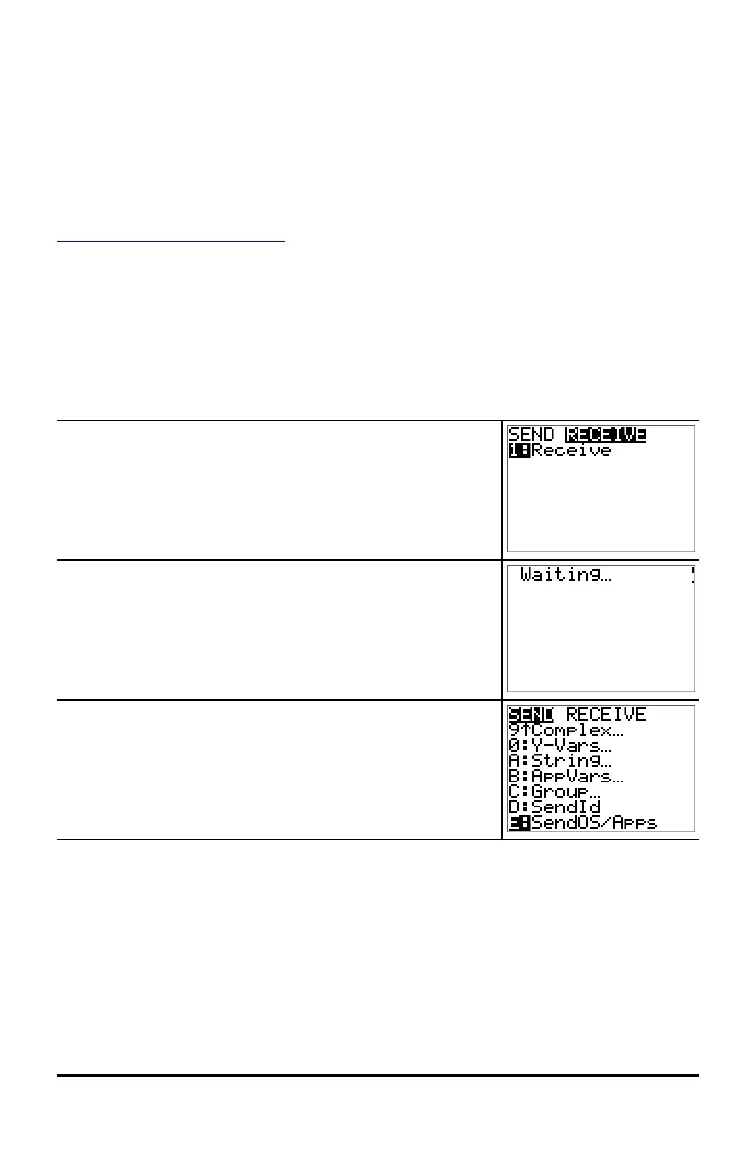
Receiving calculator:
y 8 ~ Í
When you press Í, the graphing calculator displays the
message Waiting...
Sending calculator:
y 8 } } Í
Compatibility with Graphing Calculators
• AppVars and TI-Basic Programs should be reviewed for use after the transfer
between the TI-84x family of graphing calculators. Some AppVars may not setup
an App as expected. Some of the TI-Basic Programs will need to be modified due
to any difference in screen resolution or new commands.
• TI-Basic Programs created using commands available only in the latest OS version
will not transfer to graphing calculators with an earlier OS version.




 To Next Page