44 Exam Mode and Exam LED
• The Exam LED will blink amber when you have properly set the calculator up for the
exam.
• Press-to-Test Mode:
- Deletes all RAM and selected Archive files
- Does not disable Apps from the TI-developed built-in Apps list below (as long
as they have not been deleted prior to going into Press-to-Test)
- Disables TI-Basic Programs and does not allow programming
- Conic Graphing
- Inequality Graphing
- Polynomial Root Finder and Simultaneous Equation Solver
- Equation Solver
- Language Localization Apps
See the "Using Applications" section for more information on Apps.
To use Press-to-Test:
1. With the calculator turned OFF, press and hold Ã, Í, and É.
2. Release all three keys. (The RESET OPTIONS screen displays.)
3. Select OK.
4. Press any key.
▶ In memory management (y L Mem Mgmt/Del), disabled files will display
with the not equal sign.
Notes:
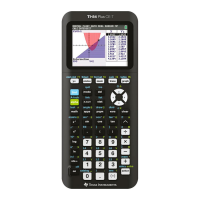
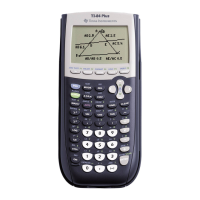
The TI-84 Plus T is in exam mode when the LED is blinking amber.
You can take the TI-84 Plus T out of exam mode using the following methods:
• Link a calculator to a calculator (via the unit-to-unit cable), and then transfer any
file(s) by pressing y [Link] SEND/RECEIVE.
-or-
• Send a calculator file from the computer using TI Connect™ CE.
Note: To preserve battery life, take your calculator out of Press-to-Test after the exam.




 To Next Page