79
Inserting New Features to the Feature Library
- In the Feature Library Editor window, right-click on the
feature library name and select
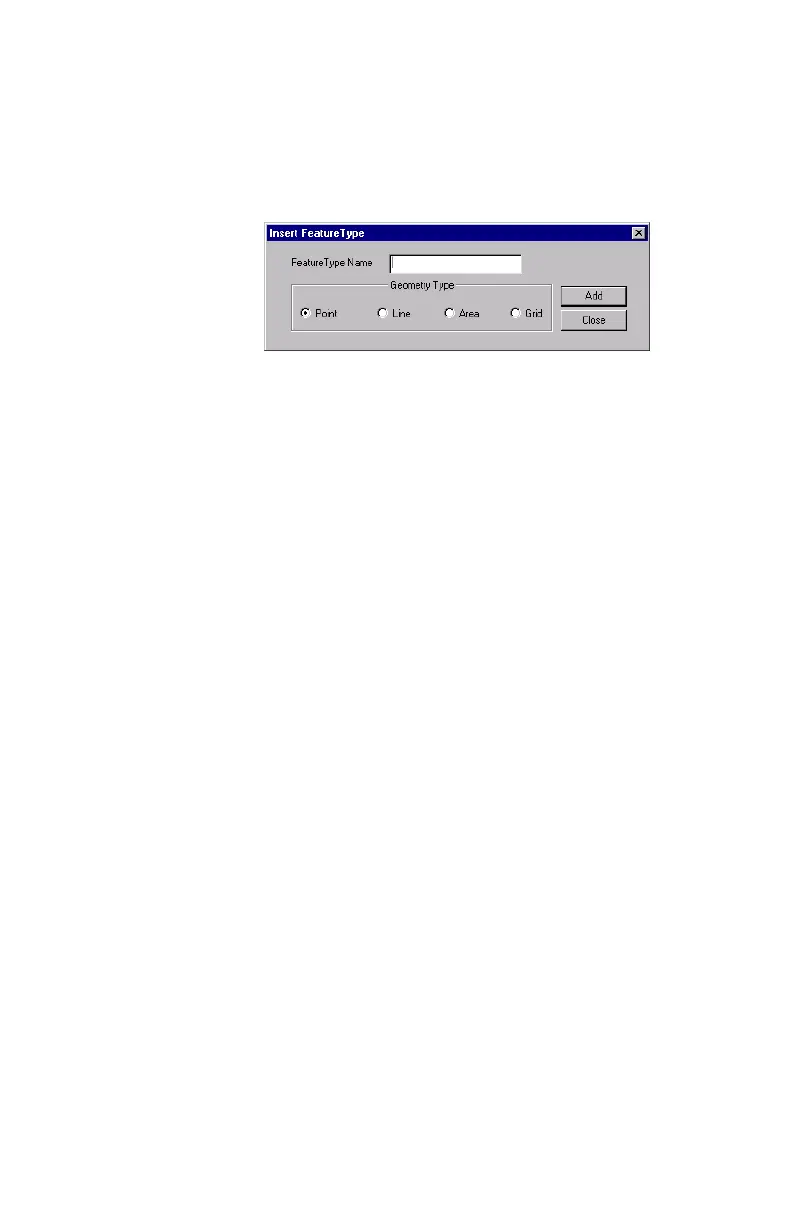
Insert Feature. A new dia-
log box opens in which you can define the first feature
for the library:
- Enter a name for this feature in the
Feature Type Name field
(see recommendations opposite).
- Indicate the type of the feature. For example, if the fea-
ture is a hydrant, check
Point, if it’s a coast line, check
Line, if it’s a car park, check Area, if it’s an area where
measurements should be performed according to a preset
array of waypoints, check
Grid. Grid features are pre-
sented in detail in a separate chapter starting on page 86.
Refer to this chapter if you need to define a new grid fea-
ture.
- Click the
Add button. The Insert Feature Type dialog box
is displayed one more time so that you can now define
the second feature for the library.
- Indicate the type of the second feature as explained
above and then click the
Add button.
- Repeat the above steps until all the features have been
defined.
- After defining the last feature, click the
Close button.
It sometimes is a good
idea to choose a name
that reflects the geometry
type of the feature. For
example, as the last 2
characters in the name,
you could use “Ln” for a
line feature, “Ar” for an
area feature, “Gd” for a
grid feature and “Pt” for
a point feature (although
point feature names are
often self-explanatory).
The reason for doing this
is that the field operator
will be able to rely on
feature names to clearly
identify the type of fea-
ture she/he selects from
the feature list.


 To Next Page