82
Renaming a Feature, Defining its Representation
on the Map
Still from the Feature Library Editor window, you can
change the name of a feature as explained below:
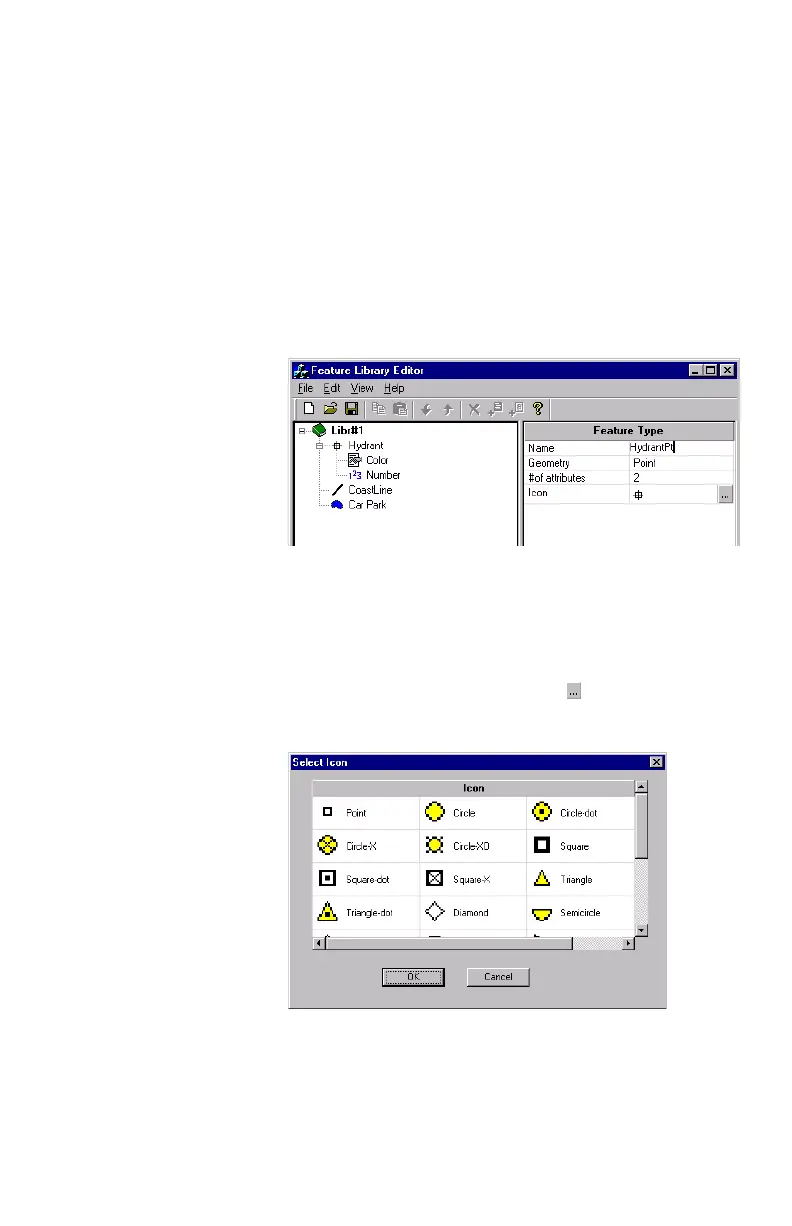
- In the left-hand pane of the window, click on the feature
name you want to edit. This displays the Feature Type
table on the right.
- Double-click on the cell containing the feature name (see
example below) and type in a new name
- Press the Enter key to record the change.
From the same table, you can also change the shape and as-
pect given to a feature on the map.
The representation of a point feature on the map is an icon
that you can define as explained below:
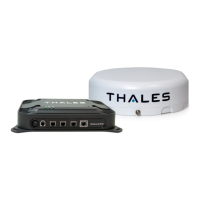
- In the Icon row of this table, click . A new dialog box
opens in which you can select a new icon for the feature:
Up to 22 different icons
are listed in this box.
The icon you choose
here will also be shown
on the receiver’s Map
screen during field oper-
ations dealing with fea-
tures of this type.


 To Next Page