Using recording features
18
• Wait until the product is completely booted up after turning it on, and then begin operating the vehicle. The
video recording does not begin until the product is completely turned on (booted up).
• When incident continuous recording starts, a double "beep" sounds as a notification. This function saves
you time when checking the status LED to know the operating status of the product.
• To enable recording, you must insert a memory card into the product.
3.4 Recording manually
You can record a scene you want to capture while driving and store it as a separate file.
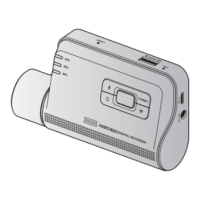
To start manual recording, press the REC (
) button. Then, manual recording will start with the voice
guide. During manual recording, the product operates as follows.
Mode Operation description Recording LED (REC)
Manual recording
When you press the REC (
) button, a video will be recorded for
1 minute, from 10 seconds before to 50 seconds after pressing the
button, and stored in the "manual_rec" folder.
(flickers)
3.5 Using parking mode
When the product is connected to the vehicle via the hardwiring cable, the operating mode is switched to
parking mode with the voice guide after the engine or electrical accessories are turned off.
• Parking mode operates only when the hardwiring cable is connected. The hardwiring cable must be
professionally installed to the vehicle by a trained mechanic.
• To use all recording modes, you must insert a memory card into the product.
• Depending on the battery charging status of the vehicle, the duration of parking mode may differ. If you
want to use parking mode for an extended period, check the battery level to prevent battery depletion.
If you do not want to use parking mode or you want to change the mode settings, from the mobile viewer,
tap Dash Cam Settings
>
Record Settings.


 To Next Page