Using recording features
21
3.5.1 Checking the video file storage location
You can insert the memory card used for recording into a PC to check the video file storage location. Also,
you can play the videos on a PC using the PC viewer. For more information about how to play videos via the
PC viewer, refer to "4. Using the PC viewer".
Follow the instructions to play the videos in the memory card on a PC.
1
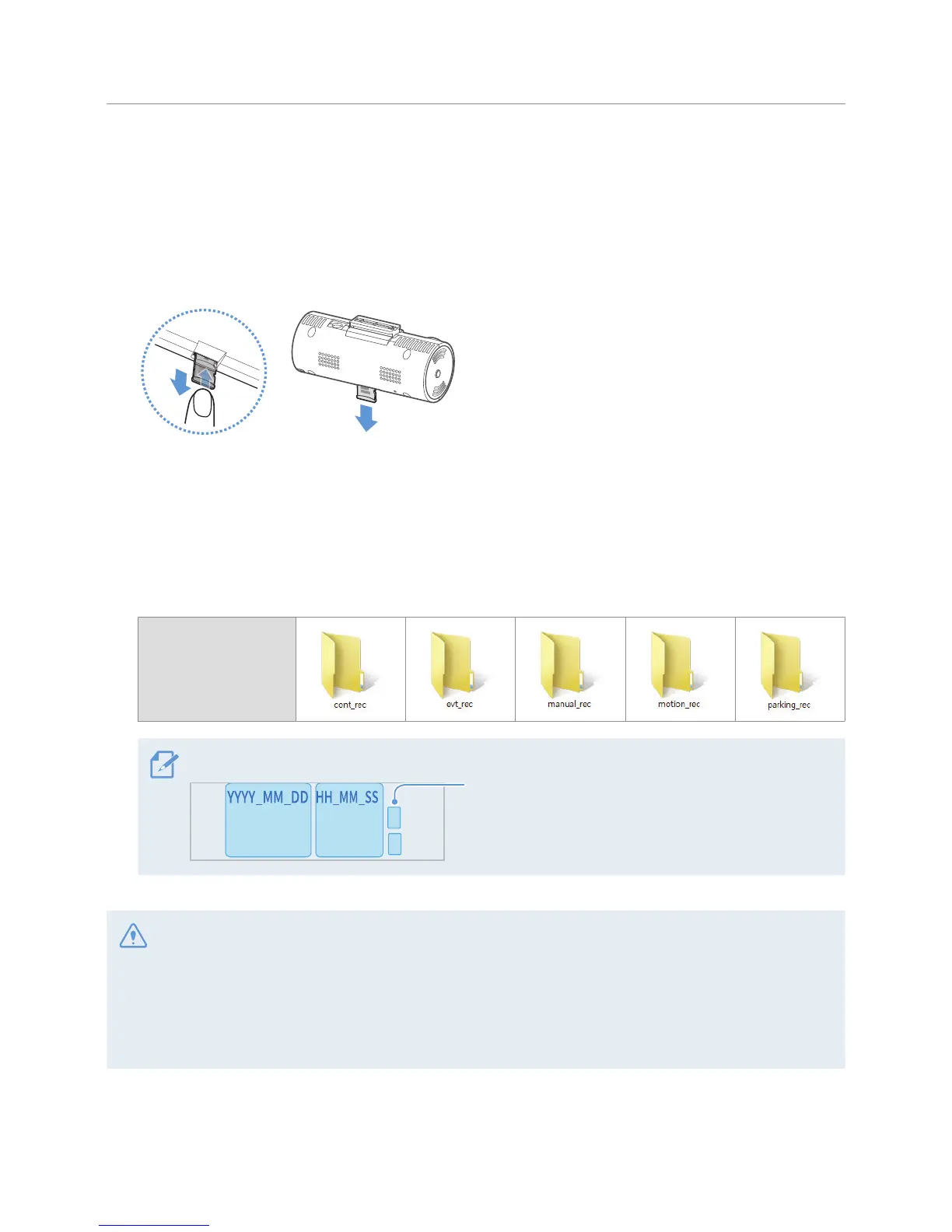
Turn off the product and remove the memory card.
2
Insert the memory card into a memory card reader connected to your PC.
3
On your PC, open the Removable Disk folder.
4
The folder names are displayed in English. Refer to the following table to open the folder you want and
check the video file list.
In the memory card
A file name is composed of the recording start date and time, and the recording option.
Recording conditions
•F: Front camera
•R: Rear camera (when optional
rear camera is equipped)
•Ensure that the product is turned off before removing the memory card. The recorded video files may be
lost and the product may be damaged if you remove the memory card while the product is still on.
•Play videos on a computer only. If you play videos by inserting the memory card in devices such as a
smartphone or a tablet PC, the video files may be lost.
•Do not store any data on the memory card other than videos recorded by the product. Doing so may cause
the loss of recorded video files or product malfunction.


 To Next Page