34
Note: Depending on the settings of your TV set and your country selection during the initial
setup, the Home menu may contain different elements.
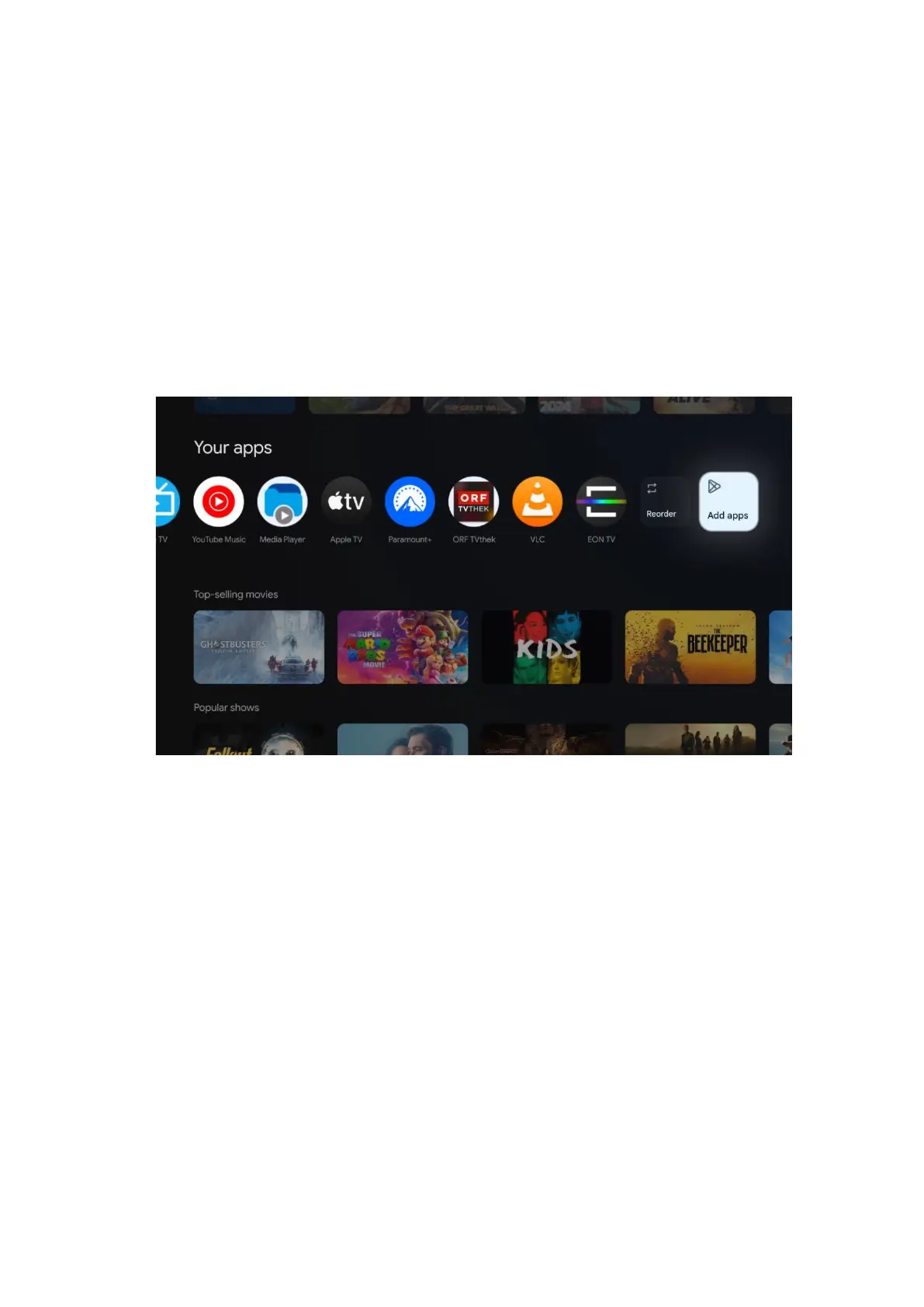
The second (Your apps) row is the row of applications. The most important applications for
streaming services such as Netflix or YouTube as well as live TV and MMP (multimedia player)
can be found here.
Select an application with the directional buttons on your remote control and confirm your
selection with the OK button to start the selected application.
Select an application and press and hold the OK button to remove the selected application from
the row of favorites, move it to a new position or launch it.
On the penultimate and last position in this row you will find boxes with the options Reorder and
Add apps. Select these options to reorder the applications in this row or to add new application
to this Favorite applications row.
The operation of the live TV application and the multimedia player is explained in a separate
Menu chapter.
Further down on the home screen, you will find additional channels displayed by genre or
streaming content category.
9.1 Google account
Navigate to your profile icon at the top left corner and press OK. Highlight the profile icon and
press OK.
Here you can change your profile settings, add new Google accounts, or manage already
existing accounts.


 To Next Page