25
1. Ensure accurate nozzle height. Nozzle too high will cause warping, nozzle too low will
crash into platform causing damage and clogging. It is possible to manually fine tune
nozzle height value at "maintenance" and "print preview" panels. User could try to adjust
the nozzle height value plus or minus 0.1 - 0.2mm base on previous results.
2. Well calibrate the print platform. unleveled platform usually cause warping.
3. Give enough time for sucient pre-heating. Please use the "3D Print" - "Preheat". A well
preheated platform is essential for printing large objects without warping.
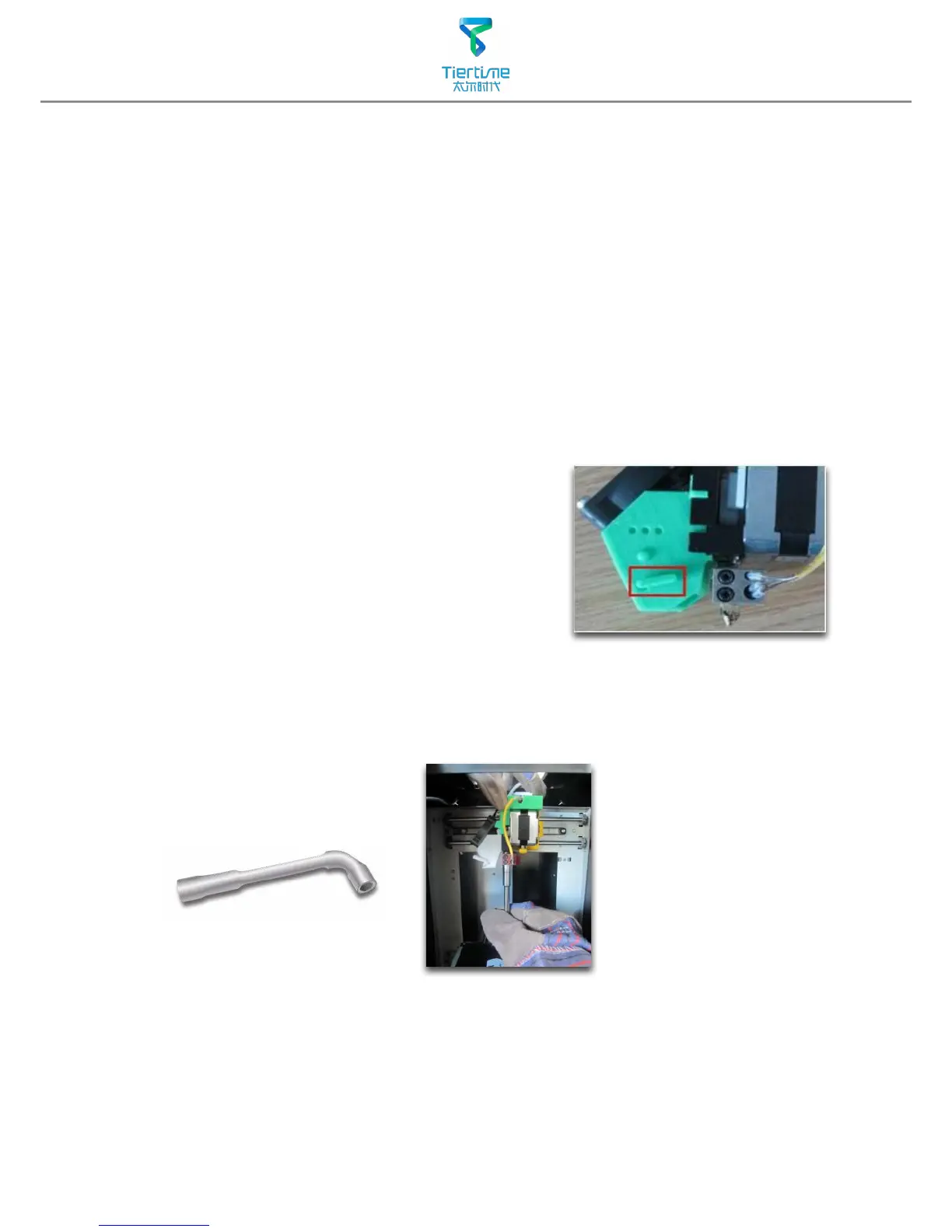
4. The air ow direction of the fan on the print head is adjustable. There is a small lever on
the fan duct, when printing PLA turn the lever anti-clockwisely to direct air ow to nozzle,
this will cool the PLA as soon as it is extruded and improve print quality. When printing
large object using ABS, to minimize warping, turn the lever clockwisely to direct the air
away from nozzle to slow down the cooling. For smaller ABS prints that warping is less
likely to happen, user could direct the air to nozzle for better print quality.
Printing Techniques
Remove the nozzle
Afte a long time of printing, the nozzle could become very dirty or even clogged. We can
replace it with a new one while the old one could be cleaned and reused.
1. Use extrude function in the maintenance panel, nozzle will heat up to printing
temperature.
2. Wear heat resistance gloves provided.
3. Wipe the nozzle with tissue or cotton.
4. Unscrew the nozzle using the wrench provided.
5. Remove the clog: there are many method such as drill through the clog using a 0.4mm
drill bit, try submerge in acetone or using a heat gun to melt and blow away the clog.
Precautions to ensure print quality:
5. No raft printing. It is highly recommended to use
raft for normal printing as it improves adhesion
and is required for leveling compensation,
therefore it is turned on by default. User could
turn it o in the "Print Preview" panel.
6. No support printing. It is possible to print without
generating supporting structures, user can turn
it o by choosing "Base Only" in Area drop down
menu of printing preference panel.


 To Next Page